
Want registry owners to know the moment a gift is bought — and to hear about refunds too? SaveTo Wishlist Registry can send automatic emails for new purchases, refunds, and new registries. This guide shows you how to turn those notifications on and send yourself a test.
Prerequisites
- The SaveTo Wishlist Registry extension installed and active Getting started with SaveTo Wishlist Registry
- Your store can send email (most can out of the box; an SMTP plugin makes delivery more reliable)
Step 1: Open the email notification settings
- Go to SaveTo Wishlist → Settings.
- Open the Gift Registry tab.
- Select the Email Notifications tab.
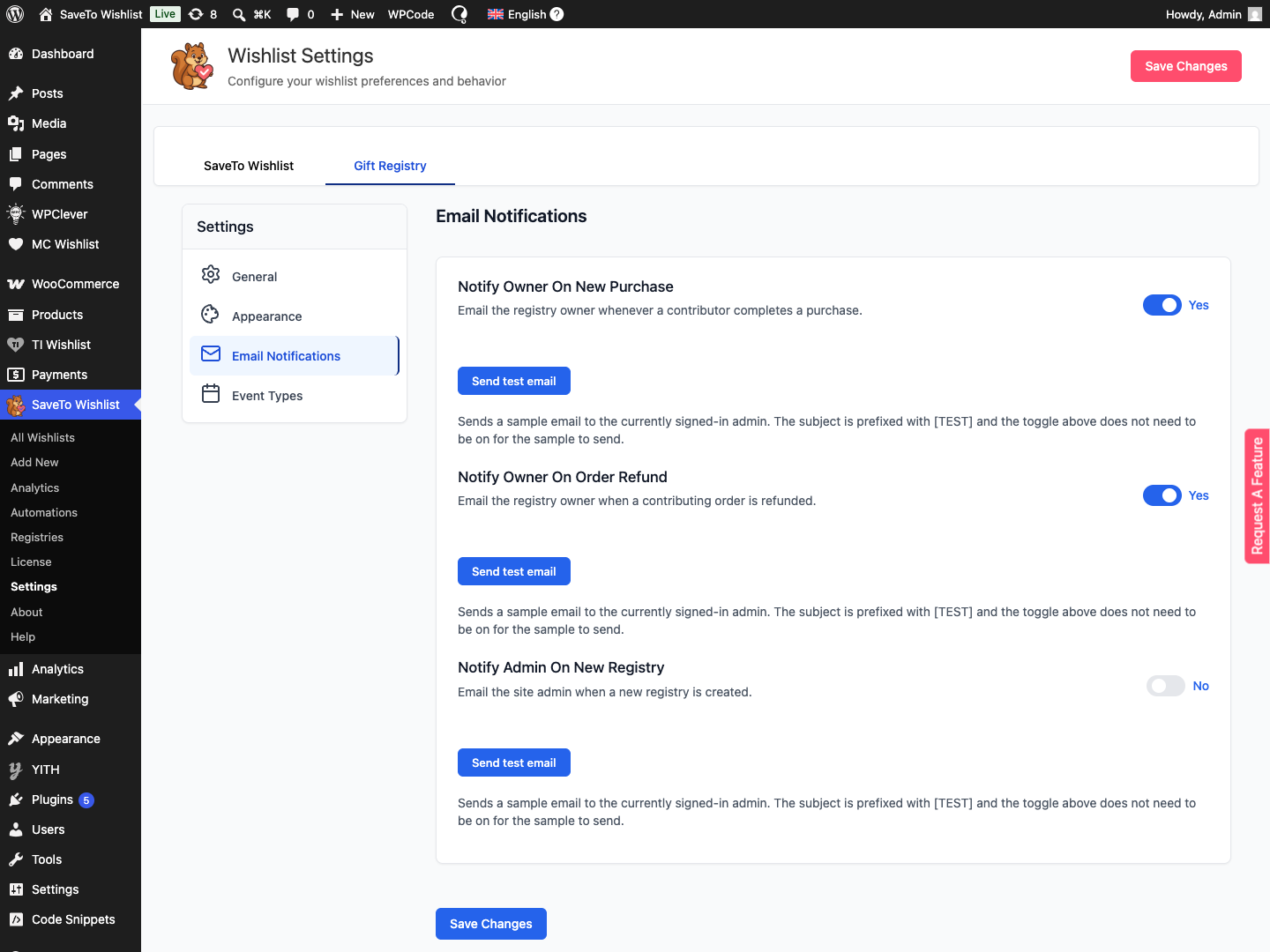
Step 2: Choose which emails to send
There are three notifications, each with its own on/off toggle.
- Notify owner on new purchase — emails the registry owner whenever someone buys an item from the registry. The email shows the item, SKU, quantity, buyer name, and purchase date, with a link to the owner’s registry dashboard. On by default.
- Notify owner on order refund — emails the owner when a contributing order is refunded or cancelled. A partial refund counts once the registry item’s quantity is fully refunded. The email shows the refunded item and quantity along with the refund date and order number. On by default.
- Notify admin on new registry — emails the site admin when a customer creates a new registry. The email shows the registrant names, event type, event date, owner name and email address, a link to the public registry, and a View in admin button. Off by default.
Flip each toggle to the setting you want. A change takes effect on the very next matching event.
Step 3: Send a test email
- Click Send test email beneath the notification you want to check.
- Open the inbox the test goes to (see below) to find the sample.
The purchase and refund tests go to the email address of the admin who’s currently signed in. The new-registry test goes to your site’s admin email address, the one set under Settings → General. Every test subject is prefixed with [TEST]. You don’t need to switch the toggle on first — the sample sends either way, so you can preview the email before going live.
Step 4: Save your changes
- Click Save Changes.
Troubleshooting
The test email never arrives
Send another test, then check your spam folder. If store emails generally don’t arrive, install an SMTP plugin so your server sends mail reliably — this affects all WordPress email, not just registry notifications.
Owners aren’t getting purchase emails
Confirm Notify owner on new purchase is on, and remember the email fires when the order reaches the completed status, or as soon as payment completes on stores where paid orders stay in processing. Purchase emails are queued in the background, so allow a moment for your store’s scheduled tasks to run.
Frequently asked questions
Who receives each email?
The purchase and refund emails go to the registry owner. The new-registry email goes to your site’s admin email address.
Does the test email need the toggle switched on?
No. Send test email always sends a sample, even when the notification is off — handy for previewing. The purchase and refund samples go to the signed-in admin, and the new-registry sample goes to your site’s admin email address.
Why is there a delay before an email arrives?
Notifications are queued and sent in the background so checkout is never held up. They go out on the next run of your store’s scheduled tasks.
Need help?
- Premium users: submit a support ticket and our team will help you out.
- Free users: post in the WordPress.org support forum.

