Shared your registry link and wondering what your friends and family actually see? Guests get a clean, read-only page with your event details and gift list, and none of the edit controls you see as the owner. Here’s how the share option, the empty registry message, and the footer work for guests in SaveTo Wishlist Registry.
Before you begin
- SaveTo Wishlist Registry installed and active
- Your Registry page set up, as covered in Getting started with SaveTo Wishlist Registry
- At least one registry created, either by a customer or by converting a wishlist to a registry as a store admin
None of the parts in this article have a setting. They work the same way on every registry as soon as the plugin is active.
Guest view vs owner view
Everyone opens the same registry link, but the page changes depending on who’s looking. A guest is anyone who isn’t the registry owner. That includes logged-out visitors and logged-in customers browsing someone else’s registry.
The owner view appears for the customer who owns the registry. It also appears for store admins and shop managers, on every registry. So when you open a customer’s registry while logged in to WordPress, you see the owner view, not what their guests see.
Guests see the cover image, event type, names, event date, message, location, the item list with how many of each item has been bought, and the footer. Owners also see the Share button, pencil icons for editing details, the Add item button, and controls for reordering and removing items.
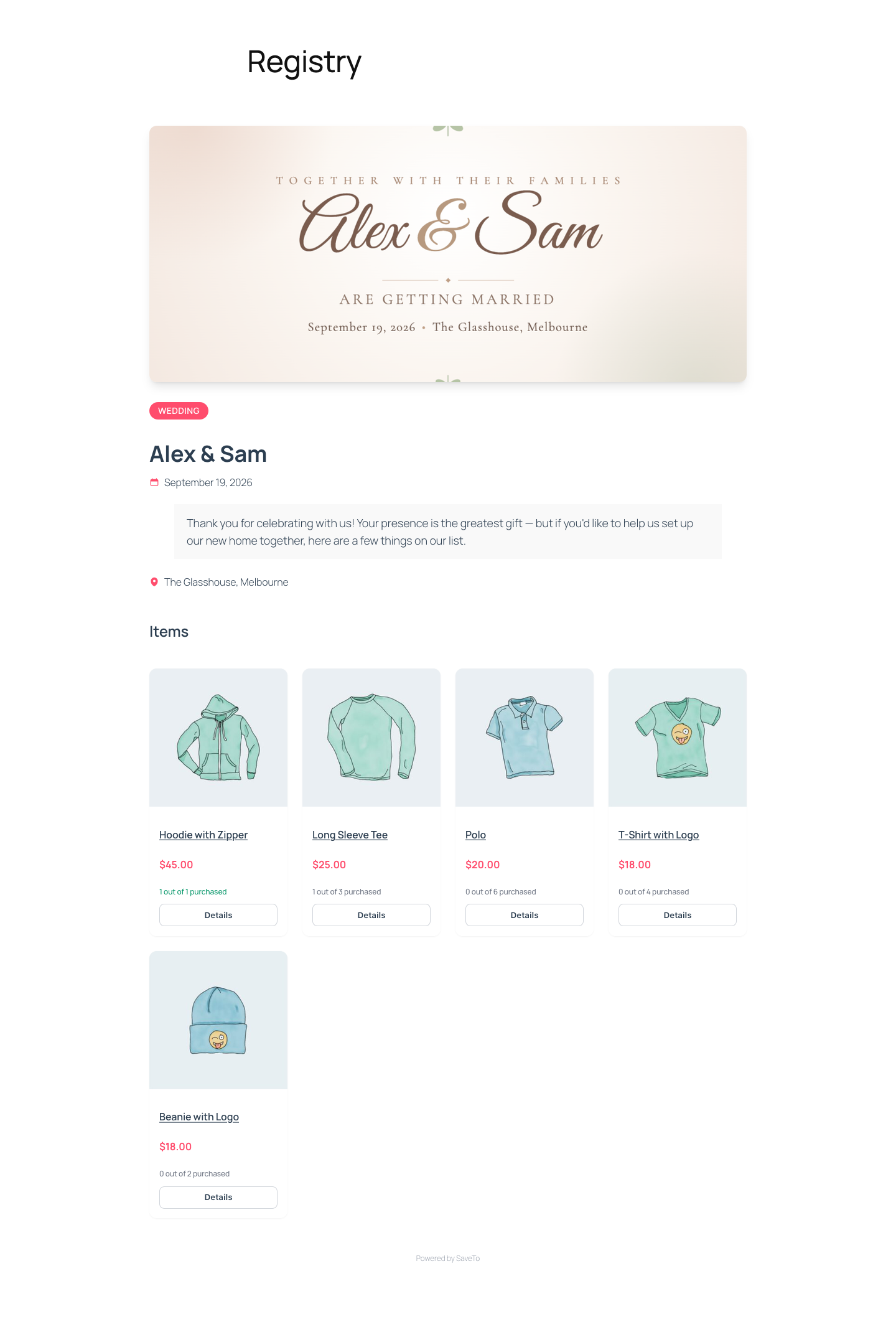
To check the guest view yourself, open the registry link in a private or incognito browser window.
The share option
Guests don’t see a share button on the registry page. Only the owner, and store admins, see the Share button at the top of the page. Guests usually arrive from a link the owner already sent them, so they can pass that same link on by copying it from their browser’s address bar.
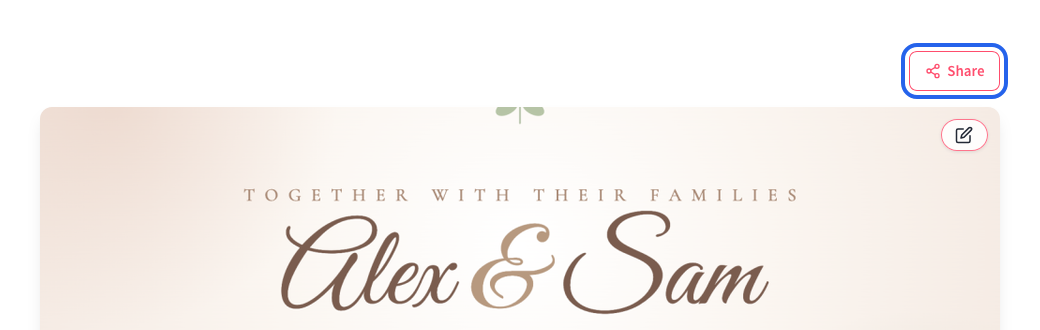
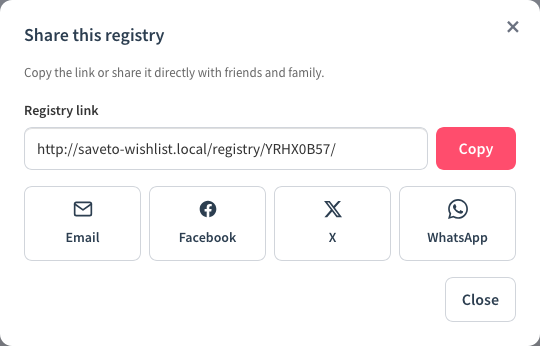
When the owner clicks Share, a Share this registry window opens with the message “Copy the link or share it directly with friends and family.” It includes:
- Registry link: the public link to the registry, with a Copy button. After copying, the button briefly changes to Copied!
- Email: opens the owner’s email app with the registry name as the subject and the link in the message
- Facebook, X, and WhatsApp: open each service in a new tab with the registry link ready to post or send
- Close: closes the window
Owners can also copy the link from My Account > Gift Registries. The Share URL column shows each registry’s link with a copy button next to it. The Share button stays available to the owner even after a registry is archived.
The empty registry message
If a registry doesn’t have any items yet, guests see a dashed box with a shopping bag icon and the message This registry has no items yet. in place of the item list. The Items heading doesn’t appear until at least one item is added.
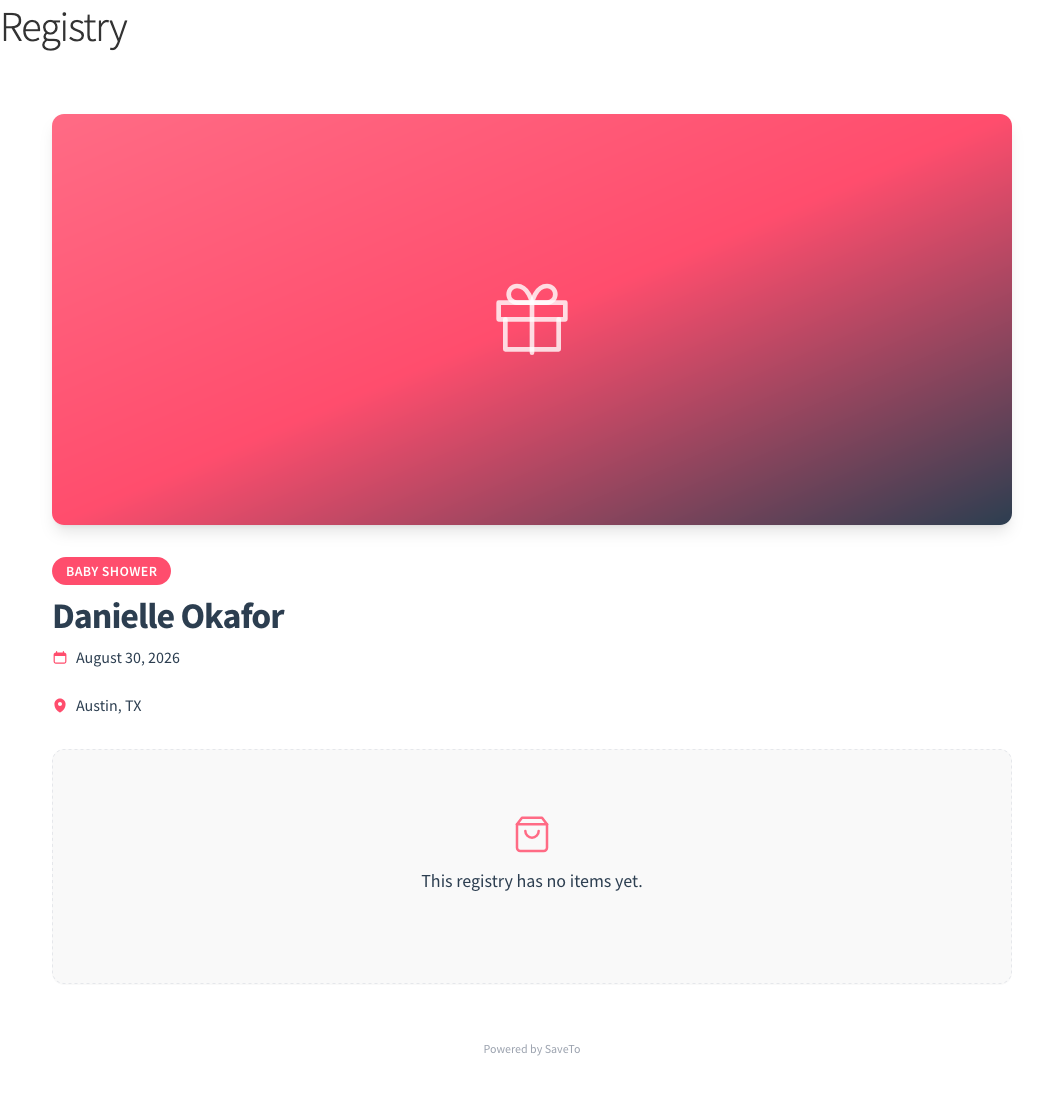
The owner sees the same message, plus an Add item button inside the box so they can start filling the registry right away. If the registry is archived, the Add item button is hidden for the owner too. Adding items is covered in How to add and manage items in a gift registry.
Because guests can’t buy anything from an empty registry, it’s worth adding items before sending out the link.
The registry footer
Every registry page ends with a small, centered Powered by SaveTo line under a thin divider. It shows for guests and owners alike, on both active and archived registries.
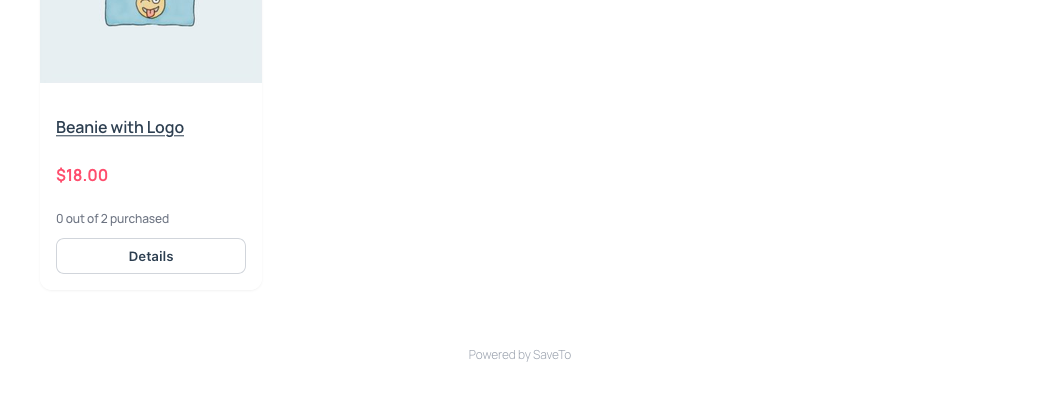
There’s no setting to hide or change the footer text, and the registry landing page appearance settings don’t affect it. A developer can replace or remove it with a code snippet, as described in How to extend SaveTo Wishlist Registry with hooks and the REST API.
Troubleshooting
I can see the Share button and edit icons, but my customer’s guests say they can’t. That’s expected. You’re logged in as a store admin, so you see the owner view on every registry. Open the link in a private browser window to see exactly what guests see.
A guest sees “Registry not found.” The registry has been deleted, or the link is wrong. Ask the owner to copy the link again from My Account > Gift Registries, or check the registry’s status as described in How to manage gift registries as a store admin.
Guests see “This registry is no longer accepting purchases.” The registry has been archived. Guests can still view it, but they can’t buy from it. Store admins can change a registry’s status from the admin registry list.
Frequently asked questions
Can guests share a registry with other people?
Yes, but not with a button on the page. Guests can copy the link from their browser’s address bar and send it however they like. The Share button is only shown to the owner and store admins.
Can I remove the “Powered by SaveTo” footer?
Not from the settings. A developer can remove or replace it with a code snippet using the registry’s footer filter.
Can I change the “This registry has no items yet.” message?
There’s no setting for it. A developer can replace it with a code snippet, or you can change the wording with a translation plugin.
Do guests need an account to view a registry?
No. Anyone with the link can view the registry page.
Related articles
- Getting started with SaveTo Wishlist Registry
- Registry landing page appearance settings
- How to add and manage items in a gift registry
- How to set up a Find a Registry search page
- How to extend SaveTo Wishlist Registry with hooks and the REST API
Need help?
- Premium users: Open a support ticket
- Free users: Visit our community forum