

 Reviewed by
 A shopper opens a product page, likes what they see, and taps save instead of Add to Cart. On some WooCommerce stores, that’s where it ends. The item sits in a wishlist. The shopper closes the tab, and nothing happens for weeks.
A WooCommerce wishlist popup closes that gap. SaveTo Wishlist Lite sends two browser signals after a successful wishlist save. A short JavaScript snippet can listen for the event and open a Popup Maker popup. Popup Maker can also check the cookie on later pages.
We’ve seen plenty of store owners treat a save as a passive bookmark. A wishlist save can be a strong sign that a shopper is interested in buying.
This guide explains both signals, how to connect them to a popup, and when the setup may be useful.
Table of Contents
- Why Wishlist Saves Can Show Strong Buying Interest
- What The SaveTo Wishlist And Popup Maker Integration Does
- What You Need Before You Start
- How To Set Up A WooCommerce Wishlist Popup
- How To Target Return Visitors With The Wishlist Cookie
- Five Ways To Use A WooCommerce Wishlist Popup
- Limits To Know Before You Rely On These Signals
- Frequently Asked Questions: WooCommerce Wishlist Popup Maker Integration
- Turn Saves Into Sales With The WooCommerce Wishlist Popup Maker Integration
Why Wishlist Saves Can Show Strong Buying Interest
A wishlist save shows interest in a specific product, but it doesn’t always mean the shopper is ready to buy. The shopper picked a specific product and showed interest in it. What they haven’t done is buy it today.
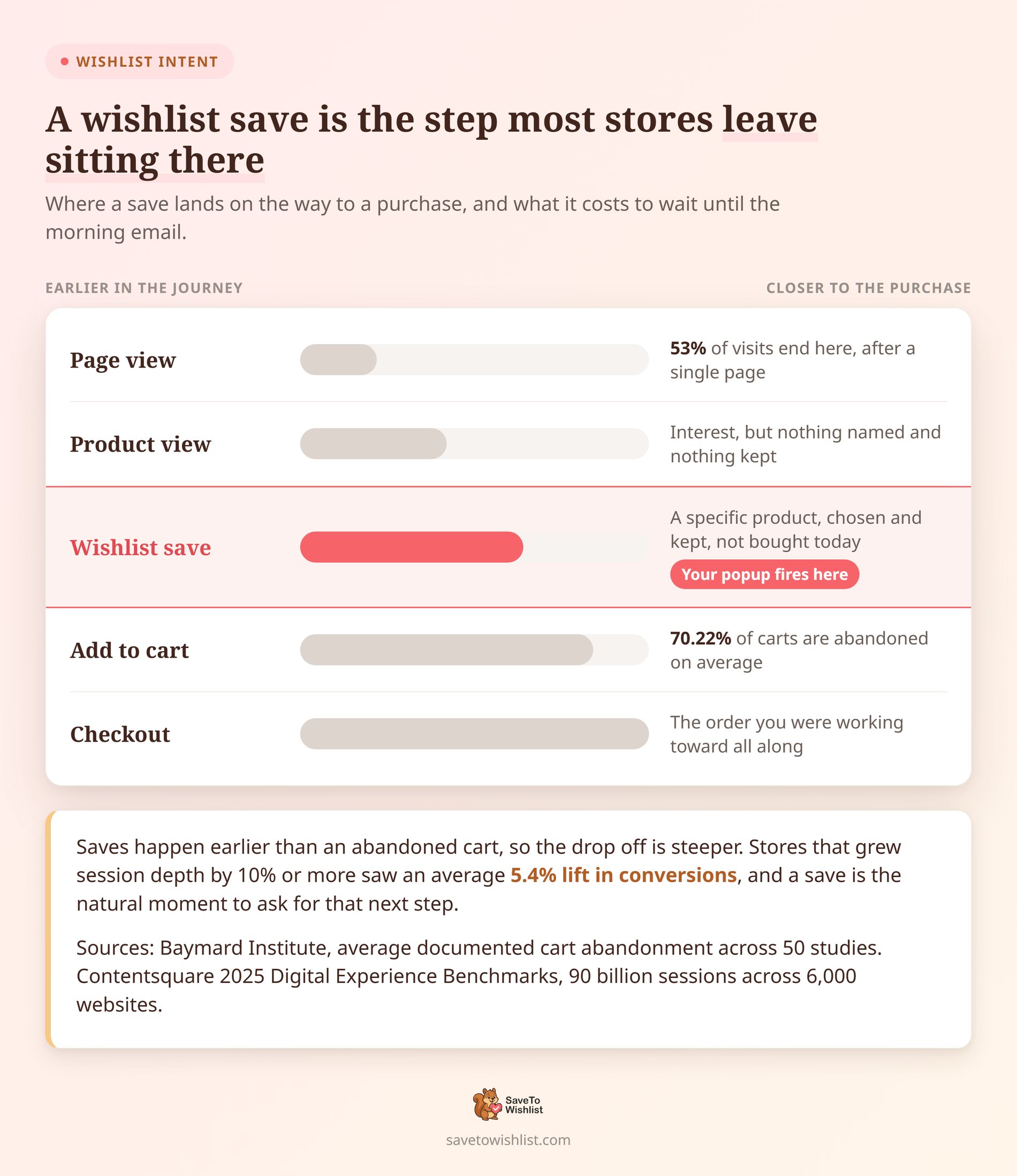
That hesitation is normal, and it’s expensive. According to the Baymard Institute, the average documented cart abandonment rate is 70.22%, drawn from 50 separate studies. Wishlist saves often happen earlier than cart abandonment. However, the cart abandonment rate does not tell us how often wishlist shoppers leave without buying.
Second chances are getting harder
Plus, getting a second chance at that shopper keeps getting harder. Contentsquare’s 2025 Digital Experience Benchmarks studied 90 billion sessions across 6,000 websites. It found conversion rates down 6.1% year over year, with 53% of visits ending after a single page view.
The same research found a link between longer visits and higher sales. Sites that increased the number of pages viewed per visit by 10% or more saw an average 5.4% rise in conversions. This suggests that helping shoppers continue their visit may improve sales. It doesn’t prove that one extra step caused the increase. A save may be a good time to invite the shopper to take another useful step.
The window right after a save
🔍️ One thing we see constantly: Stores treat the wishlist as storage and leave the follow-up to email. If the email goes out later, the shopper may no longer be thinking about the product. The time right after a save may be a good chance to show a useful message, and a WooCommerce wishlist popup is one way to deliver it.
That said, the wider pattern is worth understanding before you build anything. Our guide to WooCommerce browse abandonment covers what happens to shoppers who look, like, and leave.
What The SaveTo Wishlist And Popup Maker Integration Does
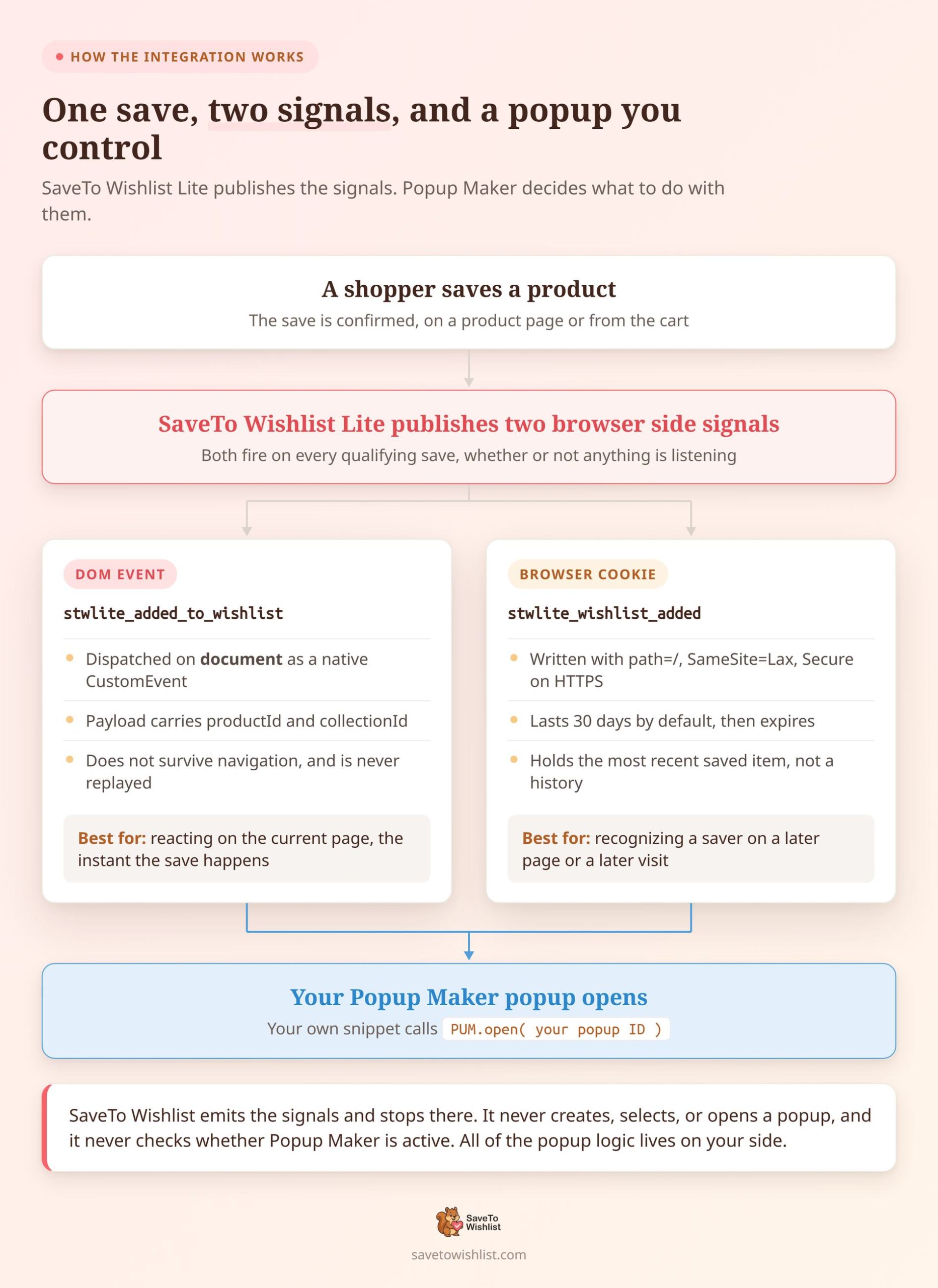
SaveTo Wishlist Lite publishes two browser-side signals after it confirms a successful save. Custom code can listen for the event and open a Popup Maker popup. For the cookie, you can use a Popup Maker cookie condition or custom code.
| Signal | Name | Best used for | Persistence |
|---|---|---|---|
| DOM event | stwlite_added_to_wishlist | Reacting on the current page when the save happens | Sent once and not stored |
| Browser cookie | stwlite_wishlist_added | Recognizing the same browser on a later page or visit | Up to 30 days |
What each signal carries
SaveTo Wishlist dispatches the event on document as a native CustomEvent. It carries a small payload:
event.detail = {
  productId,    // product ID, or the variation ID when a variation was saved
  collectionId  // the wishlist collection, or 0 for a guest
}
The cookie stores a single URL-encoded ID: the product or variation the shopper saved. SaveTo Wishlist writes it with path=/, SameSite=Lax, a 30-day max-age, and Secure on HTTPS pages. A later save overwrites the value. So the cookie holds the most recent saved item, not a history.
Which plugin handles what
The split of responsibilities matters here, because it shapes the whole setup. For this integration, SaveTo Wishlist provides the signals but doesn’t manage the Popup Maker popup. It doesn’t create, select, or open a Popup Maker popup, and it doesn’t check whether Popup Maker is active. You build the popup in Popup Maker, but the instant event method also needs a short JavaScript snippet.
If you’d rather route wishlist events somewhere else, our Zapier and webhooks guide covers that.
The naming trap to watch for
One naming trap catches people early. SaveTo Wishlist has its own Popup option under the Add to wishlist button setting. That refers to the plugin’s own confirmation modal. It has nothing to do with Popup Maker, and it doesn’t switch the integration on or off.
What You Need Before You Start
The instant event method needs all five items below. The cookie method may not require JavaScript if your Popup Maker setup includes a Cookie Exists condition (more on this below). However, Popup Maker still needs a trigger, such as a time delay or exit intent.
- SaveTo Wishlist Lite 1.1.0 or later: The signals arrived in 1.1.0. Anything older emits nothing. The integration ships in SaveTo Wishlist Lite, the free version, so no upgrade is needed.
- WooCommerce installed and active: SaveTo Wishlist Lite doesn’t finish its normal startup without it.
- The SaveTo Wishlist frontend script loaded: JavaScript produces the signals. A page without the script produces neither the event nor the cookie.
- Popup Maker installed and active: It displays the popup after your JavaScript listener calls it. SaveTo Wishlist still sends the signals when Popup Maker is not active.
- You need a tool that supports front-end JavaScript. With a child theme, place the code in a JavaScript file and load that file through WordPress. Add script tags only inside an HTML or PHP file. Do not paste raw JavaScript into a tool that accepts only PHP.
There’s one filter that can quietly break all of this. From SaveTo Wishlist Lite 1.1.2, returning false from stwlite_load_frontend_assets stops the frontend JavaScript loading on that request. No script means no event and no cookie. The wishlist buttons on that page stop working too.
Our WooCommerce wishlist REST API guide covers more of the developer surface.
How To Set Up A WooCommerce Wishlist Popup
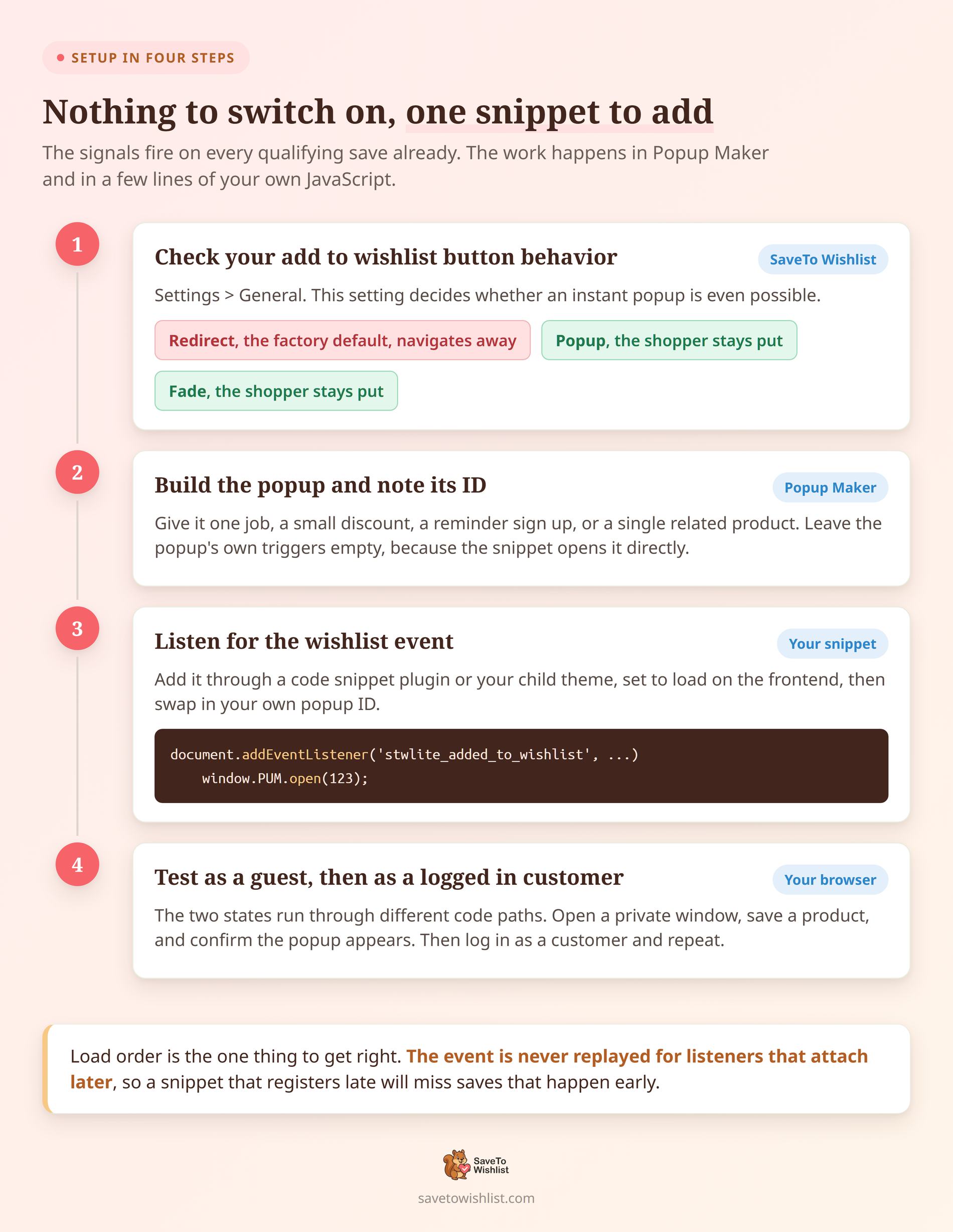
You don’t need to switch on an integration setting in SaveTo Wishlist to create a WooCommerce wishlist popup. The signals fire on every qualifying save whether or not anything is listening. The instant method requires work in Popup Maker and a short JavaScript snippet. Basic cookie targeting may not require a snippet.
Step 1: Check your add to wishlist button behavior
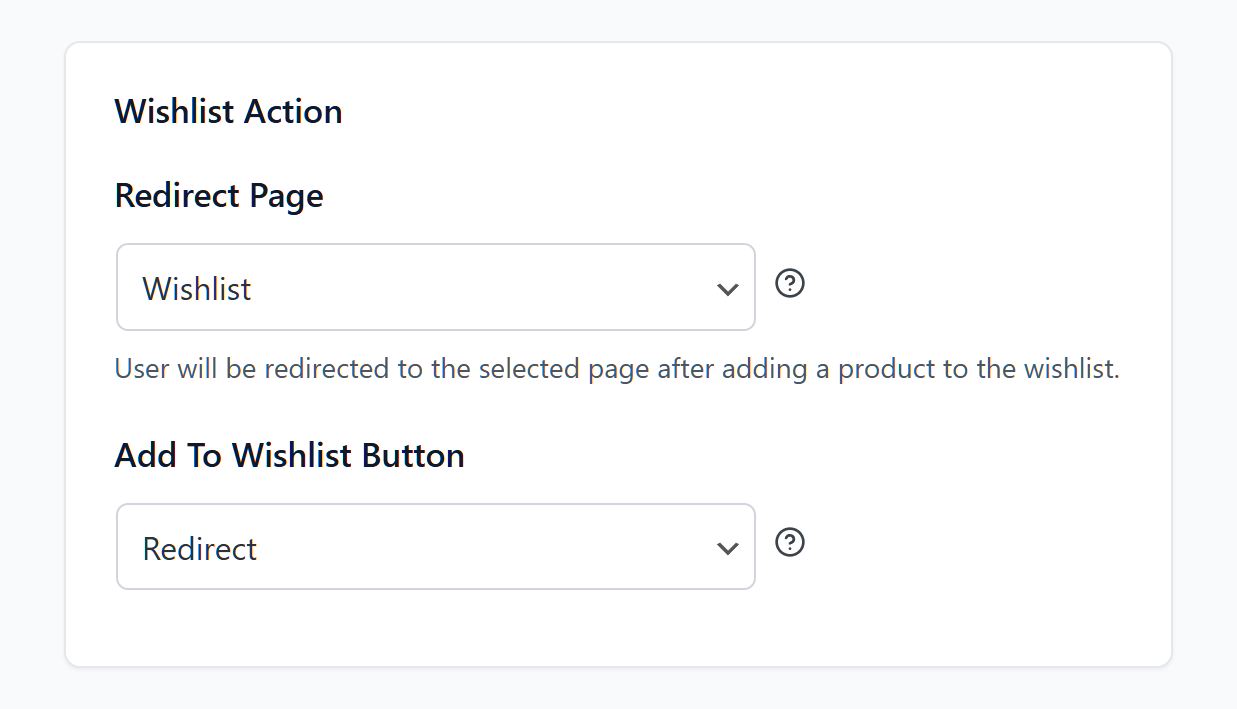
This setting affects how long an instant popup can remain visible. Redirect sends logged-in customers to another page right after the event, while Popup and Fade keep them on the current page. Go to SaveTo Wishlist > Settings > General and find the Add to wishlist button setting. It has three choices: Redirect, Popup, and Fade. Redirect is the factory default.
Popup and Fade keep all shoppers on the current page. Redirect sends logged-in shoppers to the wishlist page, but guests see the plugin’s confirmation popup instead. The navigation cuts the moment short.
Switch to Fade if you want same-page popups and don’t need the redirect. If the redirect is part of your flow, use the cookie method instead. It survives the page change.
Step 2: Build the popup in Popup Maker
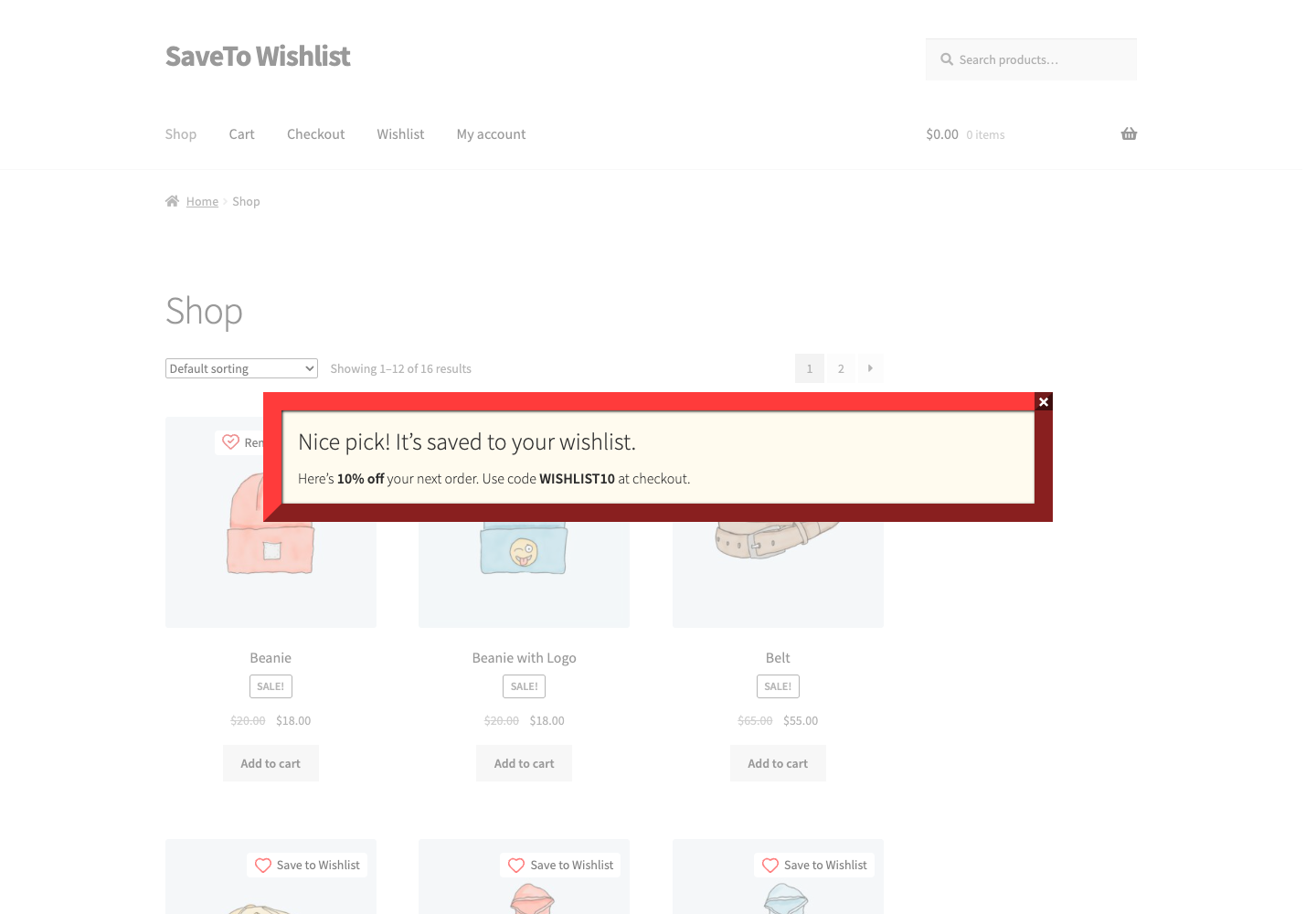
A save-triggered popup works best when it does one job. That might be a small discount on the saved item, a reminder sign-up, or a nudge toward a related product. Pick one and build it.
For the instant event method, leave the popup’s triggers empty because the JavaScript opens it. For the cookie method, add a Popup Maker trigger. Then note the popup’s ID. It appears in the Popup Maker popup list and in the URL when you edit it.
Step 3: Listen for the wishlist event
This snippet handles the instant event method. Add it with a tool that supports front-end JavaScript, and make sure it loads on store pages. Replace 123 with your own popup ID.
document.addEventListener('stwlite_added_to_wishlist', function (event) {
  var detail = event.detail || {};
  var productId = Number(detail.productId);

  // Cart-to-wishlist saves report 0, so skip those for a product-specific offer.
  if (productId === 0) {
    return;
  }

  if (window.PUM && typeof window.PUM.open === 'function') {
    window.PUM.open(123);
  }
});
Three details there matter more than they look. The listener sits on document, because that’s where SaveTo Wishlist dispatches the event. The window.PUM guard keeps an error out of your console if Popup Maker hasn’t loaded yet. And PUM.open() is Popup Maker’s own documented method for opening a popup by ID.
Make sure the listener is ready before a shopper saves an item. Popup Maker must also be ready when the event fires, or the current code will not open the popup. SaveTo Wishlist never replays the event for listeners that attach later. A snippet that registers late will miss saves that happen early.
Step 4: Test as a guest and as a logged-in customer
Test both states, because they run through different code paths. Open a product page in a private window, save the product, and confirm the popup appears. Then log in as a customer and repeat.
Guest saves are stored in the browser rather than on the server. Guest wishlists must be enabled, and the browser must allow local storage.
To check the signals directly, open your browser’s developer tools. Run the listener above with a console.log in place of the popup call. Then look in Application > Cookies for stwlite_wishlist_added after a save.
🔍️ A mistake we see repeatedly: the popup gets tested once while logged in as an administrator, then shipped. Guests take a different path through the code. If the browser blocks local storage, a guest save may fail and no signal will be sent. If only cookies are blocked, the event may still be sent. Test the guest case before you count on it.
How To Target Return Visitors With The Wishlist Cookie
The cookie lets you recognize a saver on a later page or a later visit. It lasts up to 30 days. The event fires once when the save happens, and the browser never stores it for later pages.
Add a cookie condition in Popup Maker
Add a Popup Maker trigger. If your Popup Maker setup includes cookie targeting, add a Cookie > Cookie Exists condition and enter stwlite_wishlist_added. The condition limits who sees the popup, but it doesn’t open the popup by itself. The JavaScript example below isn’t needed for a basic cookie check. Use the example code if you need to read the saved product ID or add behavior that Popup Maker cannot provide.
Read the saved product ID with JavaScript
document.addEventListener('DOMContentLoaded', function () {
  var match = document.cookie.split(';').map(function (part) {
    return part.trim();
  }).find(function (part) {
    return part.startsWith('stwlite_wishlist_added=');
  });

  if (!match) {
    return;
  }

  var savedProductId = decodeURIComponent(
    match.substring('stwlite_wishlist_added='.length)
  );

  if (window.PUM && typeof window.PUM.open === 'function') {
    window.PUM.open(456); // Your "welcome back" popup ID
  }
});
Custom code can use savedProductId to choose a popup or find product details. The sample code doesn’t do this, so you would need to write more.
Control how often the popup opens
Popup Maker’s repeat-display settings can limit the popups its own triggers open. If custom code calls PUM.open() on every page, add a separate check to limit how often the popup opens. Test the rule to make sure it appears only as often as you want. If your Popup Maker setup includes an exit-intent trigger, the same check makes a useful gate. Only browsers that still have the wishlist cookie meet this condition.
Retargeting ads use the same intent a different way, which AdTribes covers in its WooCommerce marketing guide.
What the cookie does not prove
Treat the cookie as a record that a save happened. It isn’t proof the wishlist still has items in it. SaveTo Wishlist clears the cookie when a shopper removes the last item through the supported front-end removal process. Removals through other routes won’t necessarily clear it.
Even so, wishlists can help returning shoppers find products they saved earlier.
Five Ways To Use A WooCommerce Wishlist Popup
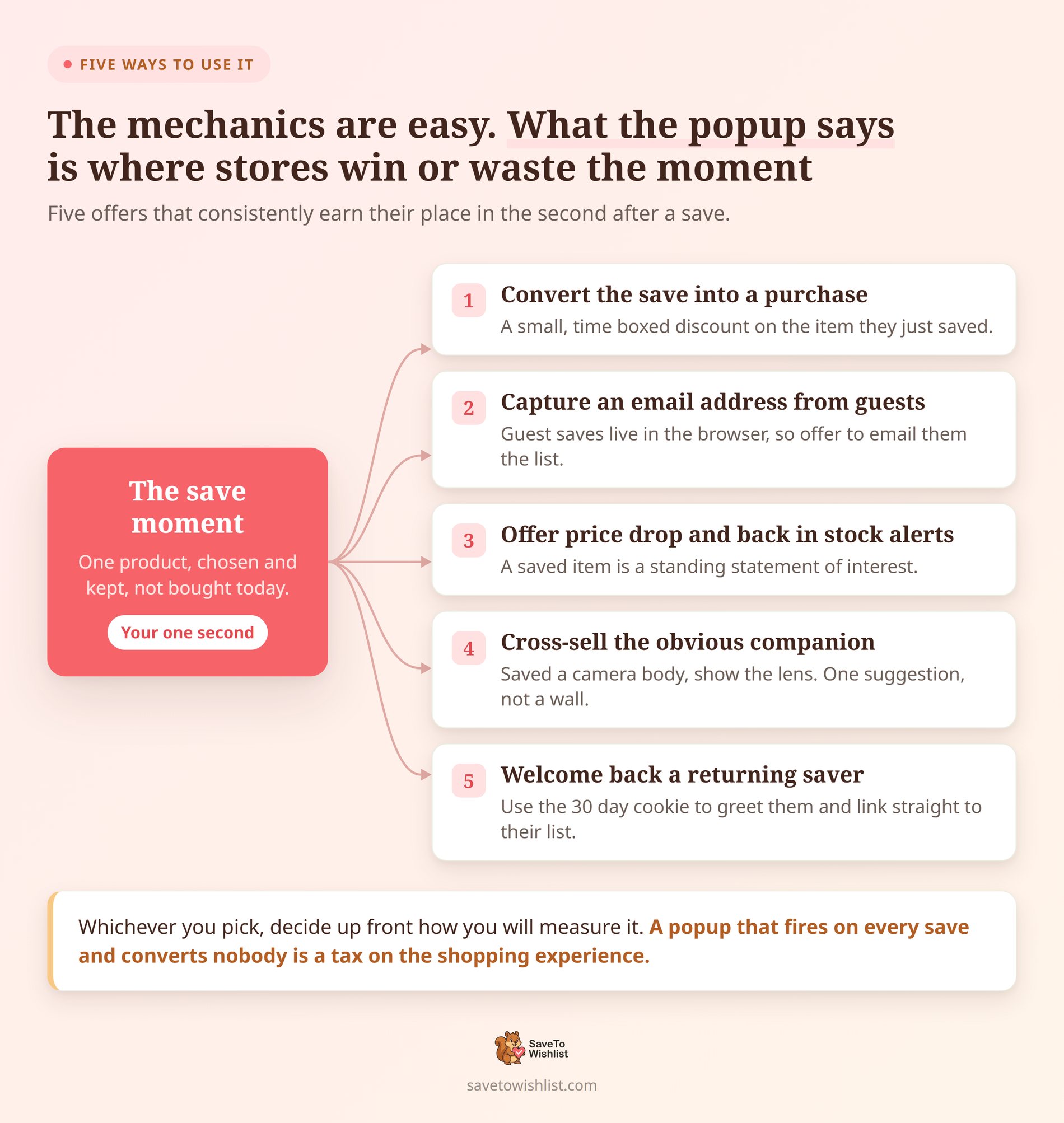
The setup is simple, but the popup message can affect how shoppers respond. Here are five options you can test:
Convert the save into a purchase
You can show a limited-time discount after a shopper saves an item. Check the save on the server before giving a discount that should only be available to wishlist users. The shopper has shown interest in the item, but they may still be comparing products. Price or timing may be stopping the purchase, but stores should test whether a discount helps.
Capture an email address from guests
Guest saves live in the browser. Clearing site data or local storage erases them, but clearing the browser cache alone may not. A popup can ask the shopper for an email address. Sending a guest’s saved list requires consent and custom code that sends the wishlist data from the browser to your server or email service. Our guide to WooCommerce email automation with wishlist data covers what to send next.
Offer sale and back-in-stock alerts with SaveTo Wishlist Pro
A saved item shows that the shopper was interested when they saved it. You can ask whether the shopper wants an on-sale or back-in-stock alert. SaveTo Wishlist Pro can email logged-in customers when a saved product goes on sale or returns to stock. This requires a Pro automation, but it does not require another alert tool.
Cross-sell the obvious companion
After a shopper saves a camera body, you could test a popup that shows a matching lens. Keep it to one suggestion, though. A save shows some interest, and too many recommendations may distract the shopper.
Our guide on upselling versus cross-selling explains when each one fits.
Welcome back a returning saver
Use the cookie to greet a shopper who recently saved something in the same browser. A link straight back to their wishlist removes the work of finding it again. This pairs well with the tactics in our WooCommerce win-back campaign guide.
Whichever you pick, decide up front how you’ll measure it. A popup that appears after every save may annoy shoppers if it does not lead to more orders. SaveTo Wishlist Pro includes wishlist analytics. Lite does not include these analytics, so users need another tracking tool or custom code to compare saves with orders.
Limits To Know Before You Rely On These Signals
These browser signals have limits. Knowing those limits can help you avoid setup problems.
- Redirect mode cuts the event short: For a logged-in shopper, navigation starts right after the event fires. A synchronous listener still runs, but anything asynchronous can be interrupted. Use the cookie for redirect flows.
- Guests follow a different post-save path: In the code we inspected, a guest under Redirect reaches the confirmation modal. They don’t navigate away. Don’t assume guest behavior mirrors logged-in behavior.
- Cart-to-wishlist saves report 0: This applies when a shopper saves one or more cart items through the cart action. The plugin sends one event for the action, not one event per item.
- Failed saves produce nothing: A logged-in save emits the signals only when the server reports success. A network error or timeout produces no event and no cookie.
- Consent tools can block the cookie if they block the SaveTo Wishlist script or its cookies: Browser privacy settings may also stop the browser writing the cookie. Build the cookie path as an addition, not your only route.
- Neither signal proves that a valid save happened: Another script on the page can send an event with the same name or set the same cookie. Use them for messaging, never to grant something of real financial value without a server-side check.
The event carries a product or variation ID and a collection ID. The cookie stores only the product or variation ID. A cart save stores 0 as the product ID. No name, email address, or billing detail goes into either one. Product identifiers still describe shopper behavior. So check where the cookie belongs in your consent categories and privacy policy.
Frequently Asked Questions: WooCommerce Wishlist Popup Maker Integration
Does the Popup Maker integration cost anything?
No. The signals ship in SaveTo Wishlist Lite, the free version, from release 1.1.0 onward. You don’t need SaveTo Wishlist Pro to use them. What you build on the Popup Maker side depends on which Popup Maker features your own setup includes.
Do I need to configure anything in SaveTo Wishlist?
There’s no integration setting to switch on. SaveTo Wishlist produces the event and cookie automatically after a successful save, whether or not you have Popup Maker installed. The one setting worth reviewing is the Add to wishlist button behavior. Redirect mode changes which of the two signals you should use.
Why doesn’t my popup appear in Redirect mode?
Under Redirect, SaveTo Wishlist sends a logged-in shopper to the wishlist page right after the event fires. The page redirects almost at once, so the popup may disappear before the shopper can use it. Either switch the setting to Fade, or trigger your popup from the stwlite_wishlist_added cookie on the destination page.
Does this work for shoppers who aren’t logged in?
Yes, as long as guest wishlists are enabled, which is the default. A guest save goes into browser storage and emits the event with a collection ID of 0. If the browser blocks that storage write, no signal is produced. Browser settings can block storage and prevent a guest save. Test guest wishlists in the browsers your customers often use.
What does a product ID of 0 mean?
It means the save came from a cart-to-wishlist action. That action may cover one or more cart items. SaveTo Wishlist sends one event for the cart action rather than one event per item. The event does not identify an individual product, so show a general message or skip it.
Can I show a different popup for each product?
Yes, for regular product saves. The event and cookie provide the product or variation ID. Cart-to-wishlist saves use 0 instead. Your listener can branch to different popup IDs from there. Normalize the value with Number() before comparing it, since some frontend IDs arrive from HTML data attributes as strings.
Turn Saves Into Sales With The WooCommerce Wishlist Popup Maker Integration
A shopper may not buy a saved item for many reasons, including price, timing, stock, or a change of mind. A shopper who saves an item has shown interest, but they may still be comparing products or waiting to buy. Your job is to stay useful in that moment, instead of going quiet until the next email send.
Start small. One WooCommerce wishlist popup, one clear offer, and a plan to measure it beats a clever multi-branch setup nobody reviews after launch.
- Check your Add to wishlist button setting and switch to Fade for instant popups.
- Build one Popup Maker popup and note its ID.
- Add the event listener snippet, then test as a guest and as a customer.
- Add the cookie check if you want to reach returning savers.
- Read the limits before building anything that assumes the signals are complete.
An instant wishlist popup needs one popup and a short JavaScript snippet. Cookie-based targeting may not need JavaScript if Popup Maker supports the needed cookie condition.
SaveTo Wishlist Lite sends these signals after a successful save. Your JavaScript or Popup Maker settings can then respond to them. The Popup Maker integration page has the short version if you want to skim it first.



