

 Reviewed by
 You rebuild your wishlist page in the Divi Builder so it finally matches the rest of your store. You add a hero section, some brand colors and a nice heading. Then you save, load the page, and the wishlist isn’t there.
There’s no error message and no warning. Shoppers who saved products for later come back to an empty page, and they may not tell you. Our Divi wishlist module fixes exactly that.
It ships in the free SaveTo Wishlist Lite plugin. Below, I’ll show you why the page goes blank and how to set the module up. Then we’ll turn that page into one that sells.
Jump to:
- Why Your Divi Wishlist Page Can Look Empty
- What The SaveTo Wishlist Divi Integration Actually Does
- What You Need Before You Start
- How To Add The Wishlist To A Divi Builder Layout
- How To Use The Module In A Divi Theme Builder Template
- How To Turn Your Divi Wishlist Page Into A Sales Page
- How To Confirm Your Divi Wishlist Works
- What About The Save To Wishlist Button On Divi?
- Frequently Asked Questions
- Ready To Add Your Wishlist To Divi?
Why Your Divi Wishlist Page Can Look Empty
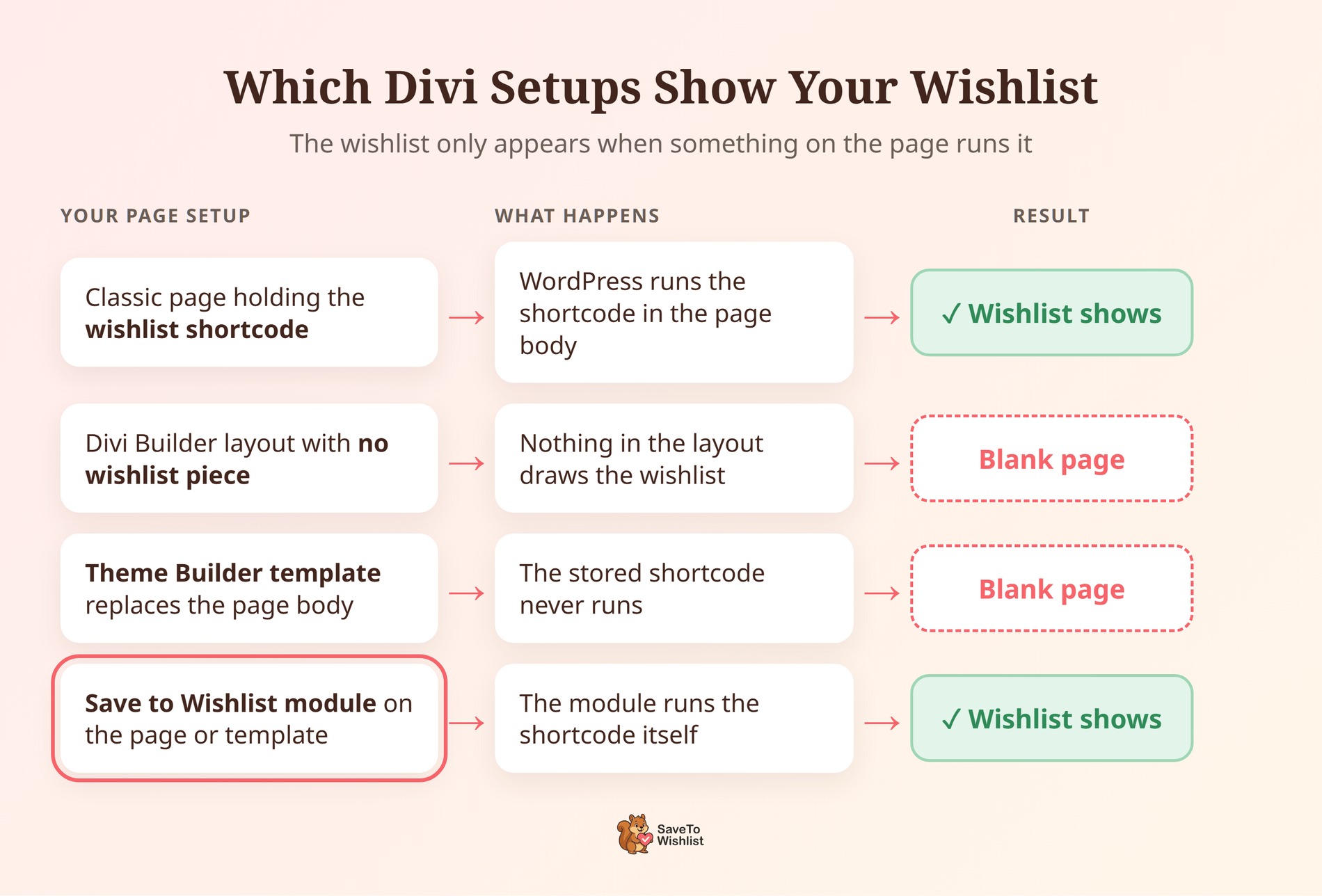
The wishlist page reaches the browser in one way. WordPress runs the [saveto_wishlist] shortcode stored in the page body, and that shortcode draws the wishlist.
Divi builds pages with its own layout system, and there are two ways it can skip that shortcode:
- You edit the page in the Divi Builder: Divi saves the page as its own layout. If the layout has no wishlist piece in it, there’s nothing left to draw the wishlist.
- A Theme Builder template covers the page: The template replaces the page body, so the shortcode stored there never runs.
That’s normal page-builder behavior, not a Divi bug. A builder that owns the page body decides what renders there. One exception is a Theme Builder template that includes Divi’s own Post Content module. That template still runs the shortcode.
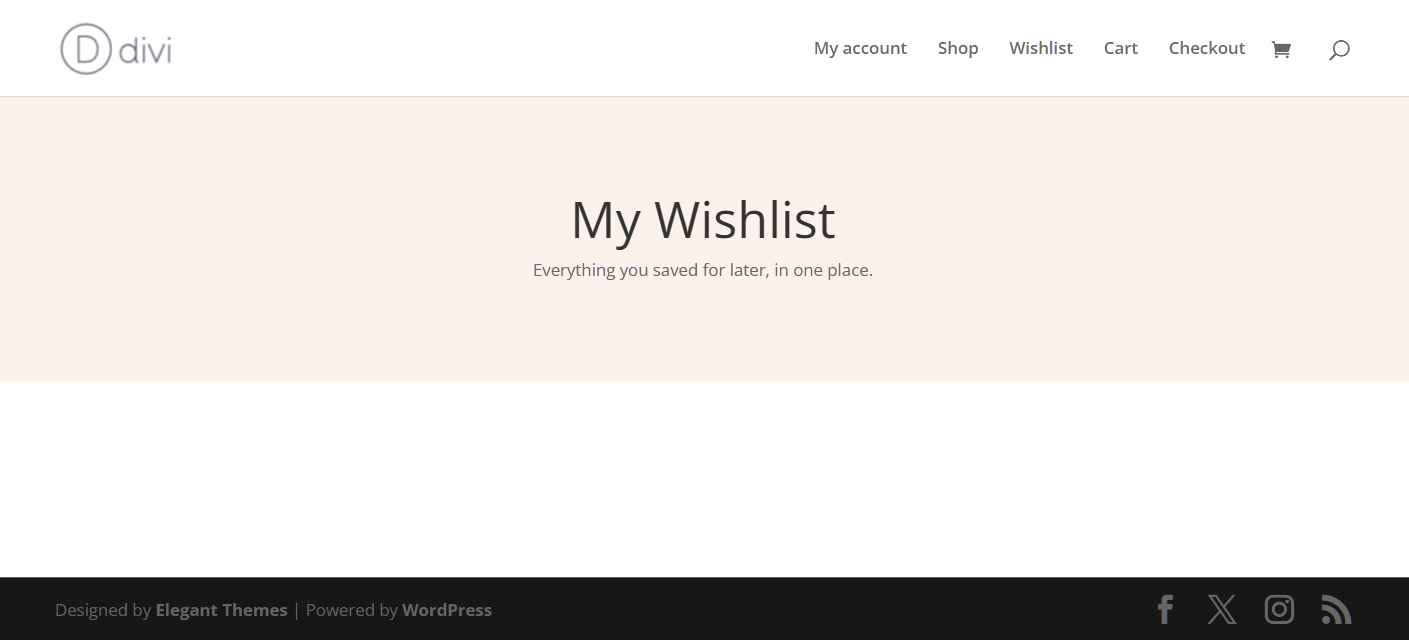
The My Account wishlist tab isn’t affected, because it doesn’t go through the page body. So the tab can keep working while the main wishlist page sits empty.
An empty page costs more than it looks. According to Baymard Institute’s product page research, 21% of 1,193 respondents said they rely on “Save” features. The same research found 89% of sites don’t make Save features easy to access and use. Plus, a wishlist page that renders nothing hides those saves completely.
What The SaveTo Wishlist Divi Integration Actually Does
The integration adds one thing: a Save to Wishlist module in the Divi Builder. It ships in SaveTo Wishlist Lite 1.1.3 and later. There’s no settings page and no toggle to switch on.
- Same shortcode underneath: The module runs the existing
[saveto_wishlist]shortcode for you. So guests, logged-in customers and shared links all get the same handling as on a standard wishlist page. - One optional setting: A Wishlist ID field. Leave it empty, and each visitor sees their own wishlist.
- Works in Theme Builder templates: Build one wishlist layout and reuse it, instead of rebuilding the page by hand.
- Loads its own scripts: The plugin spots the module on a page, in a Theme Builder layout or in a Divi Library global module. Then it loads the wishlist scripts there, even if it isn’t your main wishlist page.
Before this module, the usual workaround was pasting the shortcode into a Divi Code module by hand. The new module does the same job with its own settings panel. If you already use that workaround, you can swap it for the module.

What the integration doesn’t do
The scope is narrow on purpose. Here’s where the module’s job ends.
| Area | Covered by the Divi integration? |
|---|---|
| The wishlist inside a Divi Builder page | Yes, through the Save to Wishlist module |
| The wishlist inside a Theme Builder template | Yes, including header, body and footer layouts |
| Divi 5 | Not officially yet. The module is built for Divi 4 |
| The Save to Wishlist button on product cards and pages | No. The button follows your Button Placement & Styles settings |
| A settings page or on/off switch | None. The module is there whenever Divi 4 is active |
That makes it a different tool from our Elementor widget, which places the button. The Divi module is about the wishlist page itself.
What You Need Before You Start
You need three things in place, and you probably have two of them already.
- Divi 4: Either the Divi theme or the standalone Divi Builder plugin works.
- SaveTo Wishlist Lite 1.1.3 or later: The current release is 1.1.6, so update first if you’re on anything older.
- WooCommerce: Active on your site, as it already is if you sell with it.
The module is part of the free plugin. You don’t need SaveTo Wishlist Pro for it. Pro stores get it too, since Pro runs on top of Lite.
🔍️ What we’ve seen: The first question to settle is which Divi version you run. Our module is built for Divi 4, and Divi 5 isn’t officially supported yet. According to the Divi 5 FAQ from Elegant Themes, Divi 4 third-party modules keep working in backward compatibility mode. However, we haven’t confirmed ours there, so test it on a staging site first.
One more honest note. Divi is a paid theme, so it isn’t part of our automated test suite. Our team captured the screenshots below on a live Divi site.
How To Add The Wishlist To A Divi Builder Layout
Here’s the full setup. You do it once per layout, and it doesn’t involve any code. The steps match our Divi knowledge base guide.
- Open your wishlist page in the Divi Builder.
- Click the module insertion icon where you want the wishlist to appear.
- Type Wishlist in the module search box.
- Select Save to Wishlist from the results. Look for the heart icon.
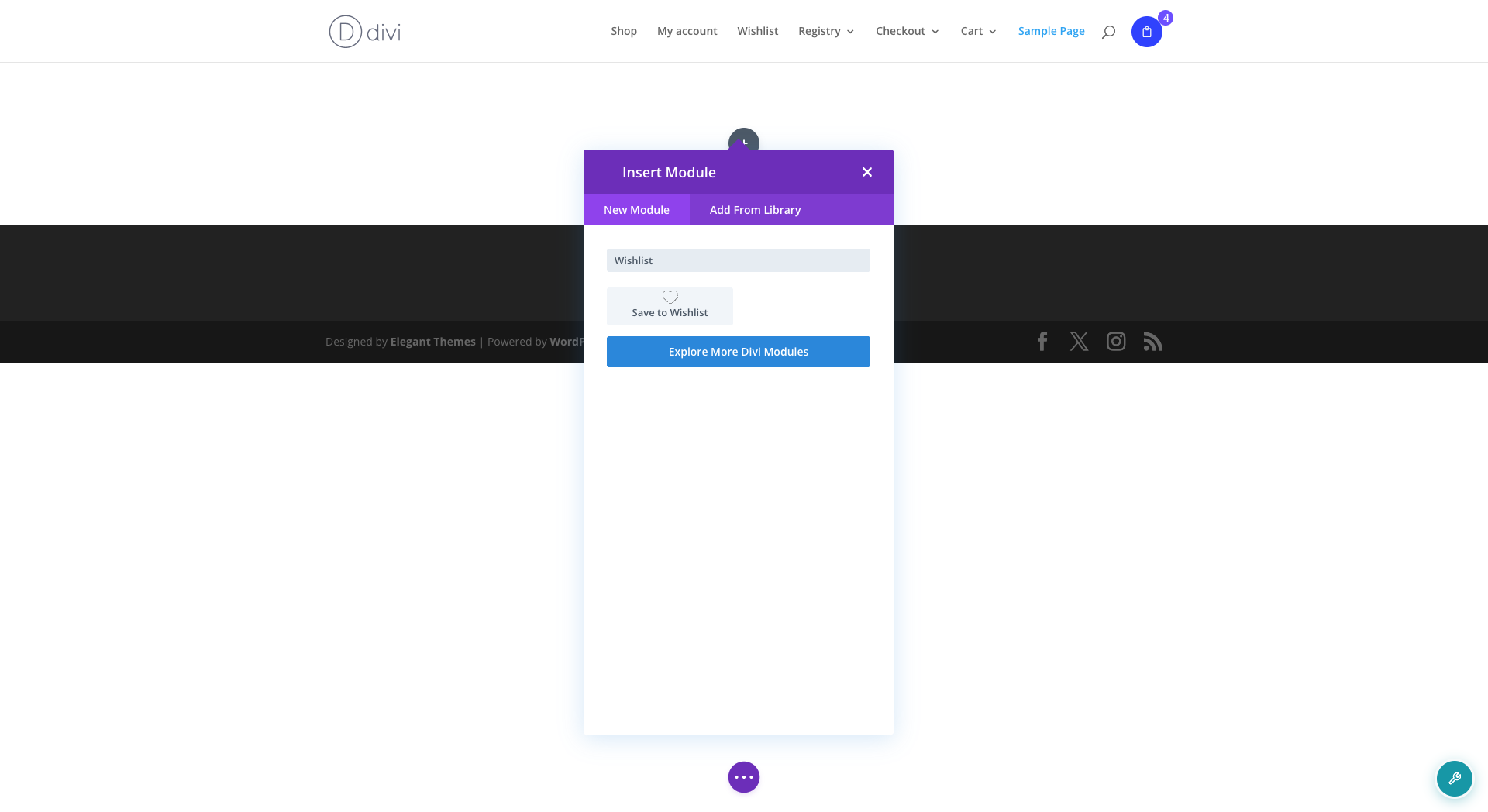
- Open the module’s Content tab, then the Wishlist section.
- Leave the Wishlist ID field empty for a normal wishlist page.
- Save the page, then open it outside the builder to see the live wishlist.
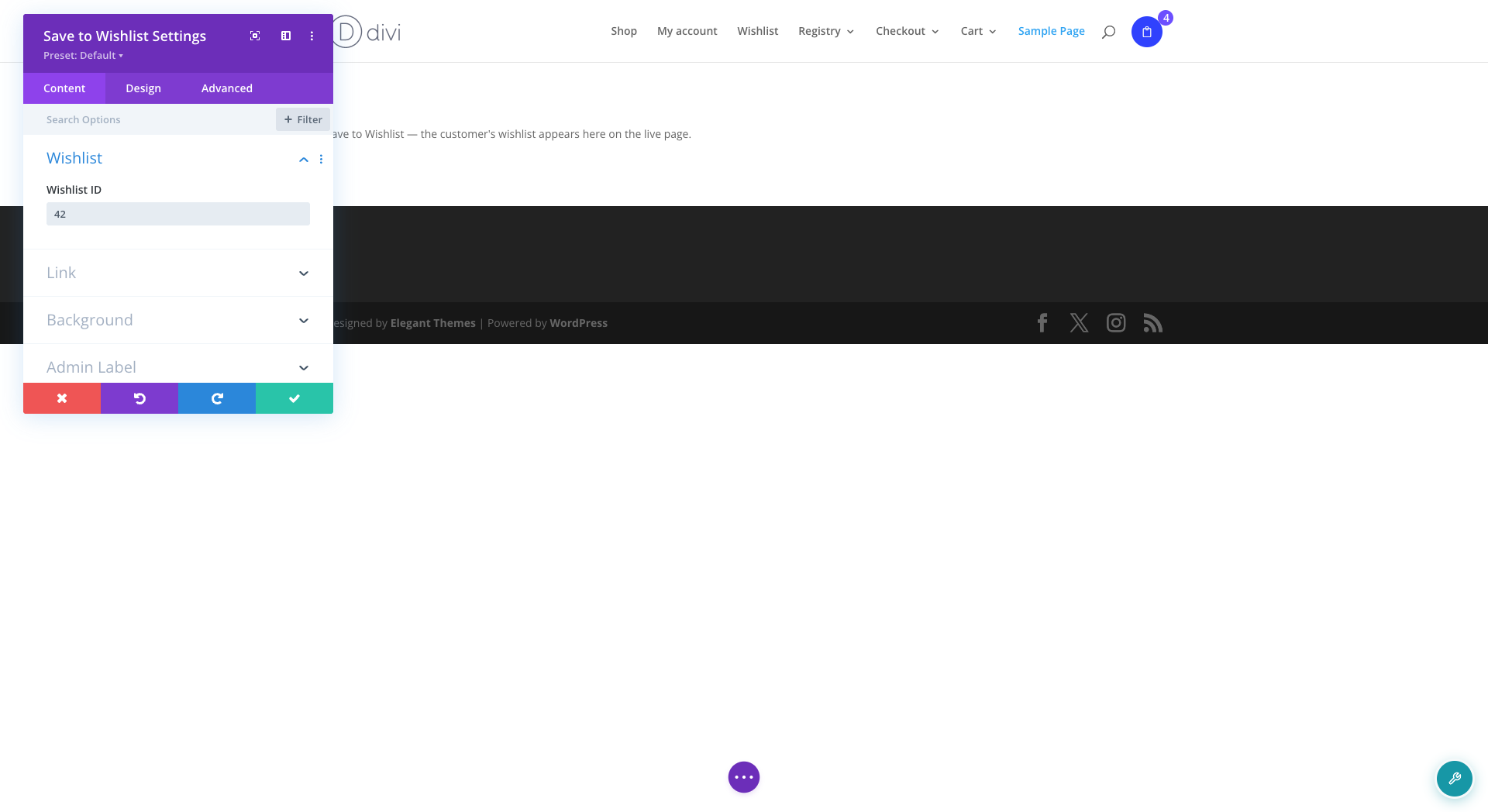
When to use the Wishlist ID field
Most stores should leave it empty. An empty field shows every visitor their own wishlist, which is what a wishlist page is for.
A number in the field pins the module to that one wishlist, by its ID. Two things about it aren’t obvious:
- It overrides shared links: When someone opens a shared wishlist link on that page, they see the pinned list instead. Keep the field empty on the page where shared links open.
- Guests don’t see it: While guest wishlists are on (the default), logged-out visitors get their own guest wishlist instead.
That makes the field a poor fit for a public gift guide. For a curated list everyone can open, make the list public and share its link instead.
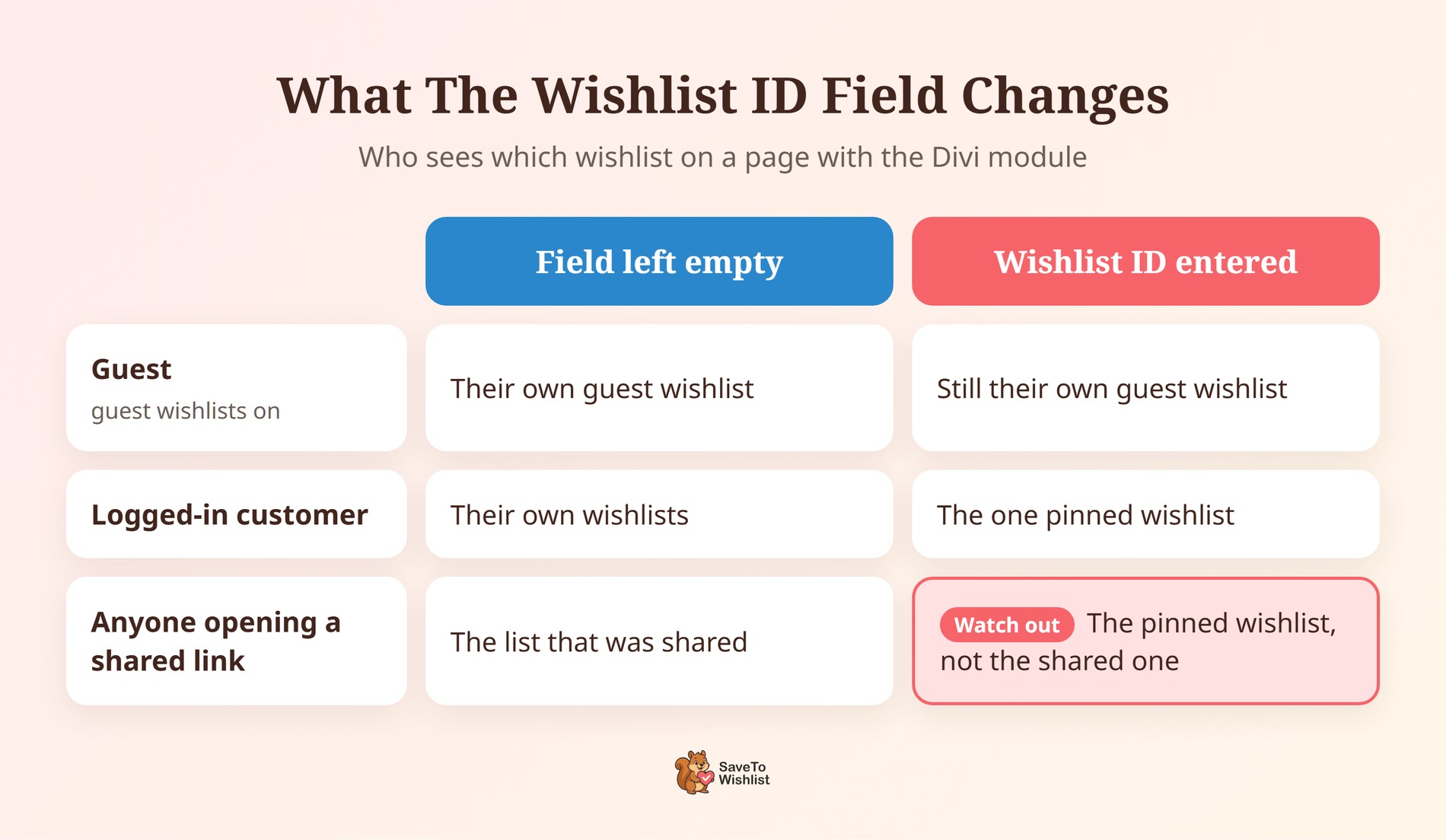
What you’ll see inside the builder
Inside the Divi Builder, the module shows a short placeholder message instead of your live wishlist. That’s deliberate, and it isn’t a styling problem.
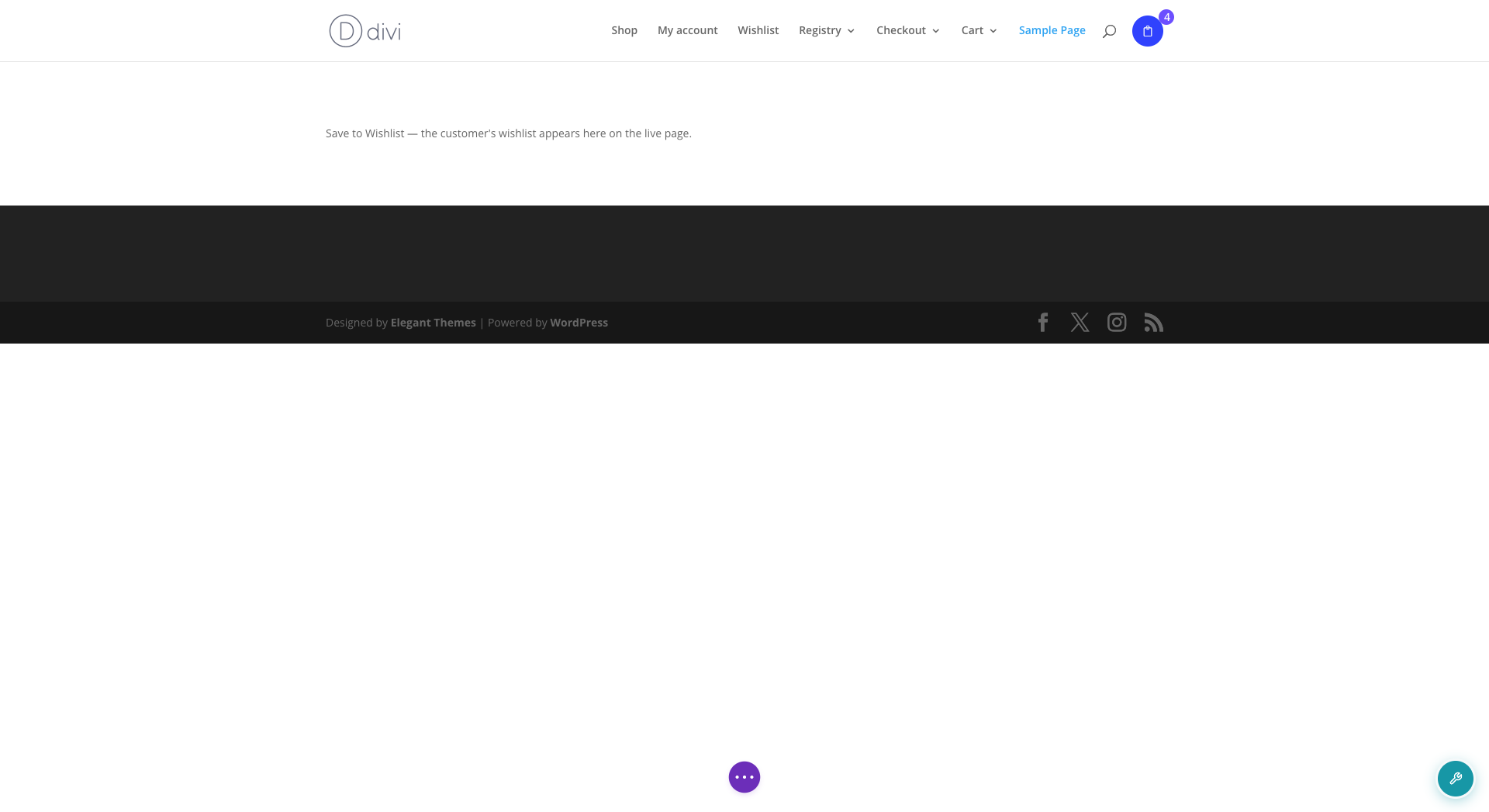
The real wishlist is a live app tied to whoever is logged in. Rendering it on the canvas would let a stray click add or remove items from your own list. It would also show your private list to anyone previewing the layout.
🔍️ What we’ve seen: The placeholder is easy to mistake for a broken wishlist. It’s tempting to start troubleshooting inside the builder, but the module is probably fine. Check the live page instead, once logged out and once as a customer.
How To Use The Module In A Divi Theme Builder Template
If a Theme Builder template covers your wishlist page, add the module to that template. The module draws the wishlist itself, so it doesn’t depend on the page body the template replaced.
- Go to Divi > Theme Builder.
- Edit the template assigned to your wishlist page. You can also pick another template, such as a header or footer.
- Add the Save to Wishlist module the same way you would on a page, then save.

Already use a template with Divi’s Post Content module on the wishlist page? Then the wishlist should still render, as long as the page body still holds the shortcode. Still, adding the module is the cleaner option, because it doesn’t depend on the page body at all.
Saving the module as a Divi Library global module works too. The plugin follows that reference and loads the wishlist scripts. Avoid nesting one global module inside another, though. The plugin checks only one level deep, so a module nested twice may load without its scripts.
How To Turn Your Divi Wishlist Page Into A Sales Page
Getting the wishlist back on the page is step one. The bigger win is that you can now design around it, with every Divi module you already use.
That page matters. According to Baymard Institute’s cart abandonment research, the average documented abandonment rate is 70.22%, across 50 studies. It also reports that 42% of US online shoppers abandoned a cart while “just browsing / not ready to buy.” As a result, your wishlist page can be where those shoppers come back to decide.
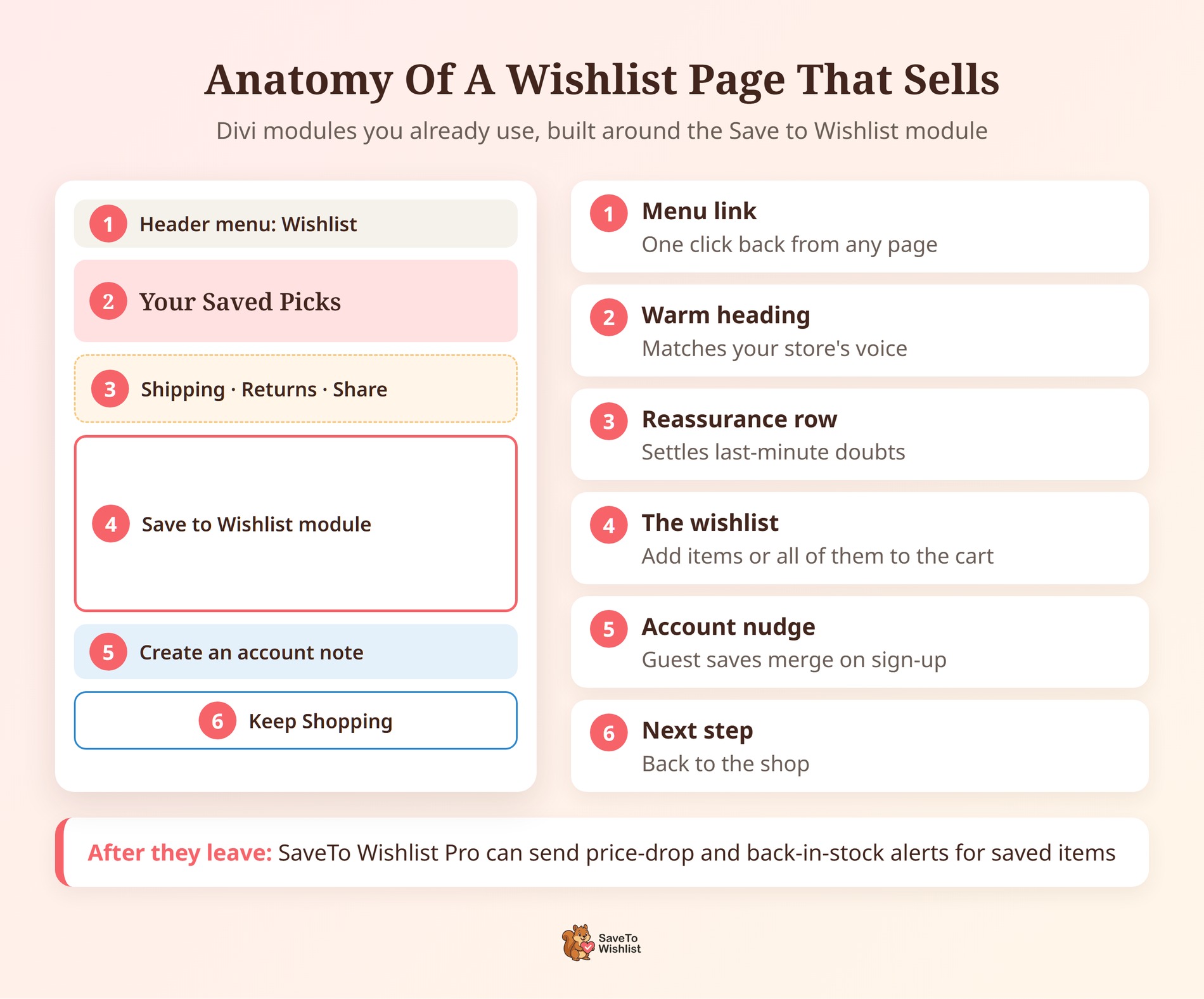
Give the page a clear next step
The wishlist itself already lets shoppers add single items or everything at once to the cart. Your job is to make that step feel easy. Put the things that settle last-minute doubts right next to the module.
- A short reassurance row: Shipping, returns or delivery times, in a Divi Blurb or Text module above the wishlist.
- A keep-shopping link: A Divi Button module below the list that leads back to your shop or a key category.
- A heading that matches your store: Something warmer than “Wishlist,” such as “Your saved picks.”
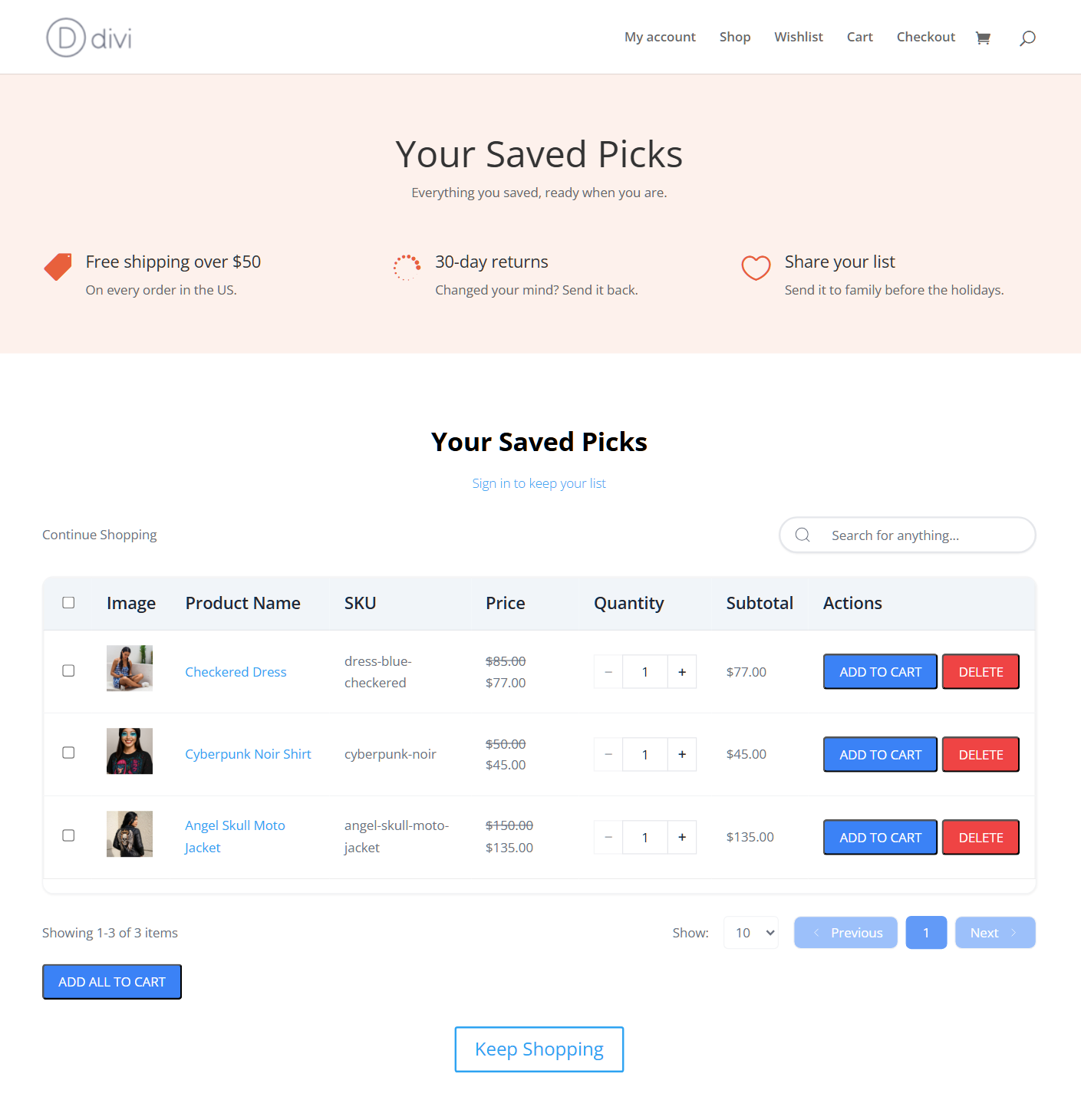
We covered more ways the page lifts sales in how wishlists increase conversion.
Nudge guests to create an account
SaveTo Wishlist lets guests save products without logging in. When they create an account or log in, their saved items merge into it. That makes the wishlist page a natural place to ask for an account.
So add a line of copy near the module. Explain that an account keeps their list with them on any device. Our guide to the WooCommerce guest wishlist explains why those anonymous saves are worth capturing.
Make sharing part of gift season
Every wishlist can have its own public URL for sharing. Around birthdays and the holidays, that can turn your customers into a referral channel. Each shared link brings a friend or relative straight to products someone already wants.
Add a short prompt on the page, such as “Share your list with family before the holidays.” Keep the Wishlist ID field empty on that page, so shared links open the right list. For the settings behind it, see wishlist sharing and permissions.

Make the page easy to find
A great wishlist page doesn’t help if shoppers can’t get back to it. Add a menu link to it in your Divi header, so it’s one click away on every page. That’s simpler than placing the full wishlist in a sitewide header or footer.
Follow up when something changes
Saved products tell you what shoppers want. Meanwhile, SaveTo Wishlist Pro can automate price drop alerts and back-in-stock alerts for those items. It also adds wishlist analytics, so you can see which products people save most. These start on the Growth plan, and you’ll find every plan on the pricing page.
How To Confirm Your Divi Wishlist Works
Run these checks once after setup, and again after any big Divi update.
- Logged out: Open the page in a private window. You should see the guest wishlist, as long as guest wishlists are switched on.
- As a customer: Log in with a test customer account, save a product, then open the page. The product should be listed.
- As an admin, outside the builder: You should see the live wishlist, never the placeholder.
- A shared link: Make a test list public, share it, then open the link logged out. It should show that list.
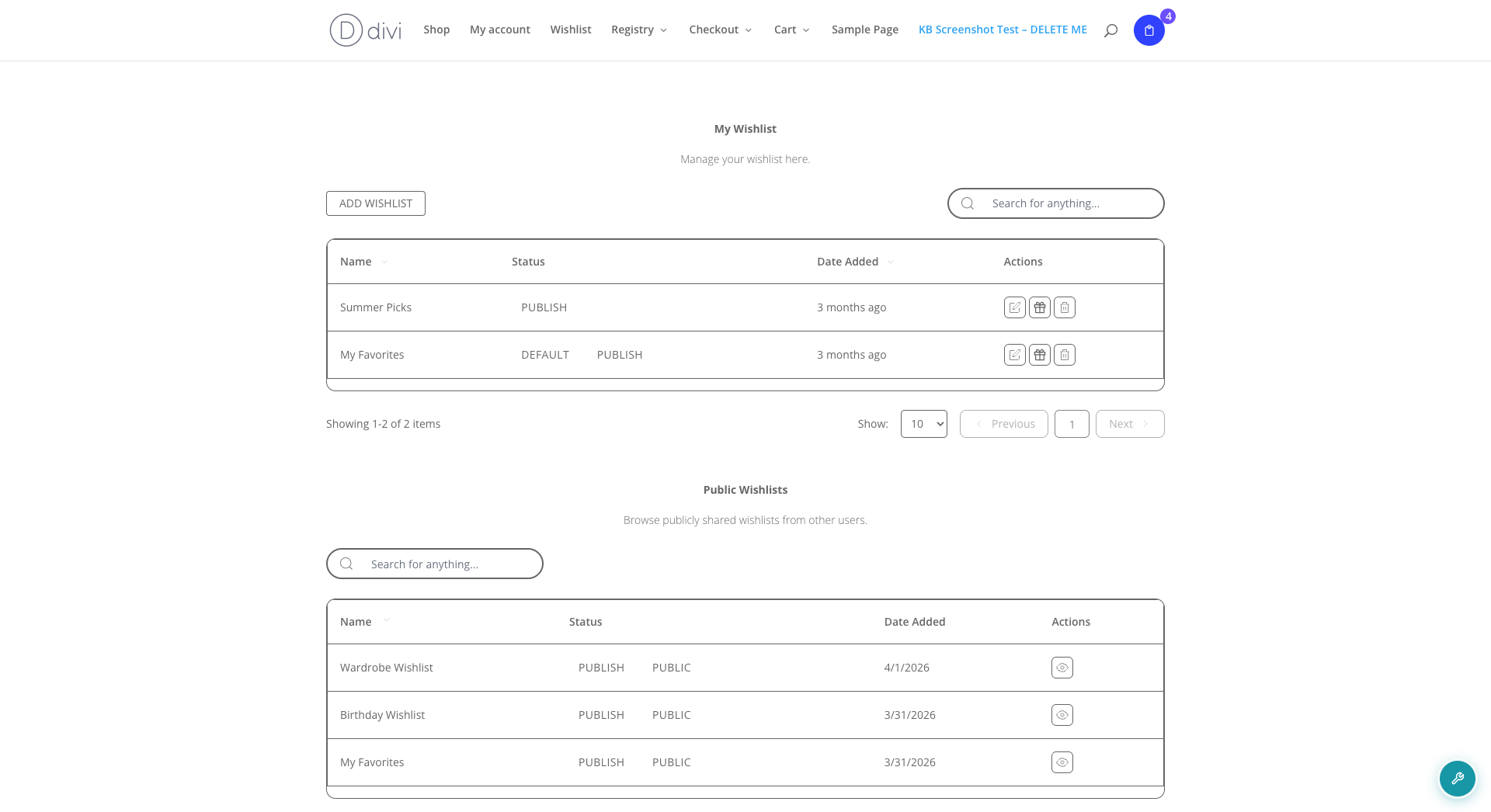
Is the wishlist area blank even though the module is there? Check whether it sits in a global module nested inside another one. Move it out, or add it directly to the layout. If guests see nothing at all, make sure Disable Guest Wishlist is off.
What About The Save To Wishlist Button On Divi?
The module places the wishlist, not the Save to Wishlist button. The button is set separately, under SaveTo Wishlist > Settings > Button Placement & Styles. It attaches to WooCommerce’s standard product templates.
On a Divi 4.27 test store, the button showed on every product card of the standard shop page. However, Divi can also rebuild product pages from its own Woo modules in the Theme Builder. We haven’t tested every placement on those templates, so check yours on a shop page, a product page and a phone. Our button placement guide lists every option.
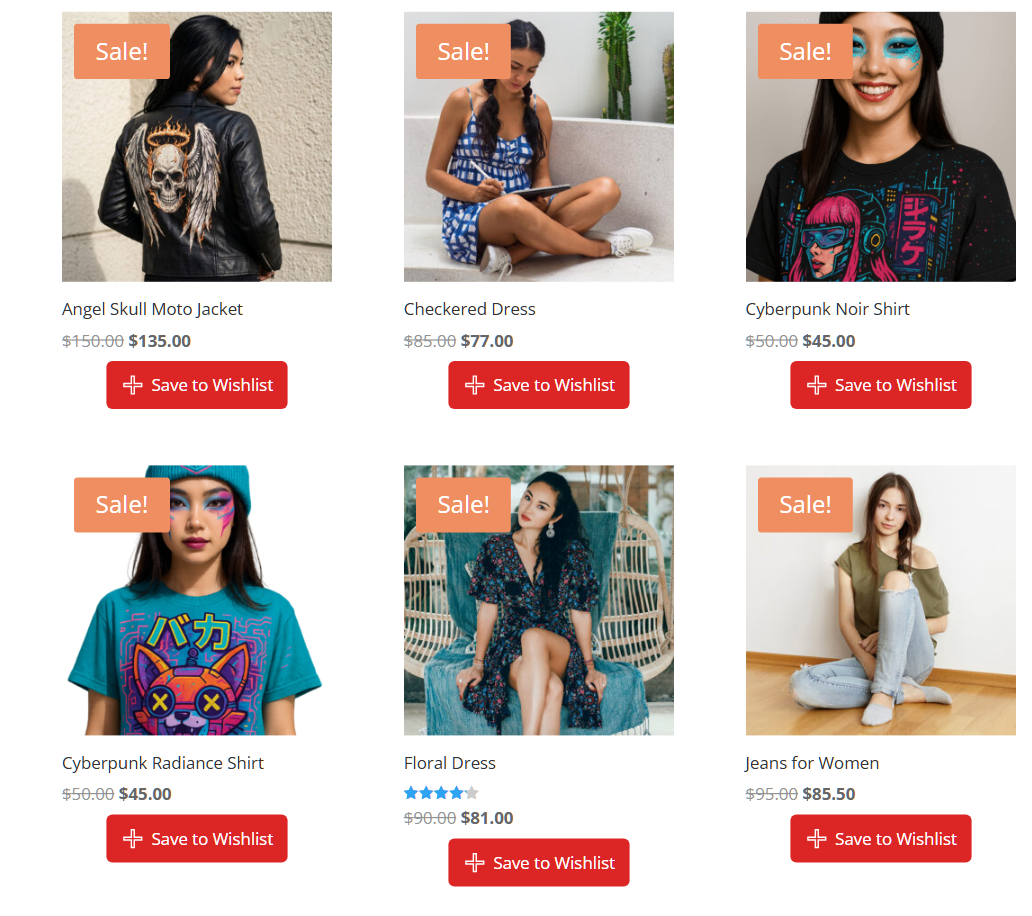
Does a placement crowd your Divi product cards? You can hide the button on one page type and keep it on the other.
Frequently Asked Questions
Does the Divi integration need SaveTo Wishlist Pro?
No. The Save to Wishlist module ships in the free SaveTo Wishlist Lite plugin, version 1.1.3 and later. Install or update the free plugin, and the module appears in the Divi Builder while Divi 4 is active.
Why is my wishlist page blank in Divi?
Divi saves its own layout when you edit a page, and a Theme Builder template can replace the page body. Either way, the [saveto_wishlist] shortcode may never run. Add the Save to Wishlist module to the page or template, then save again.
Does the Save to Wishlist module work with Divi 5?
Divi 5 isn’t officially supported yet, because the module is built for Divi 4. Elegant Themes says Divi 4 third-party modules run in Divi 5’s backward compatibility mode. We haven’t confirmed ours there, so test it on a staging site before you rely on it.
Will my customers ever see the builder placeholder?
No. The placeholder only appears inside the Divi Builder while you edit. Everyone viewing the live page, including you, sees the real wishlist instead.
Do I still need a Code module with the wishlist shortcode?
No. The Save to Wishlist module replaces that workaround and runs the same shortcode underneath. If a Divi Code module holds [saveto_wishlist], you can swap it for the module.
Ready To Add Your Wishlist To Divi?
A wishlist page only earns its keep if it renders. On Divi, that comes down to one module. Once it’s in place, the page becomes something you can design to sell.
- Confirm your Divi version and update to SaveTo Wishlist Lite 1.1.3 or later.
- Add the Save to Wishlist module to your wishlist page or Theme Builder template.
- Design the page around the wishlist with a clear next step and a sharing prompt.
- Run the four checks as a guest, a customer, an admin and a shared-link visitor.
Your Divi wishlist is one module away from working. Install or update SaveTo Wishlist Lite for free, then add the module to your wishlist page.



