
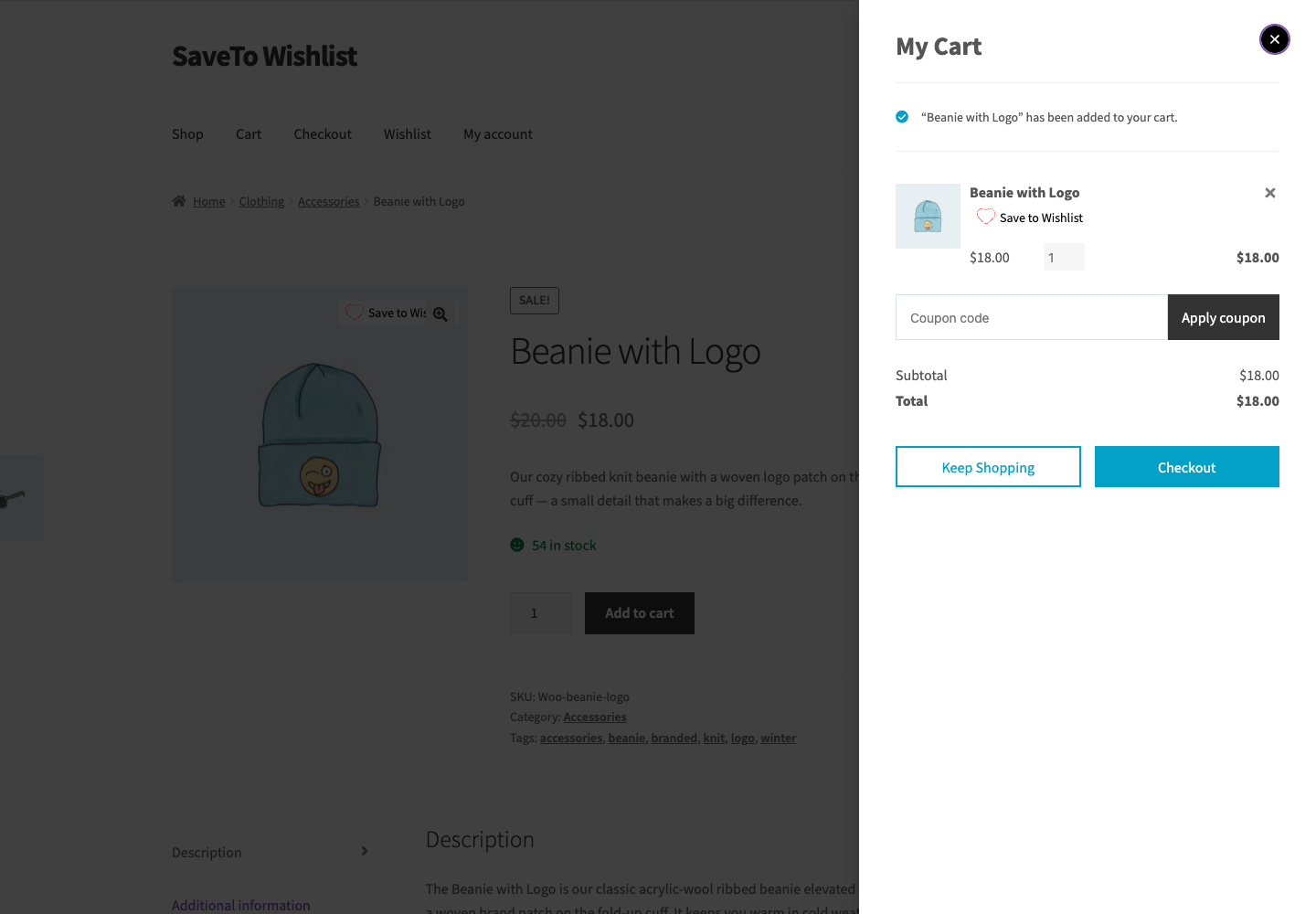
Using Barn2’s Fast Cart slide-out cart on your store? SaveTo Wishlist adds the wishlist button next to each item in the Fast Cart popup, so customers can move a product to their wishlist without leaving the cart. This guide shows you how it works and how to turn it on or off.
Before you start
- Barn2 Fast Cart installed and active.
- SaveTo Wishlist active. The button shows in Fast Cart automatically, it’s on by default.
How it works
When both plugins are active, SaveTo adds a wishlist button next to each line item in the Fast Cart popup. A customer can open the slide-out cart, save a product to their wishlist, and carry on shopping, all without leaving the page. The button works right inside the popup, so saving happens in place.
Turn the button on or off
The button is shown in Fast Cart by default. To change that:
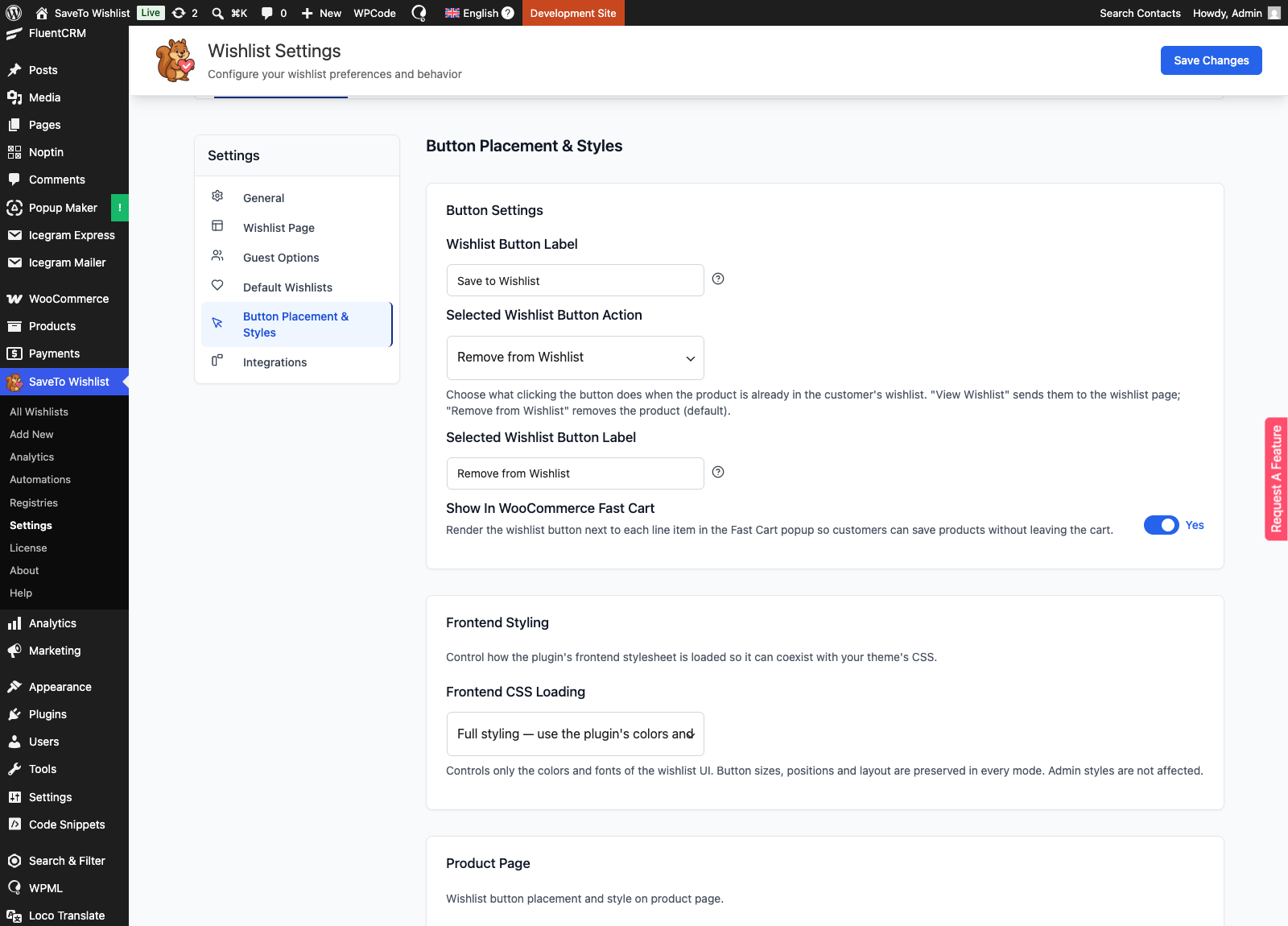
- Go to SaveTo Wishlist, then Settings, and open the Button Placement & Styles tab.
- Open the Button Settings section.
- Toggle Show in WooCommerce Fast Cart to Yes or No.
- Save your settings.
Frequently asked questions
Do I need to set anything up?
No. As long as both plugins are active, the wishlist button shows in Fast Cart on its own. You only need the setting above if you want to hide it.
Can customers save an item without closing the cart?
Yes. The button works inside the Fast Cart popup, so the product is saved in place and the cart stays open.
Does it work for guests?
That follows your SaveTo Wishlist guest settings, the same as the wishlist button everywhere else.
Need help?
If you have a question or run into any issues, we’re here to help.
- Premium users: Open a support ticket
- Free users: Visit our community forum

