
 Reviewed by
 Most WooCommerce stores spend hours optimizing their product pages. Far fewer spend any real time on their shop page. But the shop page is where most of your visitors actually live. It’s also where most of them leave.
The data tells a consistent story. Baymard Institute puts the average ecommerce cart abandonment rate at 70.22%. Of those, 43% of US shoppers say they abandoned simply because they were just browsing. Most visitors aren’t in buy mode.
Most ecommerce shop page best practices guides assume shoppers are ready to buy. However, the research says they’re not. This guide pulls together UX studies from Baymard, Nielsen Norman Group, and Google to find what actually works. Then we’ll look at where wishlists fit into the picture.
Table Of Contents
- Shop Pages Are Discovery Surfaces, Not Sales Surfaces
- Information Scent: The First Three Seconds
- Advanced Filters: The Engine Of Discovery
- Organizing And Loading Products: The "Infinite Scroll" Problem
- Category Pages Are Your Best Google Magnet
- The Comparison Shopping Problem (And Why Wishlists Belong On Shop Pages)
- FAQs: Ecommerce Shop Page Best Practices
- Conclusion
Shop Pages Are Discovery Surfaces, Not Sales Surfaces
The first mistake most stores make is treating the shop page like a smaller product page. That assumption changes how every other choice gets made. Product page logic prioritizes the buy decision. In contrast, shop page logic should prioritize discovery.
As previously stated, Baymard’s data shows 43% of US shoppers abandon their cart because they were just browsing. That number alone makes the case for a different mental model built around core ecommerce shop page best practices.
In other words, the shop page isn’t where the sale happens. On the contrary, it’s where the next visit gets earned. Everything that follows in this guide builds on that shift.
🔍️ What we’ve seen: Stores that treat the shop page as a mini product page end up cramming sales pressure onto a discovery surface. Add-to-cart buttons on every card, urgency timers, and popups all push browse-mode shoppers away. The most successful shop pages do less, not more.
Information Scent: The First Three Seconds
Nielsen Norman Group coined the term “information scent” to describe how users decide where to click. Think of it like a trail of clues: shoppers quickly scan your page to see if they’re on the right track to finding what they want.
- A strong scent gets the click: If the clues are obvious, shoppers stay and browse deeper.
- A weak scent gets the back button: If the clues are confusing or missing, they immediately leave.
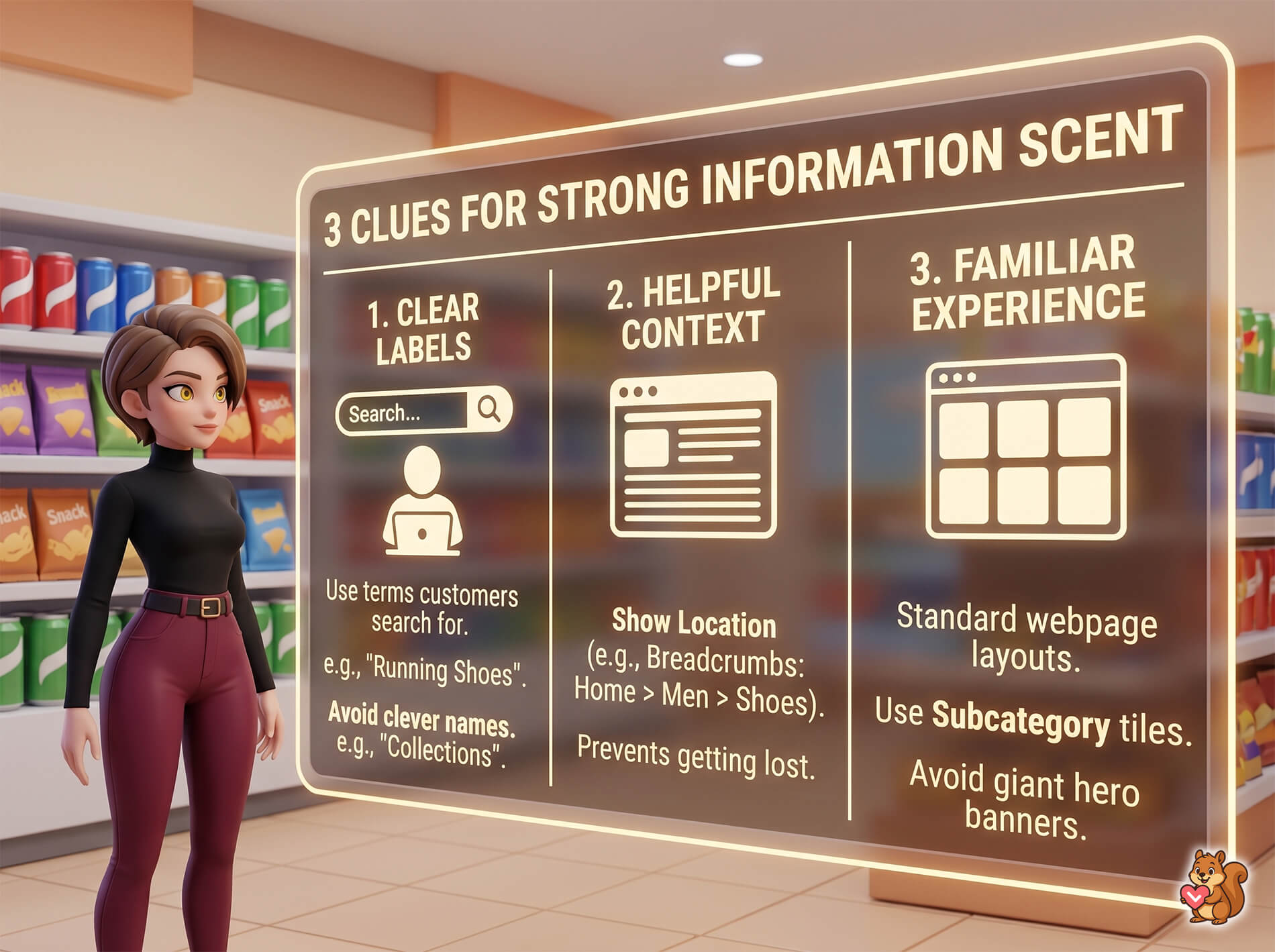
Shop pages usually pass or fail this test within the first three seconds. To create a strong information scent, you need to provide three main clues:
1. Clear labels
Simply put, use category labels people actually search for.
Clever names hurt information scent. For example, “Collections” or “Curated Edit” tell shoppers nothing. On the other hand, “Men’s Running Shoes” tells them everything.
Name your website pages exactly what your customers call the products. If a customer types a specific phrase into Google to find an item, use that exact phrase for your website’s menu links and web addresses (URLs).
2. Helpful context
Show shoppers where they are by using surrounding text or images that point them in the right direction.
One of the best ways to do this is by using “breadcrumbs”: that small trail of links usually found at the top of a webpage (for example: Home > Men’s > Shoes > Running Shoes).
Despite being small, this trail does a ton of work. It tells shoppers exactly where they are in your store’s catalog and gives them an easy way to click back to a previous section. Without this trail, shoppers deep inside your site can feel lost, causing them to give up and retreat all the way back to the homepage to start over.
3. Familiar experience
A website layout should work the way they expect from past online shopping. This way, it can hint at depth without overwhelming customers.
The top of a shop page is prime real estate. Use it to signal what the category contains. Featured subcategory tiles, clear product images, a short intro line, or a visual collage all work. Avoid hero banners that take the entire above-the-fold.
Advanced Filters: The Engine Of Discovery
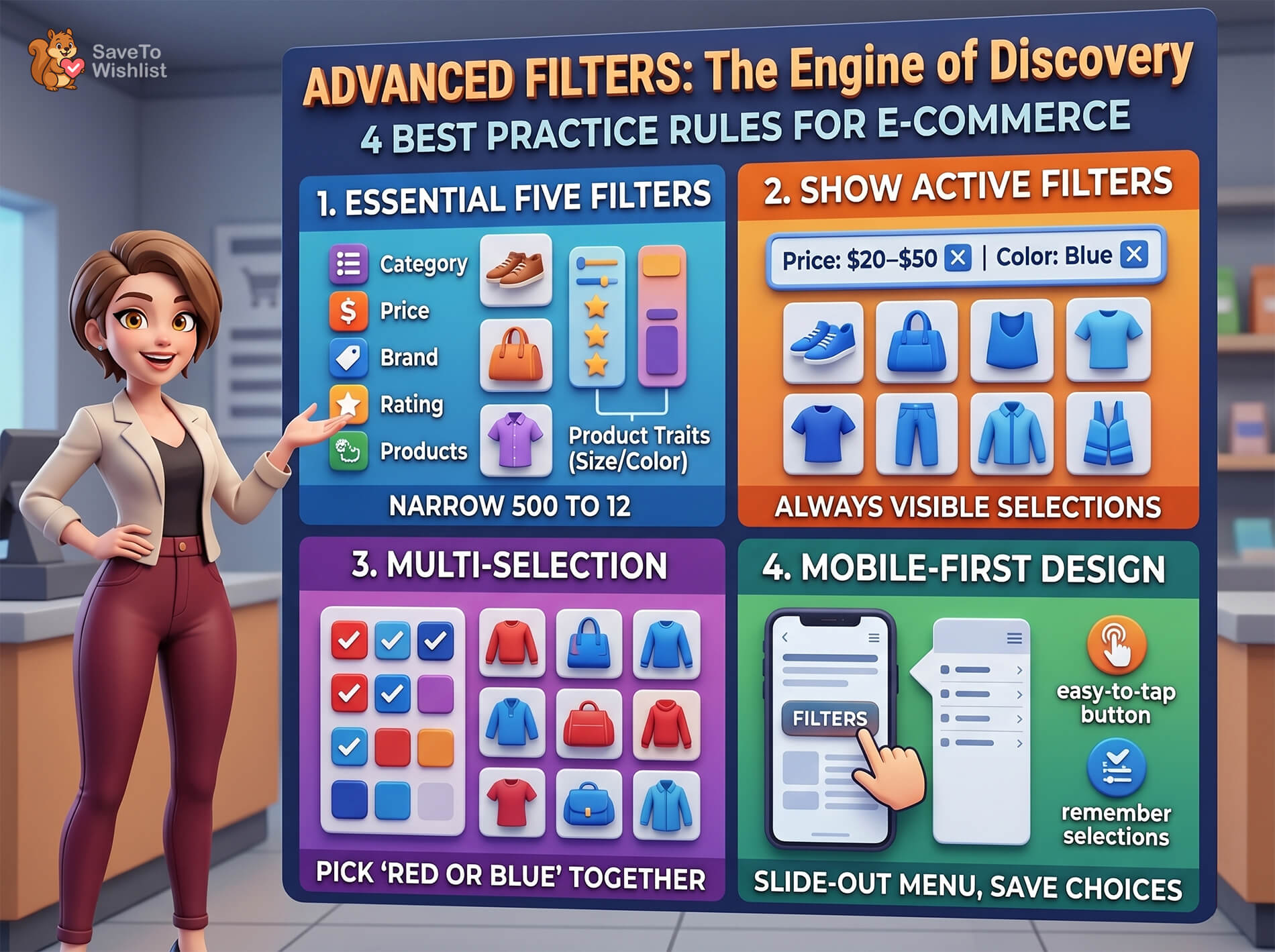
Advanced filtering (often called “faceted navigation” by web designers) is a critical piece of online store design. It lets shoppers narrow down results using several categories at once: size, color, price, brand, and rating. Done right, these filters can turn a messy 500-product page into a highly personalized 12-product shortlist in seconds.
Done wrong, filters just bury shoppers in a confusing mess of checkboxes. To get it right, follow these research-backed rules:
1. Include the five essential filter types
Baymard’s product list research found that 57% of online stores are missing at least one of the five filters shoppers expect to see most.
The core five are:
- Category
- Price
- Brand
- Customer rating
- Product-specific trait (like size or color)
If you leave one out, shoppers will struggle to narrow down the products the way they want to.
2. Show shoppers exactly what they’re filtering by
Baymard researchers also found that 28% of sites don’t clearly show which filters the shopper has currently turned on. The fix is simple: put a row at the top of the search results showing every active filter, with a quick button to delete it (for example: “Price: $20–$50 [X] | Color: Blue [X]”).
Without this visual reminder, shoppers forget what they’ve clicked and get confused by their results.
3. Let shoppers pick multiple options within the same filter category
If a shopper wants to look at “red OR blue” shoes, your filter should let them click both colors at the same time. Research notes that 15% of sites still don’t allow this, forcing shoppers to look at fewer products than they actually wanted to see.
4. Design for phone screens, not computer mice
Most people shop on their phones. A filter menu that sits nicely on the side of a large computer screen has to become a hidden, slide-out menu on a small phone screen.
Because it’s hidden, you must provide a clear, easy-to-tap “Filters” button to open it. Additionally, if the shopper closes that menu, the website needs to remember the boxes they checked so they don’t have to start over.
Organizing And Loading Products: The “Infinite Scroll” Problem
How you organize your products—and how your website loads them onto the screen—is just as important as your filters. If you get this wrong, you’ll lose sales. Thankfully, the research on how to do this correctly is very clear:
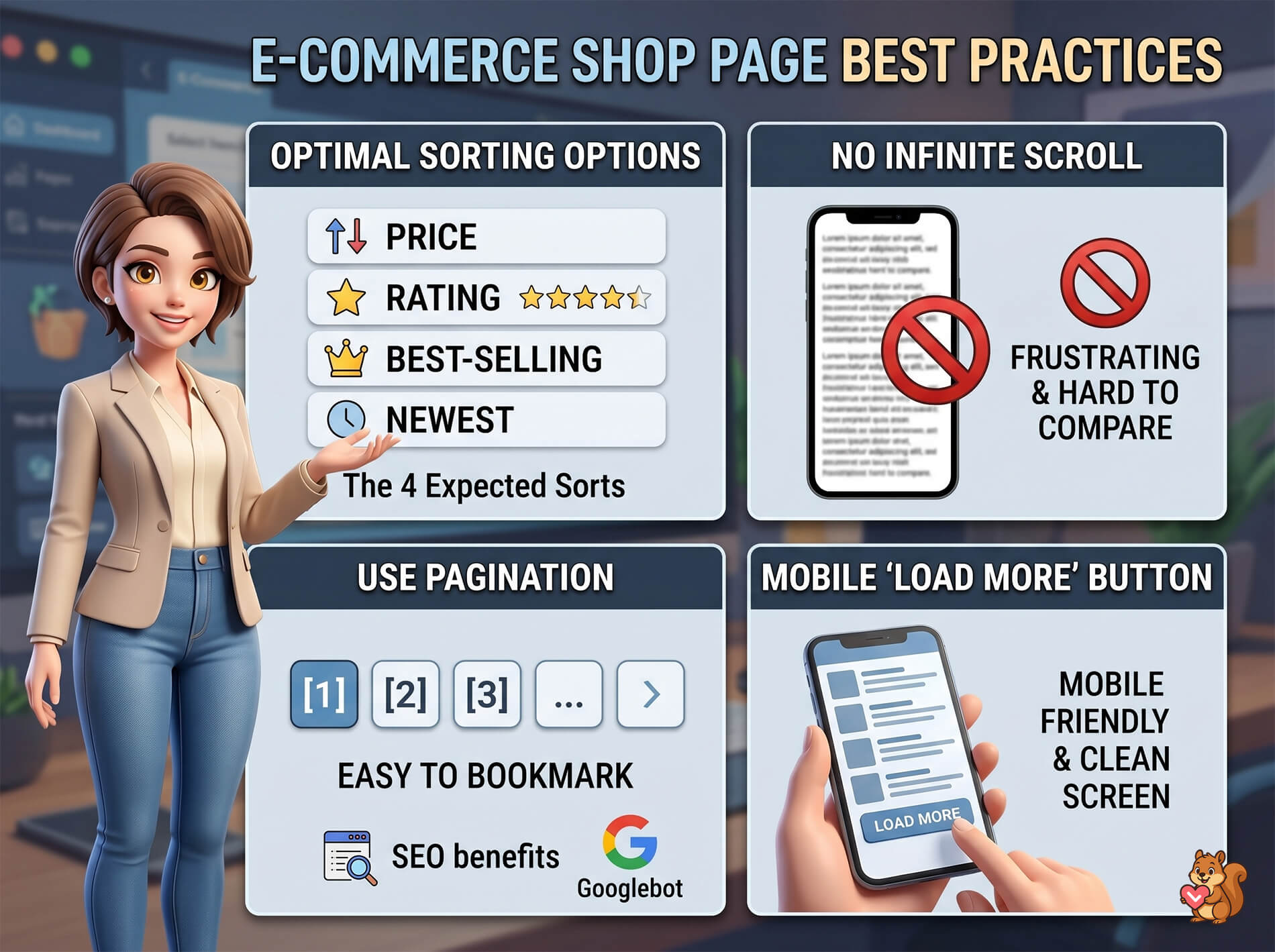
1. Give shoppers the four sorting options they expect
Baymard found that 64% of online stores are missing at least one of the basic sorting options. You must let shoppers sort your products by: Price (low-to-high and high-to-low), Customer Rating, Best-Selling, and Newest. Don’t just rely on your website builder’s default, random order.
2. Don’t use “infinite scroll”
“Infinite scroll” is when a webpage automatically keeps loading more items as you scroll down (like a social media feed). Nielsen Norman Group’s research strongly advises against using this for online stores.
When people shop, they like to compare things and go back to items they saw earlier. Infinite scroll makes this extremely frustrating. If a shopper clicks a product and then hits the back button, they’re often thrown all the way back to the top of a massive list and forced to re-scroll to find their place.
3. Use page numbers or a “Load More” button instead
Instead of infinite scroll, divide your products using standard page numbers (Page 1, 2, 3…) or a simple “Load More” button at the bottom of the list.
- Page Numbers: These are great because each page has its own unique web link. A shopper can easily bookmark “Page 3” and come back to it later.
- Load More Button: This is highly recommended for shoppers on mobile phones because it keeps the screen clean and easy to tap.
As a bonus, both page numbers and “Load More” buttons make it much easier for search engines like Google to read your website. On the other hand, infinite scroll usually creates technical glitches that hide your products from Google.
Category Pages Are Your Best Google Magnet
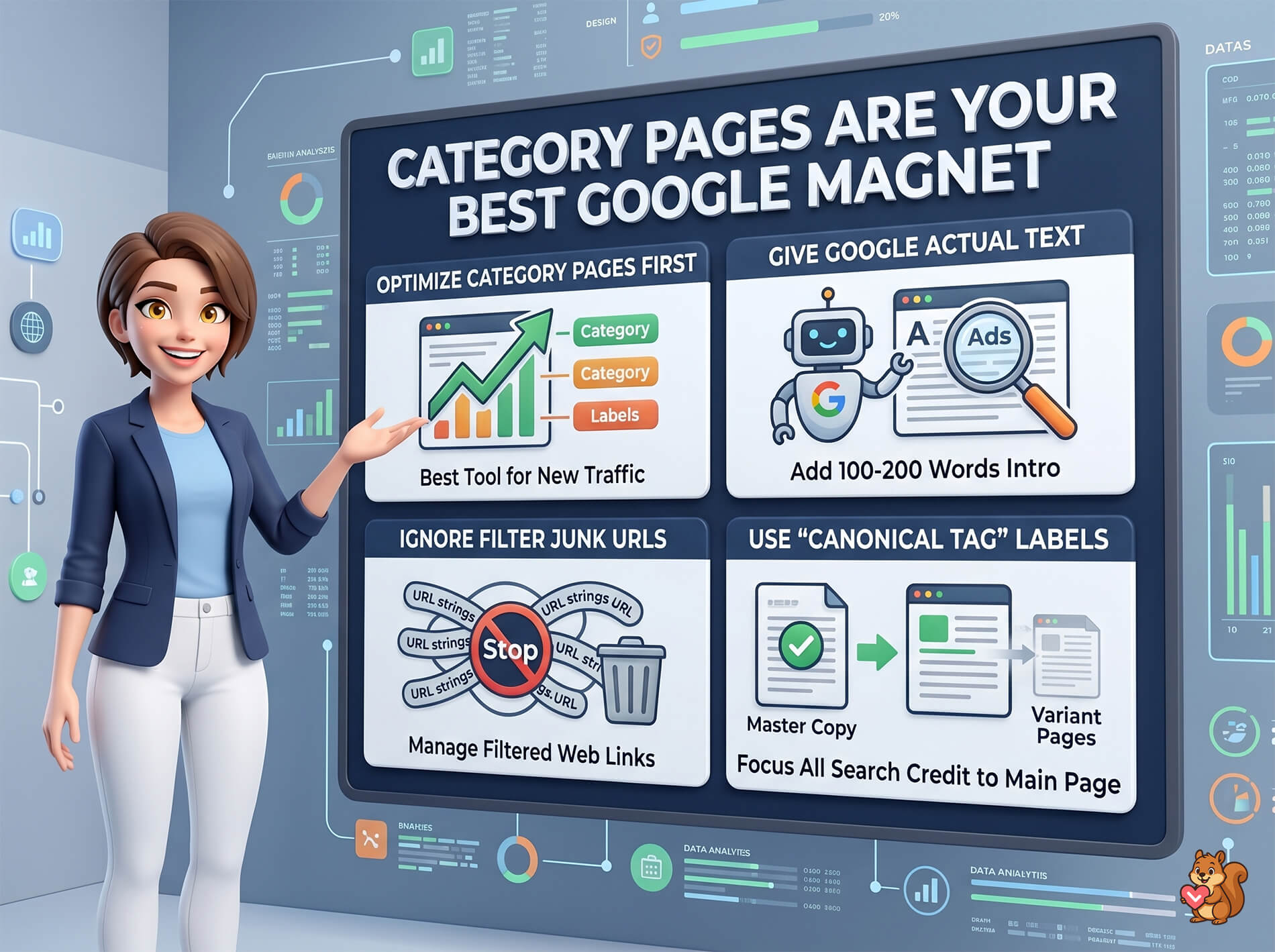
When people search Google for broad terms like “Men’s running shoes” or “organic dog treats,” Google usually sends them to a store’s category page, not a single product page. Because of this, your category pages are the most important tools you have for getting free traffic from Google.
🚀 What We’ve Seen: Store owners often spend hours perfectly optimizing their individual product pages for Google, but leave their category pages totally blank. Fix your category pages first, as they do the heavy lifting for bringing in new visitors.
1. Give Google some actual text to read
By default, category pages usually just show a title and a grid of product photos. But Google’s bots can’t “read” photos very well. Thus, add a 100- to 200-word introductory paragraph at the top of the page. Basically, this gives Google’s search engine actual words to read and helps your page show up in search results.
2. Don’t let your filters confuse Google
Every time a shopper clicks a filter (like “Blue” and “Size 10”), your website automatically creates a brand new, unique web link (URL) for that specific combination.
If you have a lot of filters, your site is secretly generating thousands of useless web links. If Google’s bots try to read all of these junk links, they get overwhelmed and might give up before they even find your most important pages. You need to use your website’s settings to tell Google to ignore these filtered links.
3. Use “Master Copy” labels to keep Google focused
Sometimes, you might have specific filtered pages that you do want Google to see, but nobody is actually searching for them. For example, thousands of people search Google for “running shoes,” but almost nobody searches for the highly specific phrase “red running shoes in size 10.”
So, how do you keep Google from getting distracted by these hyper-specific pages?
Basically, you can use something called a “canonical tag.” This is simply a behind-the-scenes label that tells Google: “Hey, this filtered page is just a variation. The real, master copy is the main ‘Running Shoes’ page. Please give all the search credit to the main page.” This keeps your main category page strong and visible in search results.
The Comparison Shopping Problem (And Why Wishlists Belong On Shop Pages)
Remember: shop pages are built for people who are “just browsing.” These shoppers are actively comparing prices, features, and styles, which means they need a temporary “parking space” to save the items they like while they keep looking.
If your store doesn’t give them a way to save items, they’ll invent their own workarounds. Unfortunately, those workarounds usually hurt your business.
The mistake: treating the shopping cart like a wishlist
Nielsen Norman Group research documents a behavior most stores still don’t account for. Typically, when a website doesn’t have a “Save for Later” button, shoppers default to a bad habit: they add everything they are even mildly interested in directly into the shopping cart. Then, when they’re done browsing, they leave the website and abandon the cart.
This creates two major headaches for store owners:
- Ruined Data: Your “Cart Abandonment Rate” skyrockets, but the data becomes completely useless noise. You can no longer tell the difference between a serious buyer who got distracted at checkout, and a casual browser who was just using the cart as a notepad.
- Lost Customers: Shopping carts are temporary. If a shopper returns a few days later on their phone, those cart items are usually wiped clean. They have to search your entire store from scratch to find what they liked, and most won’t bother.
The solution: changing the shopper’s mindset
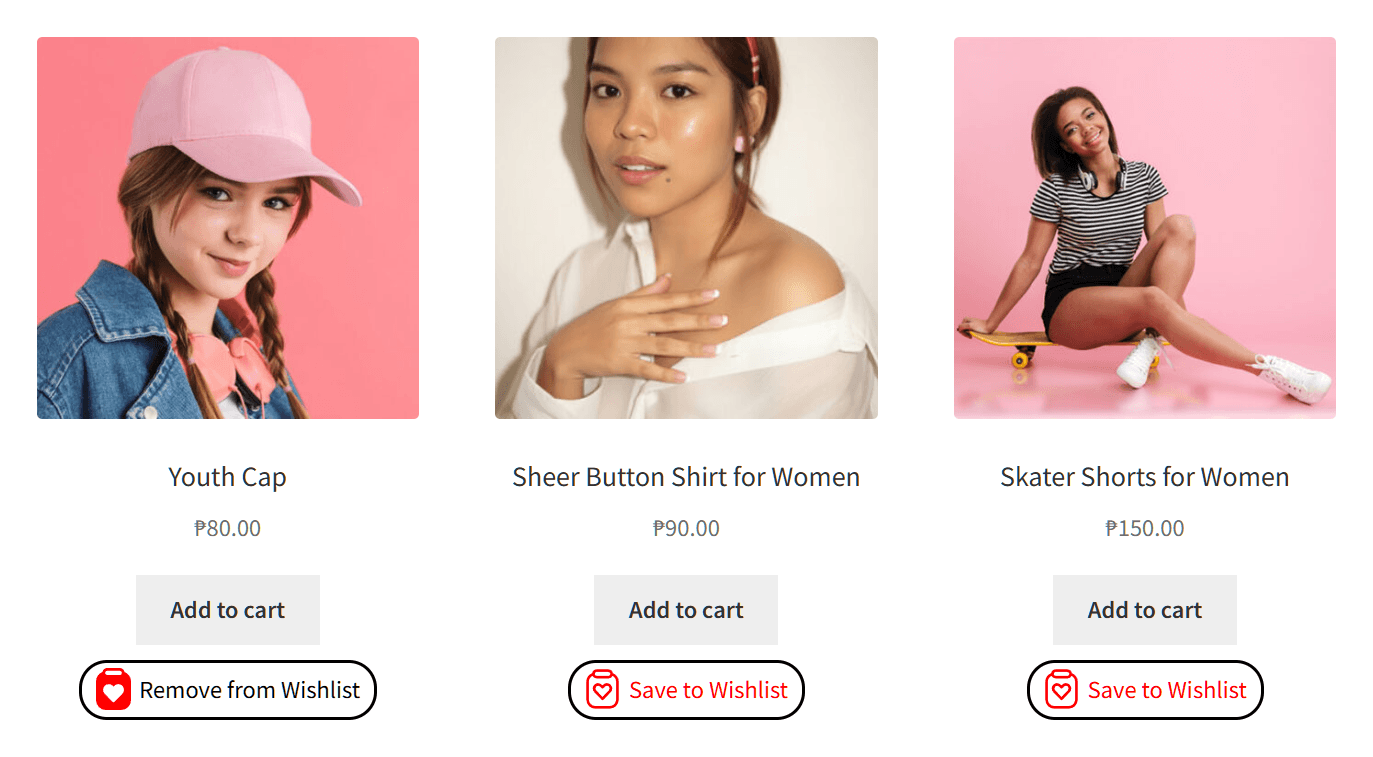
Putting a simple wishlist button (like a heart icon) directly onto every product card on your shop page solves this cleanly.
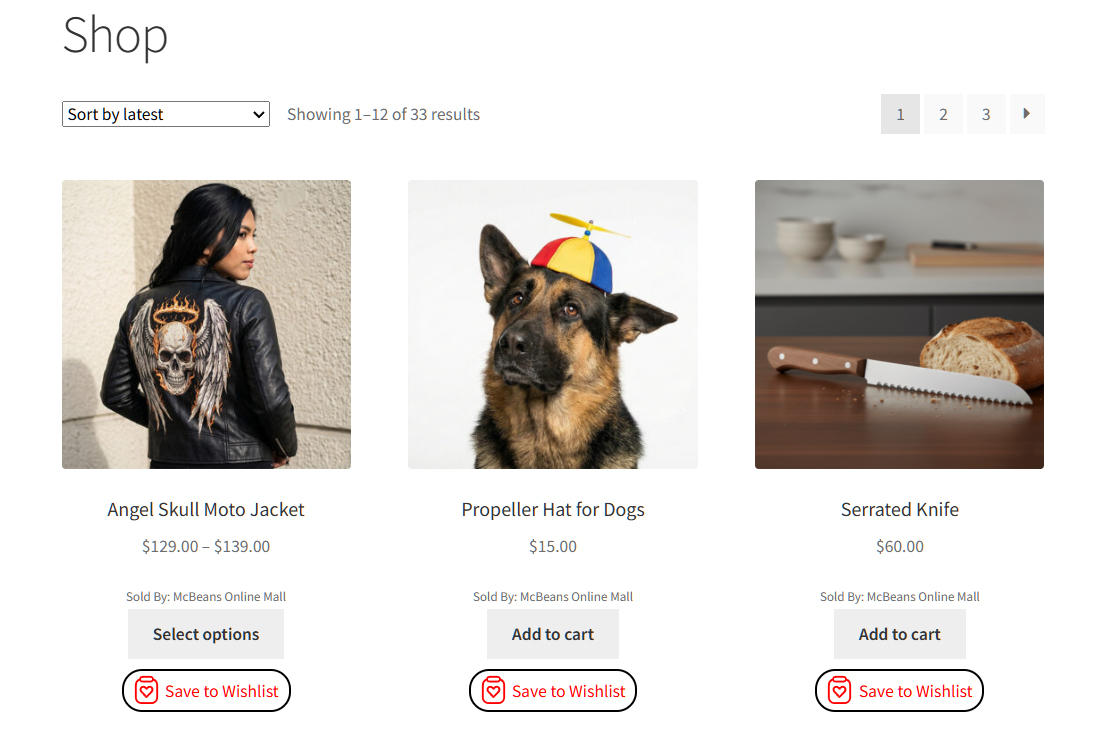
This strategy works because humans treat carts and wishlists with two entirely different mental models:
- The Wishlist Mindset (“I like this, remind me later”): This is low-pressure. It lets the user curate a personal catalog of items they actually intend to buy when they have the money or time.
- The Shopping Cart Mindset (“I’m buying this now”): This represents financial commitment. Pushing a casual browser here feels aggressive and causes them to log off.
How wishlists act as a secret analytics tool
Wishlists do more than just make shopping convenient; they act as an early-warning system for your business.
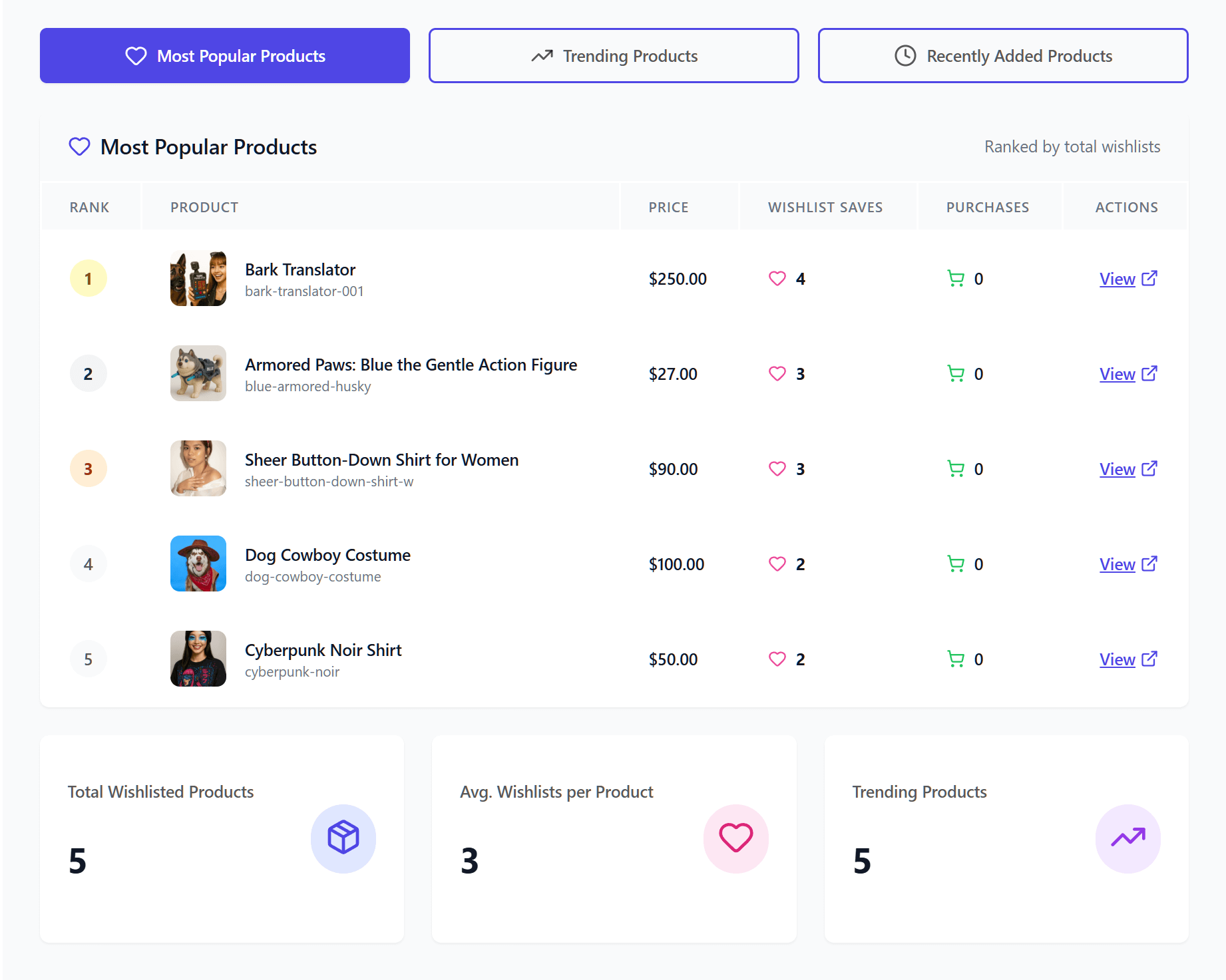
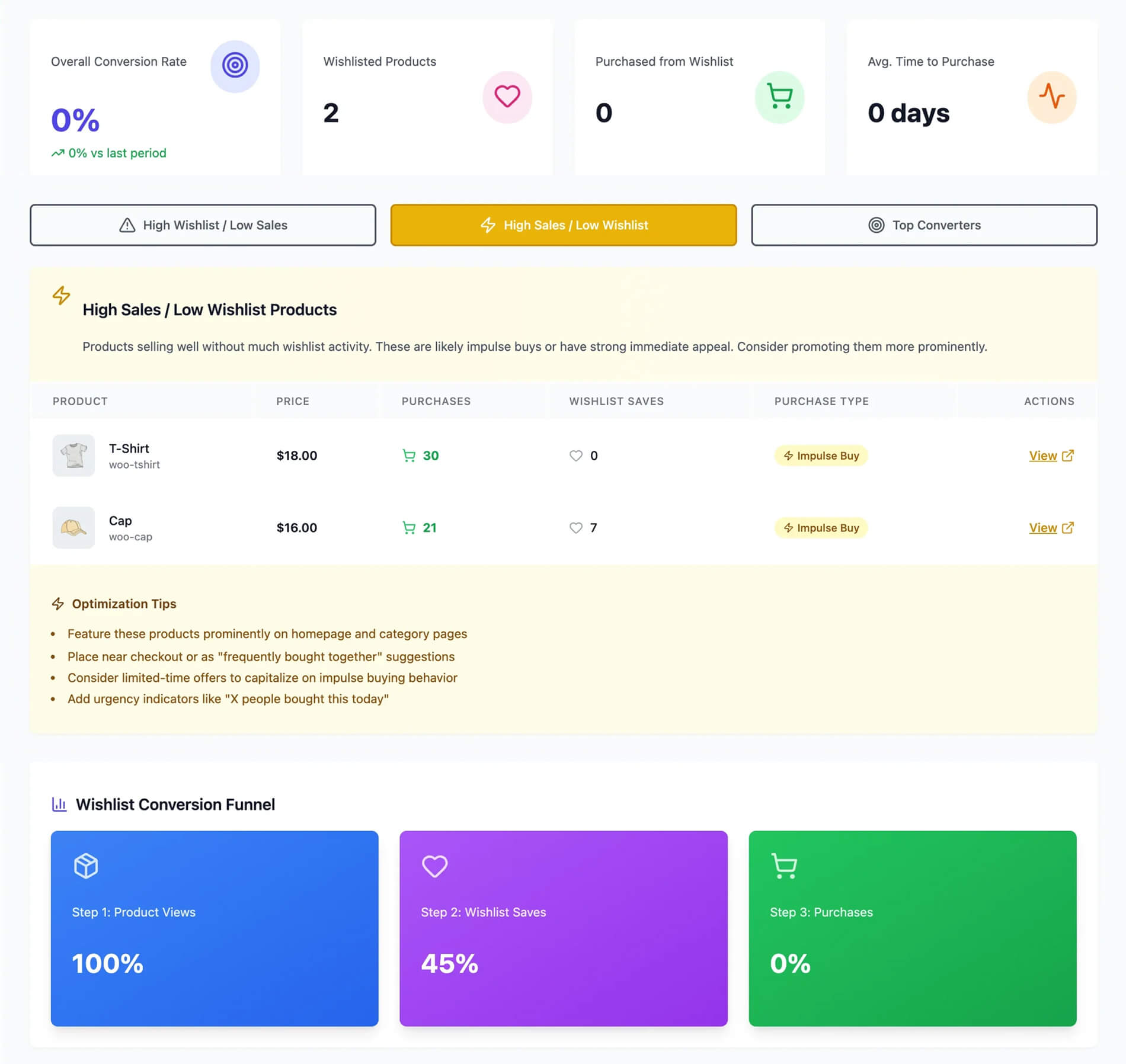
For example, by tracking which items get added to wishlists versus which ones get bought, you can pinpoint exactly why a product isn’t selling:
- Low Wishlist + Low Sales = A Traffic/Desire Problem: If an item gets no wishlist love at all, the product itself might not be appealing, or it’s buried so deep in your store that browsers can’t find it.
- High Wishlist + Low Sales = A Price/Trust Problem: If thousands of people are saving a jacket to their wishlist but nobody is buying it, it means they love the product, but something is stopping them at the finish line. Usually, the price is too high, or your product page is missing sizing charts or customer reviews.
Getting wishlists on your shop page
You can easily add this functionality using a tool like the SaveTo Wishlist plugin.
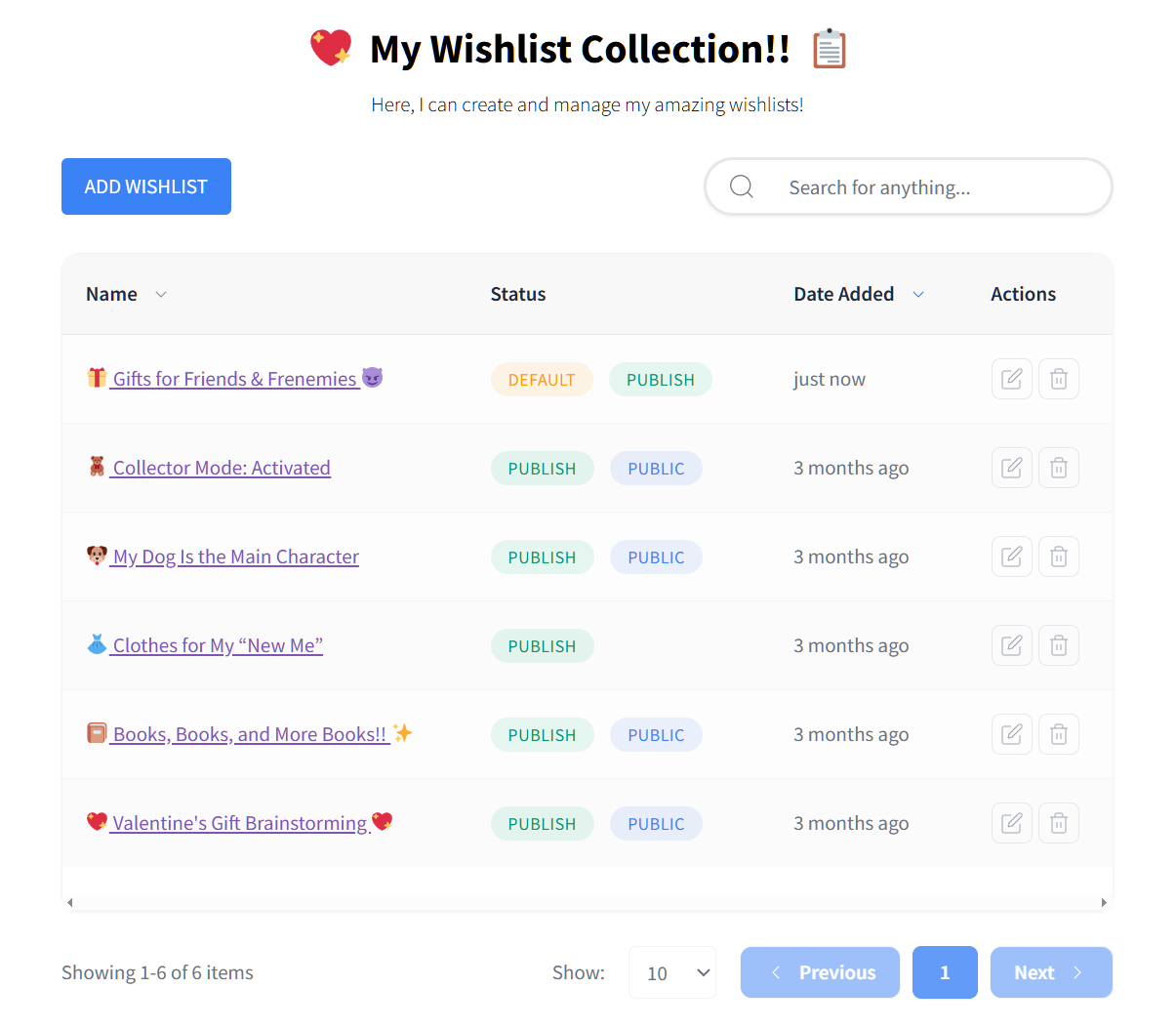
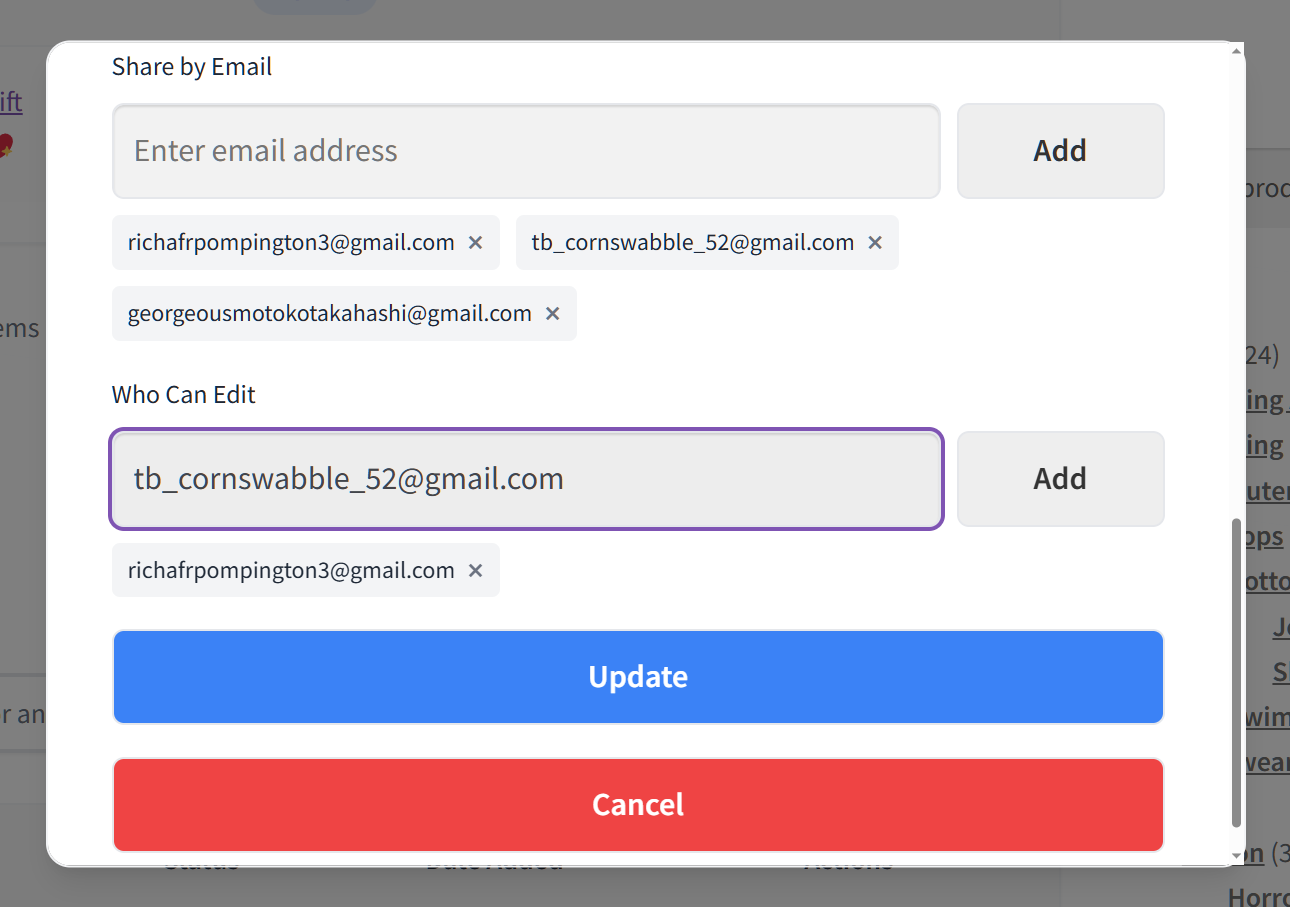
- The Free Version: Instantly adds a clean wishlist button to your product images. Crucially, it includes guest support, meaning shoppers don’t have to ruin their experience by creating an account just to save an item. It also comes with unlimited multiple wishlists, customizable templates, social sharing, and more.
- The Pro Version: Unlocks automated marketing tools. If an item on a customer’s wishlist goes on sale, drops in price, or comes back into stock, the system automatically emails them to bring them back to your store to finish the sale. It also includes advanced wishlist analytics, role-based permissions, and more.
FAQs: Ecommerce Shop Page Best Practices
What’s the difference between a shop page and a product page?
A product page is for one item. A shop page (also called a category page) lists many products. Basically, the two serve different jobs: ecommerce product pages close sales, shop pages drive discovery and the next click.
Should I use infinite scroll on my shop page?
For most ecommerce stores, no. Nielsen Norman Group research advises against infinite scroll for goal-oriented shopping tasks. Use standard pagination or a Load More button instead. Basically, both preserve the back-button behavior shoppers rely on.
How many products should I show per shop page?
24 to 36 products per page is a reasonable starting range. Show enough that shoppers feel they’re seeing the selection without forcing a heavy page load. Pair with Load More if your mobile traffic skews high.
Do shop pages help with SEO?
Shop pages often outrank product pages for category-level keywords. For instance, “Men’s running shoes” lands a category page in most search results, not a single product. Adding 100 to 200 words of intro content above the product grid gives Google something to rank on.
Will adding a wishlist button to my shop page slow my site?
It depends on the plugin. For example, SaveTo Wishlist is built to stay lightweight. Our WooCommerce wishlist plugin speed test has comparison data. On the other hand, heavier plugins can add noticeable load. Thus, you should check Lighthouse scores after installing any new wishlist tool.
Should I include product videos on my shop page?
For most stores, no. Video is great for single items, but auto-playing product videos in a category grid can drastically slow down page load times and overwhelm the user. Therefore, you should keep the shop page fast by saving the heavy media files for individual listings.
Do product page best practices apply to shop pages?
Generally, no. While a product page focuses on deep details, reviews, and a single ‘Add to Cart’ button, a shop page is all about quick scanning and filtering. Trying to squeeze conversion elements like timers or long text onto your shop page will only clutter the user experience.
Conclusion
When evaluating your overall ecommerce website design, remember that shop pages are where most user journeys actually happen. They’re also where most browse-mode shoppers leave. The research from Baymard, Nielsen Norman Group, and Google all points in the same direction. Treat the shop page as a discovery surface and you’ll keep more of those shoppers coming back.
Here’s where to start:
- Frame shop pages as discovery, not sales
- Build for information scent: clear labels, breadcrumbs, real intro content
- Add the five essential filters and four essential sort types
- Skip infinite scroll for goal-oriented shopping
- Manage faceted URLs and canonical tags for SEO
- Add a wishlist button to every shop page card
To add a wishlist button to your shop page today, use the free version of SaveTo Wishlist. Unlimited wishlists, guest wishlists, and customizable templates are all included. No paid plan required.