

 Reviewed by
 A shopper saves a product to their wishlist. Then life gets in the way. The tab closes, the week fills up, and the sale never happens. Meanwhile, your follow-up email sits unread in a busy inbox.
This is where WooCommerce SMS marketing helps. People tend to open text messages much faster than they open email. The problem is that most SMS setups send the same offer to everyone. That’s how you train people to tune you out, or opt out for good.
Fortunately, there’s a better way to do it. Send fewer texts, and let shopper behavior decide the timing. This guide shows you how to trigger texts from wishlist activity in WooCommerce. The result is a message that arrives when someone is closest to buying.
Table of Contents
- What Is WooCommerce SMS Marketing Driven By Wishlists?
- Why Wishlist Events Make The Best SMS Triggers
- How To Connect SaveTo Wishlist To Your SMS Tool
- What The Webhook Sends To Your SMS Tool
- Which Wishlist Triggers Are Worth A Text
- Write Texts People Don't Mind Getting
- When Email Is The Better Choice
- Frequently Asked Questions
- Turning Wishlist Activity Into Timely Texts
What Is WooCommerce SMS Marketing Driven By Wishlists?
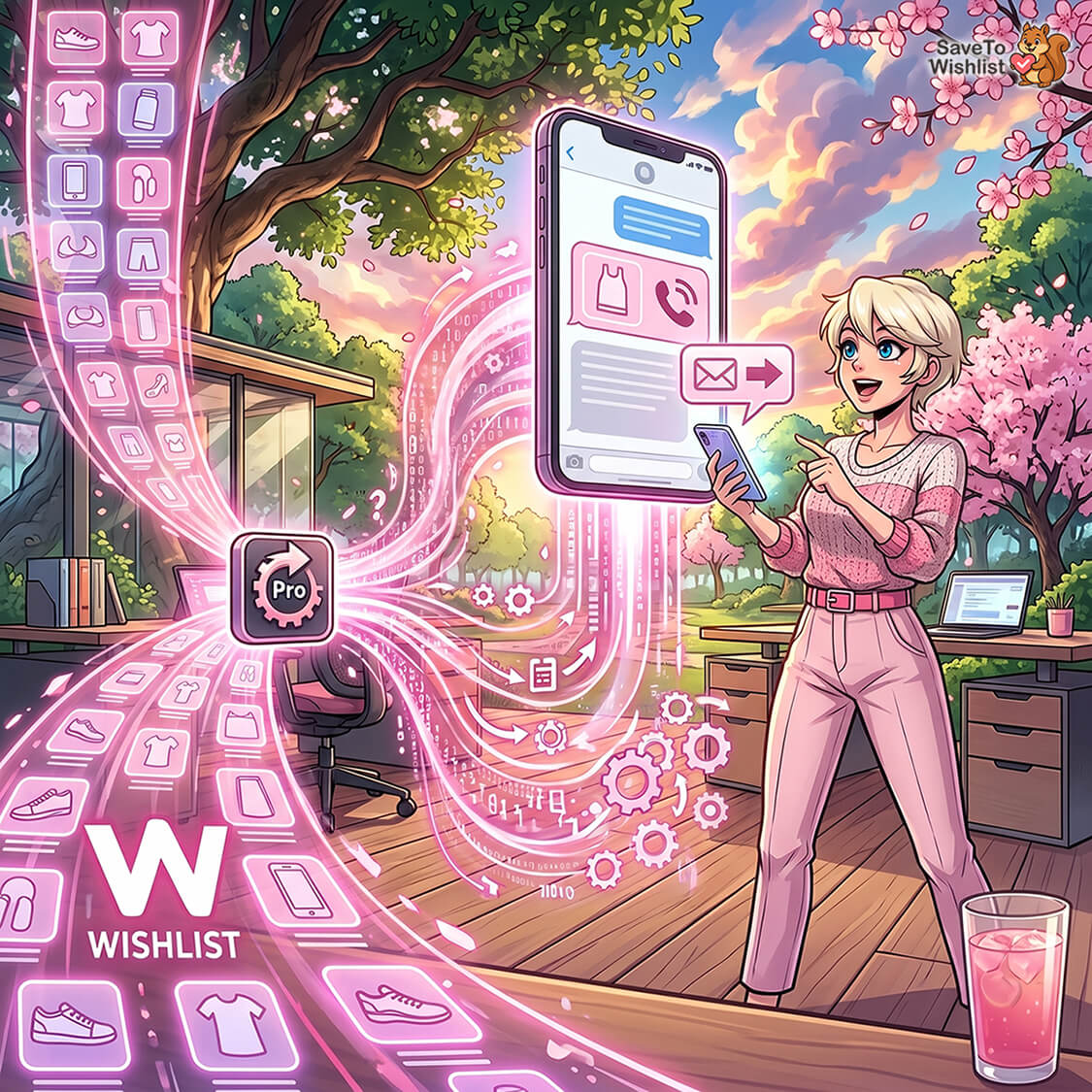
It’s SMS that fires from real wishlist events instead of a calendar. Every text points back to a product the shopper already saved. As a result, you stop guessing at the timing, because the shopper’s own actions set it.
Here is the part that surprises people. SaveTo Wishlist doesn’t send text messages. It’s not built to, and that’s on purpose.
What SaveTo Wishlist Pro does is fire a webhook the moment a wishlist event happens. A webhook is a small, automatic message your store sends to another app. That message goes to an automation tool like Zapier or Make. From there, an SMS service such as Twilio sends the actual text.
So three tools each handle one job:
- SaveTo Wishlist Pro is the trigger source. It spots the wishlist event and sends out the data.
- Zapier or Make is the connector. It catches that data and passes it along.
- Twilio or another SMS service is the sender. It delivers the text to the shopper’s phone.
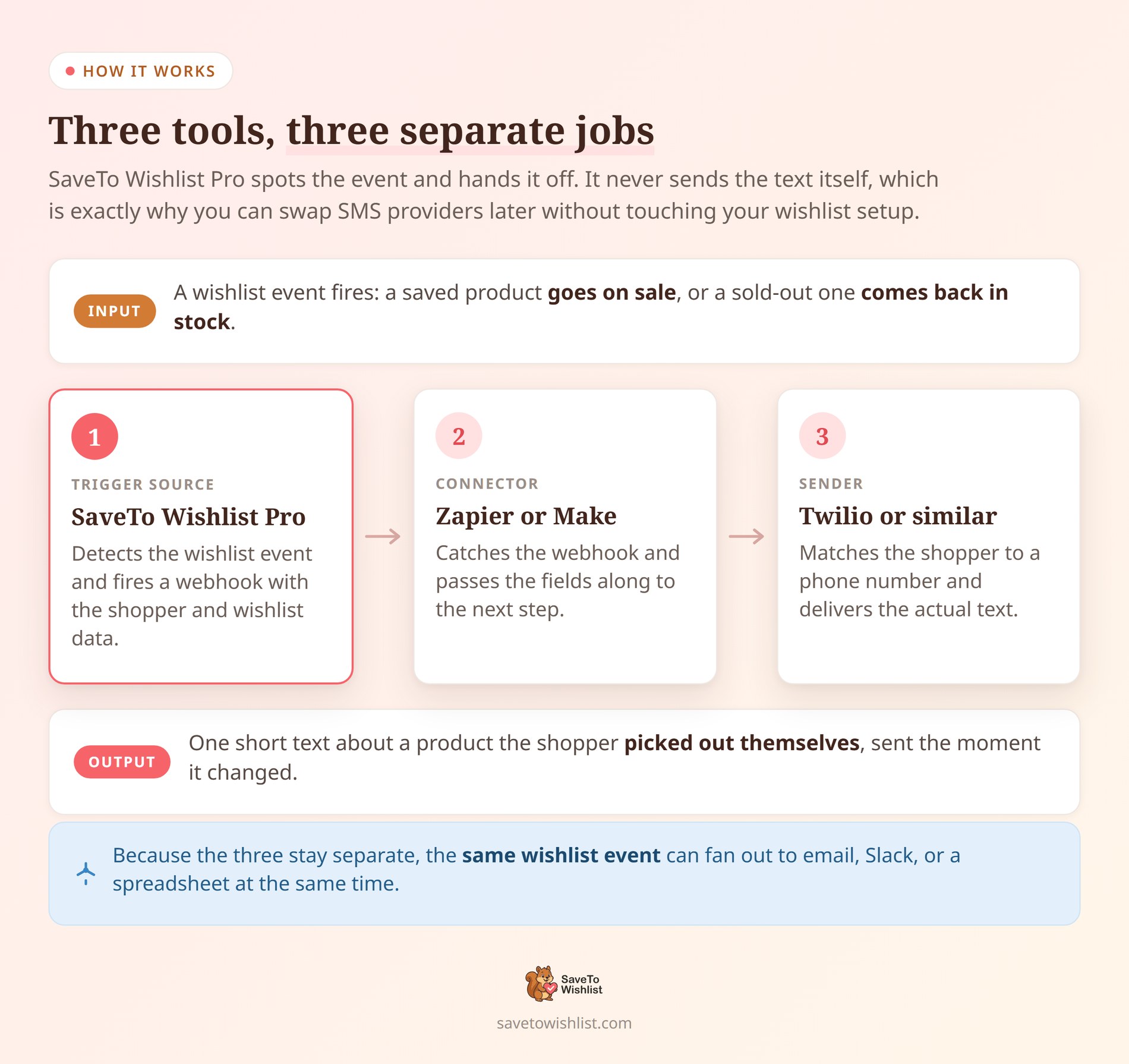
Keeping these three separate is useful. For instance, you can switch SMS providers later and leave your wishlist setup alone. You can also send the same wishlist event to email, Slack, or a spreadsheet at the same time.
One thing to know up front. Webhook automations are a SaveTo Wishlist Pro feature. The free SaveTo Wishlist plugin handles the wishlists themselves. Pro adds the automations, alerts, and webhook actions that feed your SMS tool.
Why Wishlist Events Make The Best SMS Triggers
Wishlist events work as SMS triggers because they capture intent that carts miss. A save is a shopper quietly saying “not yet, but I want this.” That’s a useful thing to know before you spend a text on someone.
The data backs up why this matters. Baymard Institute puts the average cart abandonment rate at about 70.22%. The same research finds 43% of US online shoppers have abandoned a cart because they were just browsing. Those browsers rarely respond to a checkout reminder, because they never planned to check out that day.
A wishlist gives you a way to reach that “not ready yet” group later, when their situation changes. That change is the whole point. A saved product drops in price. A sold-out item comes back. In other words, whatever made the shopper pause may have just gone away.
A short, specific text at that moment reads as helpful rather than pushy. It’s about a product they hand-picked, not something you decided to promote this week.
There is a second reason wishlist triggers suit SMS. They fire rarely. A price drop on a saved item is not an everyday event. In turn, that keeps your texts uncommon enough that people still bother to read them.
One thing we commonly see is that these event-based texts get better engagement than scheduled promos. After all, the relevance is already built in.
How To Connect SaveTo Wishlist To Your SMS Tool
You connect the two by pointing a SaveTo Wishlist Pro webhook at your automation tool, then mapping the wishlist data into an SMS step. Better still, the whole flow runs on webhooks, so you don’t need to write any code.
Set up the catch hook in your automation tool
Start on the automation side, because you need a URL before you can paste one anywhere.
In Zapier, create a new Zap and pick Webhooks by Zapier as the trigger app. Choose Catch Hook as the event, then continue. Zapier gives you a long, unique URL. Copy it. Make works the same way: build a scenario that starts with a webhook module, and it hands you a URL to copy.
Either way, that URL is the address your store will send wishlist events to. Treat it like a password and don’t post it publicly.
Add the webhook automation in SaveTo Wishlist Pro
Now switch to your WordPress admin and build the matching automation:
- Go to SaveTo Wishlist > Automations.
- Create a new automation and pick your trigger. For SMS, that’s usually a wishlisted product going on sale, or an out-of-stock item coming back in stock.
- For the action, choose Webhook. This is the feature Pro calls Real-Time Webhooks.
- Paste the URL you copied, set the request method to POST, and leave the payload on the default JSON option.
- Save the automation.
JSON sounds technical, but it only means the data is packed into a standard text format your automation tool already understands. In any case, you don’t need to edit it by hand.
Test it before you connect the SMS step
Don’t skip this part. It’s the step most people rush, and it’s the one that causes the most trouble.
Go to your store the way a shopper would and set the event off yourself. Add an item to a wishlist, or put a test product on sale. That real event pushes a real payload down the pipeline.
Then go back to Zapier and click Test Trigger. Because a live event just happened, Zapier catches the data and shows you every field it received.
This matters more than it looks. Without a real payload, your automation tool has nothing to show you, and you would be mapping fields blind.
Once the fields appear, add your SMS step. Connect Twilio or whichever service you use, then drop the wishlist fields into the message. Send one more test to a phone you own, read the text carefully, and only then switch the automation on. Overall, most of the setup time goes into testing rather than configuration.
If you want to learn the triggers and actions inside SaveTo Wishlist first, our wishlist automation guide walks through the setup. Developers building custom payloads can lean on the wishlist REST API developer guide.
What The Webhook Sends To Your SMS Tool
It helps to know what data you actually receive, because that decides what your text can say.
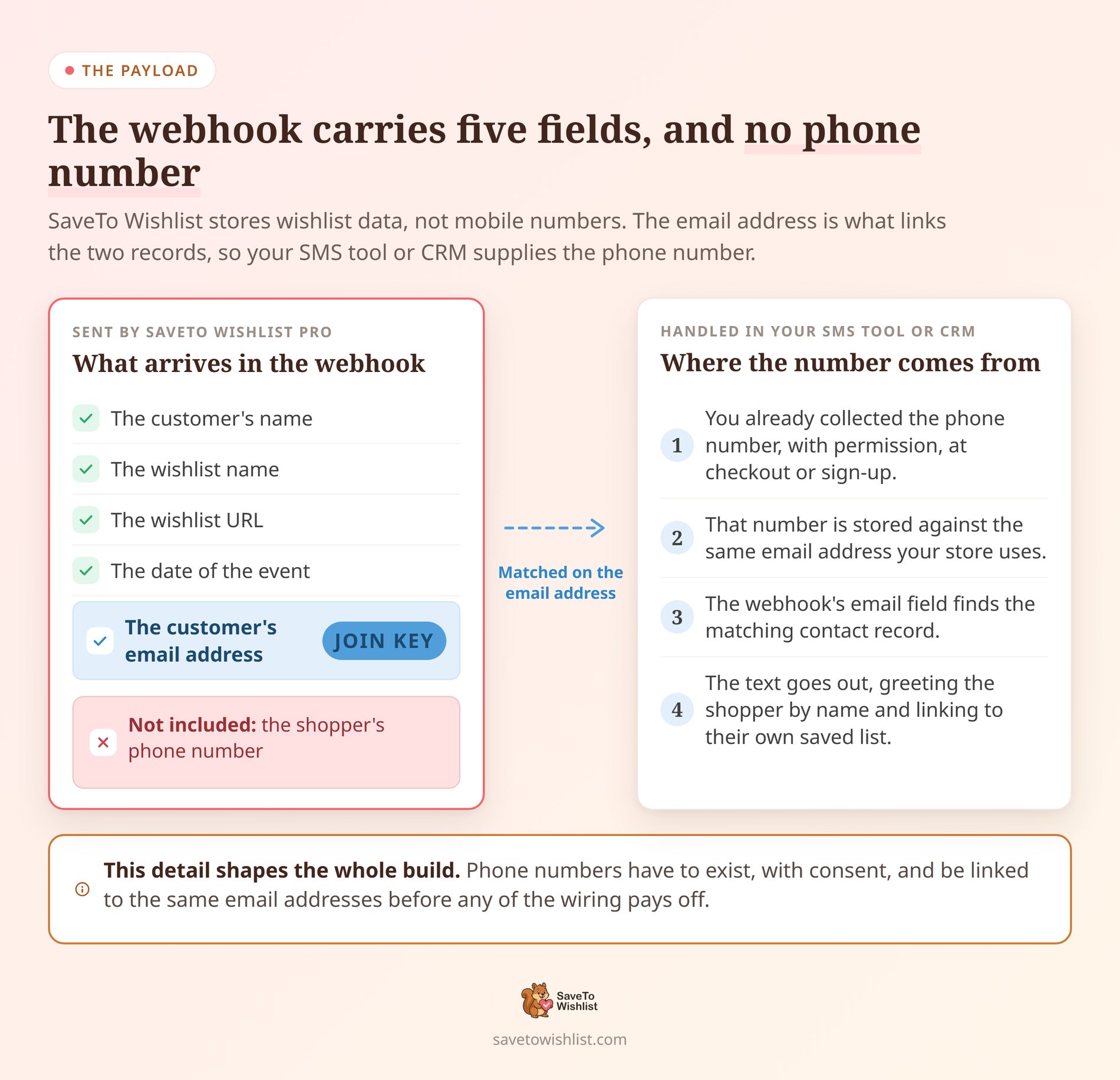
The webhook carries details you can map inside Zapier or Make:
- The customer’s name
- The customer’s email address
- The wishlist name
- The wishlist URL
- The date of the event
That’s enough for a message that feels personal. In practice, you can greet the shopper by name and link them straight back to their own saved list.
Notice what is not on that list: a phone number. SaveTo Wishlist stores wishlist data, not mobile numbers. So you match the shopper to a phone number inside your SMS tool or CRM, and the email address is usually what you match on.
That detail shapes your whole setup. Before any of this works, you need phone numbers already collected, with permission, and linked to the same email addresses your store uses.
Which Wishlist Triggers Are Worth A Text
SaveTo Wishlist Pro gives you five triggers. Not all five deserve a text. The ones worth spending an SMS on are the ones that carry built-in urgency.
- A wishlisted product goes on sale. Worth a text. The item just got cheaper, and the shopper picked it out themselves.
- An out-of-stock wishlisted product comes back in stock. Worth a text. The thing blocking the purchase is gone, and popular items sell out again fast.
- An item is added to a wishlist. Better as an email. The shopper is still browsing, and a text this early feels like you’re watching them.
- A new wishlist is created. Better as an onboarding email. It’s too early in the relationship for SMS.
- An item is removed from a wishlist. Not a message at all.
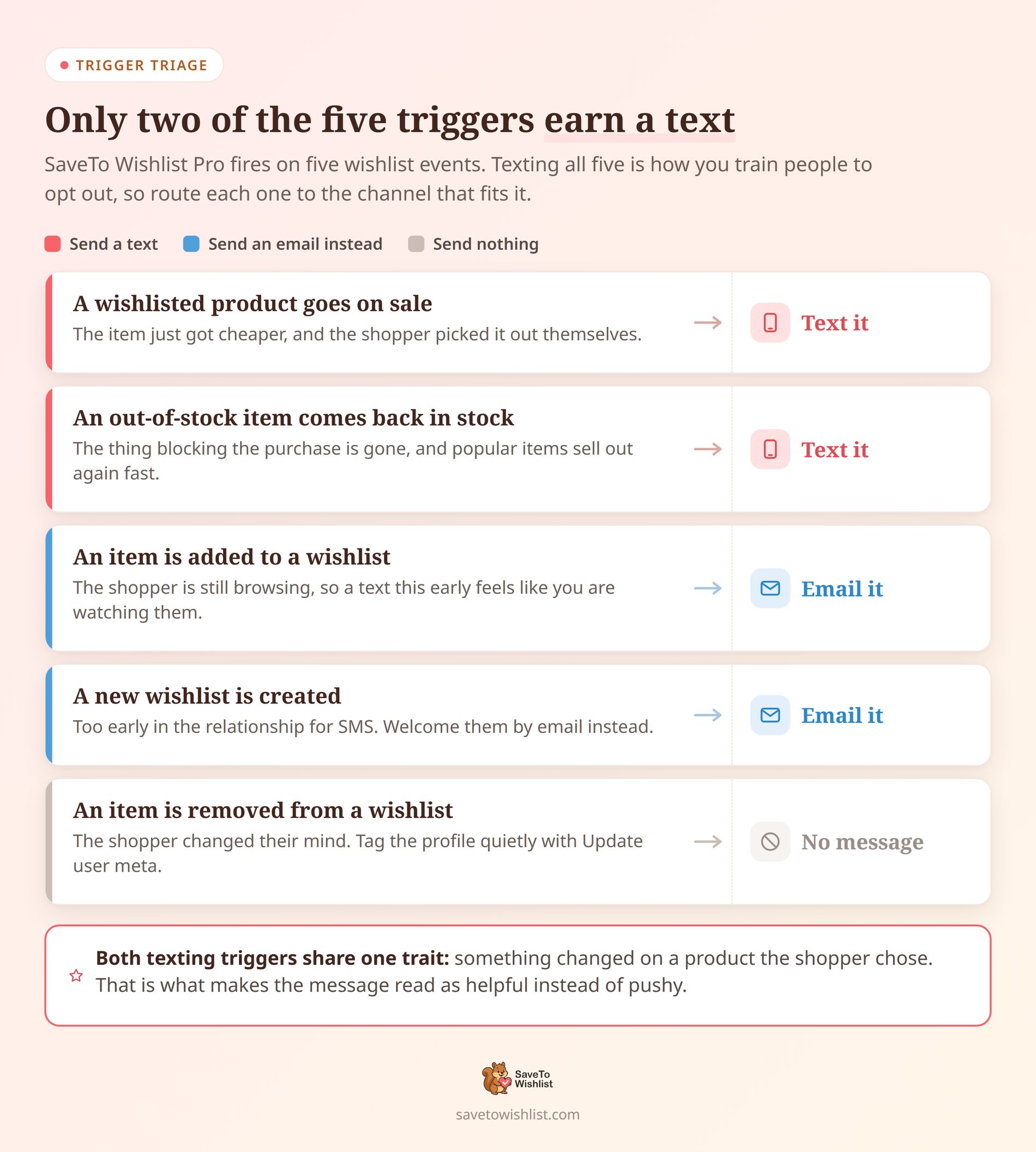
That last one is worth explaining. Removing an item tells you the shopper changed their mind. Texting them about it would be strange. Instead, use the Update user meta action to tag the profile quietly. Over time those tags help you tell serious buyers from window shoppers, without sending a single message.
🔍️ What we’ve seen: Stores that reserve SMS for price-drop and back-in-stock wishlist events keep far healthier opt-in lists. Stores that text every promotion don’t. A single well-timed restock text can outperform a week of broadcast blasts. The shopper already raised their hand for that exact product.
Text messaging is a channel people guard closely, so every send should earn its place. Wishlist triggers make that easier. By design, they only fire when something genuinely changed for a product the shopper chose.
Write Texts People Don’t Mind Getting
A wishlist text has a narrow job. Say what changed, name the product, and give one link. A few habits keep these messages welcome:
- Get clear permission first. Collect phone numbers with an explicit agreement to receive texts, usually at checkout or at sign-up.
- Say who you are. People delete texts from numbers they don’t recognize, so lead with your store name.
- Name the item. “Your saved item” is vague. The actual product name proves the message is really for them.
- Give one link. Send them to their wishlist or the product page, not your homepage.
- Include a way to stop. Every message should make opting out simple and obvious.
- Keep it rare. One good restock text beats five promotional ones.
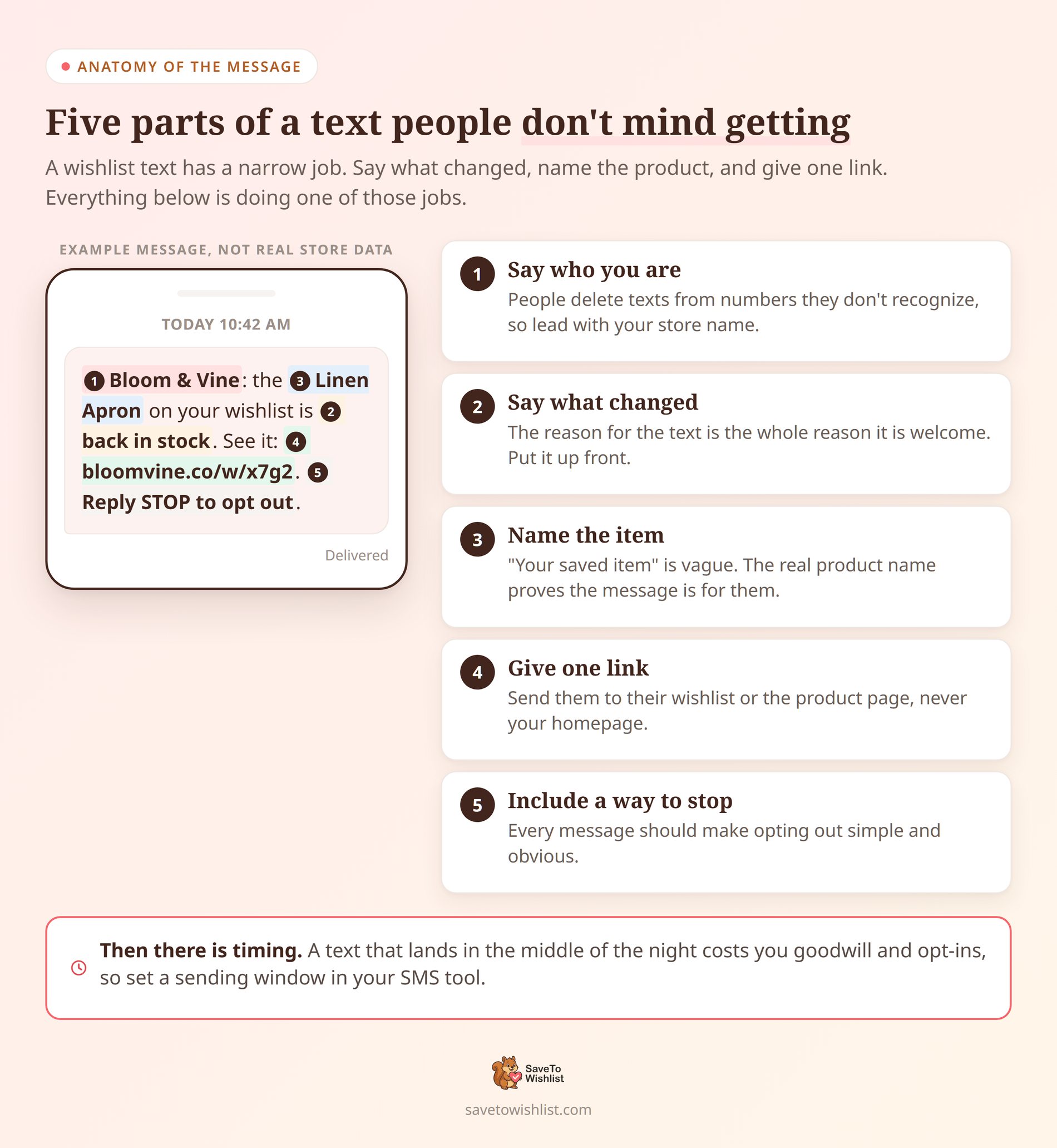
Timing counts too. A text that lands in the middle of the night costs you goodwill and opt-ins. Thankfully, most SMS tools let you set sending windows, so use them.
SMS is regulated in most places, and the rules differ by country and sometimes by state. We are not lawyers, so check what applies where your customers live. Above all, the safe pattern is permission first, then trigger-based texts only.
When Email Is The Better Choice
Here is something worth knowing before you build anything. SaveTo Wishlist Pro already sends price-drop and back-in-stock emails on its own. For those, you don’t need Zapier or an SMS tool at all.
So why add SMS? Because email and text do different jobs.
Email suits messages that can wait. It handles longer content, images, and several products at once. It costs nothing per send, so a lower open rate is not a real problem.
By contrast, text suits the small number of moments that are genuinely time-sensitive. A short sale on a saved item. A restock of something that sells out quickly. Texts cost money per message and spend goodwill, so save them for those cases.
A sensible split looks like this. Let SaveTo Wishlist Pro handle routine wishlist emails on its own, and route only your highest-urgency triggers out to SMS through a webhook. If you want the email side working properly first, see our guide to WooCommerce email automation with wishlist triggers.
Frequently Asked Questions
Does SaveTo Wishlist send SMS messages itself?
No. SaveTo Wishlist doesn’t send texts on its own. SaveTo Wishlist Pro fires a webhook when a wishlist event happens. That webhook connects through Zapier or Make to an SMS platform like Twilio, which sends the actual message. Think of SaveTo Wishlist as the trigger source and your SMS tool as the sender. Keeping them separate means you can swap SMS providers later without touching your wishlist setup.
What do I need to send wishlist-triggered texts?
You’ll need three pieces. SaveTo Wishlist Pro provides the webhook triggers. An automation tool like Zapier or Make catches the webhook. An SMS service such as Twilio sends the message.
You’ll also need shopper phone numbers collected with proper consent, matched to the email addresses in your store. Once wired together, a wishlist event hands off to a text with no manual work.
Which wishlist events can trigger a text?
SaveTo Wishlist Pro automations fire on five events: a new wishlist created, an item added, an item removed, a wishlisted product going on sale, and an out-of-stock wishlisted product coming back in stock. Any of them can call a webhook. For SMS specifically, price-drop and back-in-stock events work best because they carry built-in urgency. We’d start with those two.
Do I need SaveTo Wishlist Pro, or will the free plugin work?
You need Pro for this. Webhook automations are a SaveTo Wishlist Pro feature. The free plugin covers wishlists themselves, including guest wishlists and shareable links. Pro adds the automations, the price-drop and back-in-stock alerts, and the webhook action that hands wishlist events to your SMS tool.
Does the webhook include the shopper’s phone number?
No. The webhook carries the customer’s name and email, the wishlist name, the wishlist URL, and the date. SaveTo Wishlist stores wishlist data, not mobile numbers. Most stores match the shopper to a phone number inside their SMS platform or CRM, using the email address as the link between the two records.
Is wishlist SMS marketing allowed under consent rules?
SMS marketing is regulated in most regions, so you generally need clear opt-in consent before texting shoppers. Many store owners collect phone numbers at checkout or through a wishlist sign-up with an explicit SMS agreement. We’re not lawyers, so check the rules that apply where your customers live. The safe pattern is consent first, then trigger-based texts only. That also happens to keep your list engaged.
Can I personalize the text with product details?
Yes. SaveTo Wishlist Pro’s webhook payload carries shopper and wishlist details, like the customer’s name and their wishlist URL. You map those fields into your SMS tool. That lets you send a text that names the shopper and links straight back to their saved list. Personalized, specific texts usually beat generic blasts, and the data to personalize them is already in the payload.
Turning Wishlist Activity Into Timely Texts
Wishlist-triggered SMS works because it swaps guesswork timing for real shopper intent. It does that without asking SaveTo Wishlist to be something it isn’t. Ultimately, the wishlist fires the signal, and your SMS tool delivers the message.
Here’s the quick recap:
- What wishlist-driven SMS actually is and how the trigger, connector, and sender roles split up.
- Why wishlist events beat scheduled blasts for reaching “not ready yet” shoppers.
- How to connect SaveTo Wishlist to your SMS tool with a catch hook, a webhook automation, and a live test.
- What the webhook actually sends, and why a phone number is not part of it.
- Which of the five triggers are worth a text and which belong in email instead.
- How to write texts people don’t mind getting, from permission through to opt-out.
- When email is the better choice, since Pro already sends alerts on its own.
If you’re ready to turn saved products into well-timed texts, get SaveTo Wishlist Pro. It gives you the webhook triggers and payload fields your SMS tool needs. Set the trigger once, connect it, and let wishlist activity handle the timing!



