

 Reviewed by
 A shopper lands on your engraved beanie and likes it. They save it for later instead of buying. They don’t enter their engraving text because they aren’t ready to buy yet.
Two weeks later they open their wishlist and tap the cart button. On an unprotected store, that item can reach the cart with an empty engraving field. Nobody notices until production, which leads to the costly process of remaking personalized items that cannot be resold.
This often catches stores off guard when they meticulously test their product pages but forget to test their wishlist. Advanced Product Fields for WooCommerce gives those products their option fields. SaveTo Wishlist Lite adds the guard that keeps unconfigured items out of the cart.
Here’s what the integration actually does, how to set it up, and what its limitations are.
Table of Contents
- Why Custom Product Options Break The Wishlist To Cart Path
- What The Advanced Product Fields Integration Actually Does
- What You Need Before You Start
- How To Set Up Advanced Product Fields For WooCommerce Wishlists
- Which Custom Product Types Gain The Most
- Limits To Know Before You Rely On It
- Frequently Asked Questions: Advanced Product Fields For WooCommerce
- Give Custom Orders One Clean Path
Why Custom Product Options Break The Wishlist To Cart Path
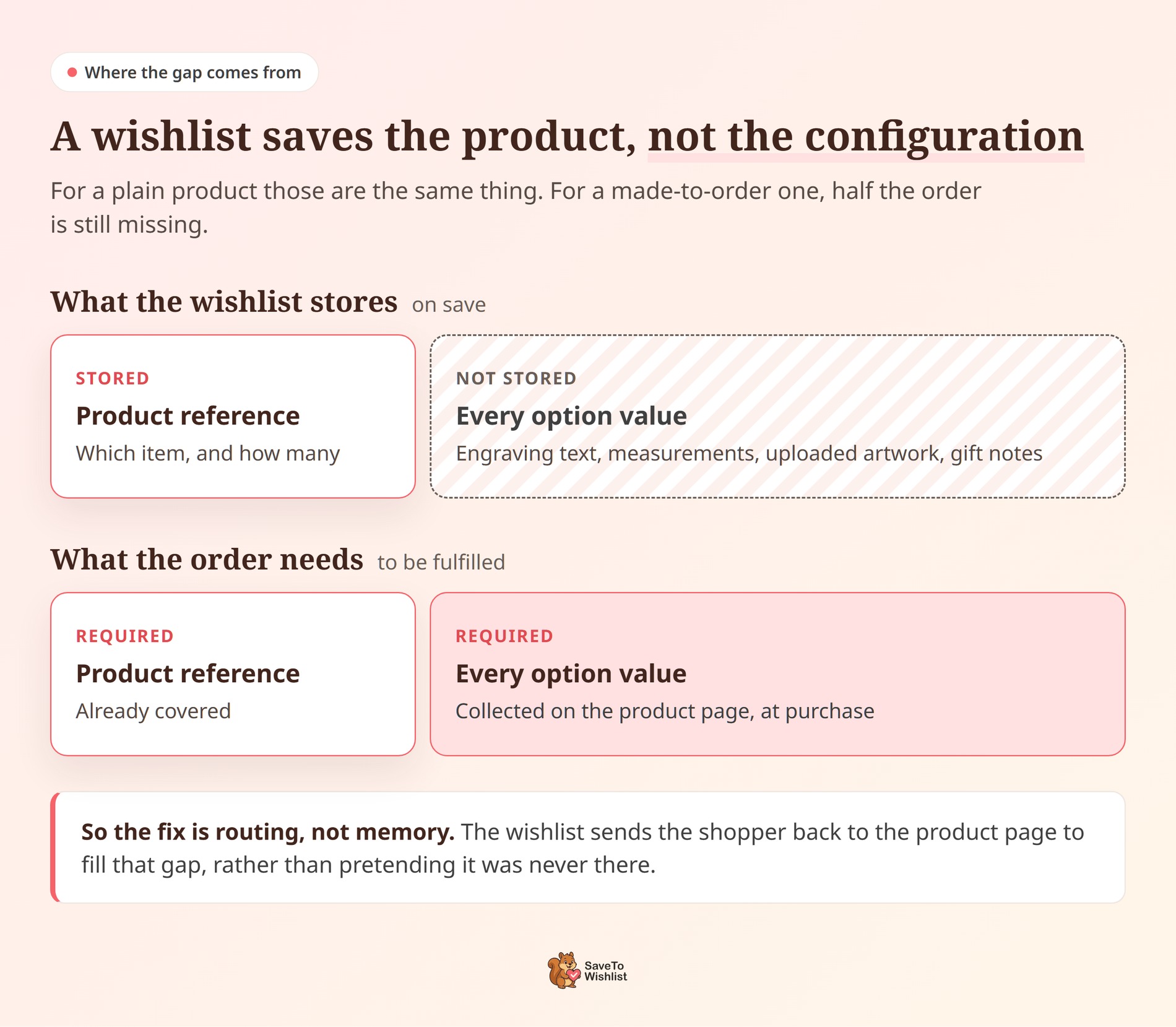
A wishlist saves a link to the basic product, but it doesn’t save the custom details the shopper selects. That gap matters as soon as your catalog includes made-to-order items.
For a plain t-shirt, a saved reference is all you need. For a beanie with an engraving field, it’s only half the order. The other half lives in fields the shopper hasn’t filled in yet.
Saving for later is normal shopper behavior, not an unusual exception. Baymard Institute puts the average documented cart abandonment rate at 70.22%, drawn from 50 separate studies. Most of that traffic leaves intending to come back.
However, friction is what stops them from returning smoothly. In Baymard’s own survey of US shoppers, 17% abandoned an order because checkout was too long or complicated. Encountering a required field that wasn’t visible from the cart creates exactly this kind of friction.
These errors can also create costly issues after the sale is complete. The National Retail Federation and Happy Returns estimate that 19.3% of online sales will be returned in 2025. A wrongly configured custom item is worse than a normal return. Personalized stock rarely goes back on the shelf.
🔍️ One thing we see constantly: Stores often carefully test product pages for option fields, but it is equally important to remember to test the wishlist. The product page is only one route into the cart. Every route needs to respect the same required fields.
What The Advanced Product Fields Integration Actually Does
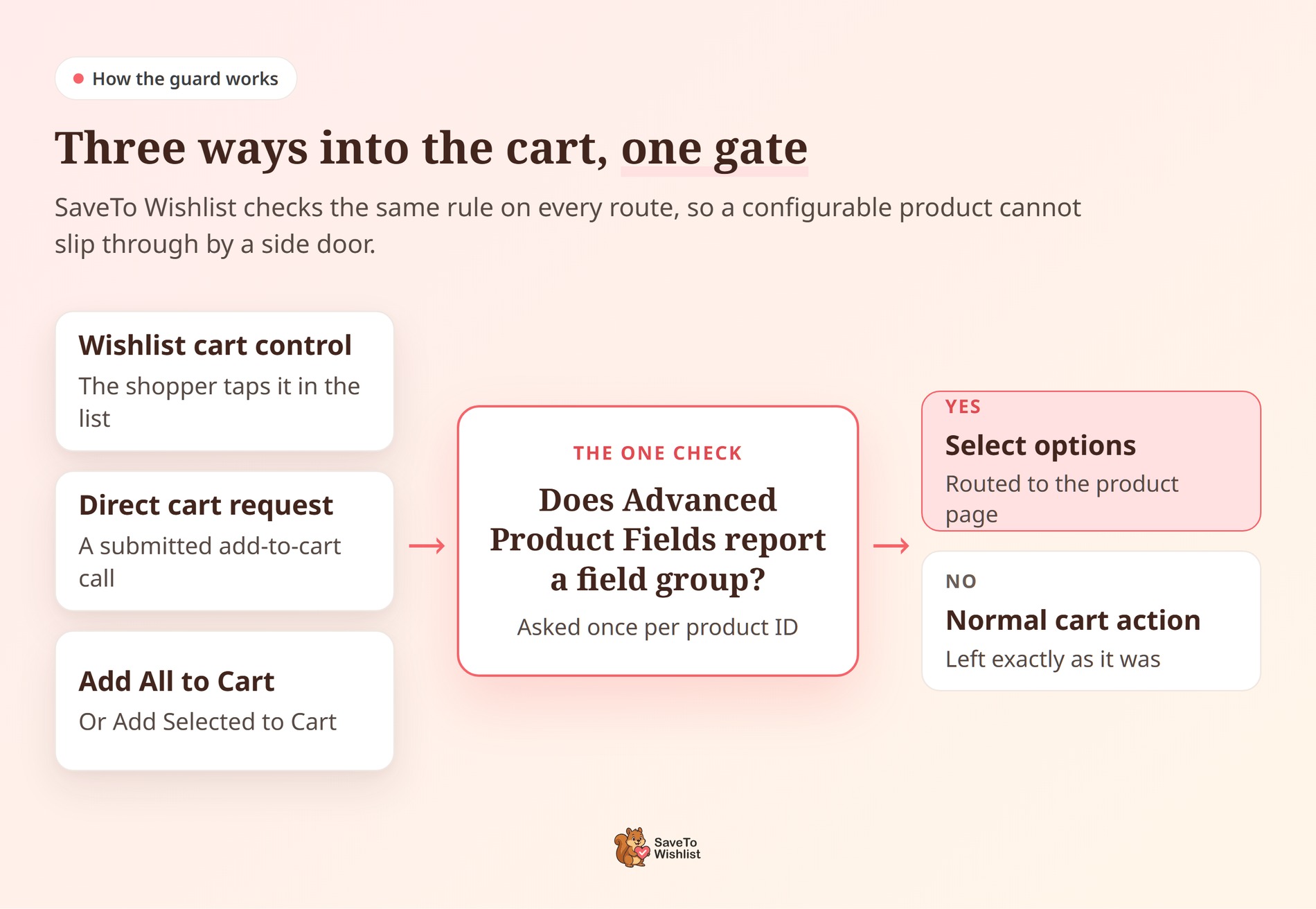
The integration acts as a traffic director to protect your cart, rather than a storage system for user input. SaveTo Wishlist asks Advanced Product Fields whether a product has a field group attached. If the answer is yes, the wishlist stops treating that product as a one-tap purchase.
Three things then happen. Together they cover the different ways an item can reach the cart.
- The wishlist action changes: the “Add to Cart” button becomes a “Select Options” link that points back to the product page, regardless of how your wishlist is laid out.
- The system blocks the shortcut: SaveTo Wishlist double-checks this rule whenever an item is added to the cart, ensuring no one can bypass the required options.
- Bulk actions skip the item: Add All to Cart and Add Selected to Cart leave recognized products out of the batch.
When the system blocks a request, it provides an error message and a direct link to the product. One detail matters if you’re building custom front-end code. The server might show a successful connection even if the action failed. If you are building custom code, always check the specific data error message rather than the general web page status.
What it does not do
The integration doesn’t carry option values around with the wishlist item. This is a common point of confusion, so let’s clarify exactly how it works.
- It doesn’t save Advanced Product Fields selections against a wishlist item.
- It doesn’t restore values a shopper entered earlier.
- It doesn’t pass option values into the WooCommerce cart for the shopper.
So the shopper configures the product on the product page, every time. What you gain is that they can’t skip that step by accident.
The values they type still land on the order itself. Visser Labs offers a guide on how to export those custom order details if your fulfillment team needs them.
How bulk add to cart behaves
Bulk actions quietly leave configurable items behind. SaveTo Wishlist drops an item from a bulk cart operation when any of these are true:
- The product isn’t purchasable.
- The product is out of stock.
- A required variation choice is missing.
- The product needs configuration.
Products with a field group fall into that last group. In practice, a shopper with five saved items and one engraved product sends four to the cart. The engraved one stays in the list, still offering Select options.
That’s the safe outcome, but it’s worth adding to your support notes. To a shopper moving quickly, a skipped item might simply appear to be missing from their cart.
What You Need Before You Start
Four things, and none of them are paid add-ons.
- SaveTo Wishlist Lite: the free plugin. These instructions are based on version 1.1.0, so make sure you are running that version or a newer one.
- WooCommerce: SaveTo Wishlist identifies your products and adds eligible items through the standard WooCommerce cart.
- Advanced Product Fields (Product Addons) for WooCommerce: installed and active on the same site.
- At least one product with a field group: without one, there’s nothing for the integration to recognize.
You don’t need a SaveTo Wishlist Pro license for this. This feature is included in the free plugin and works directly on your server without needing complex third-party data connections. Both plugins talk to each other on your own server.
There’s also no minimum Advanced Product Fields version published for this integration. SaveTo Wishlist automatically detects the other plugin by scanning for its specific code features. It doesn’t read a version number. So if you’re running a heavily customized copy of the plugin, confirm that this specific detection code is still intact.
New to wishlists in general? Our complete guide to WooCommerce wishlists covers the groundwork first.
How To Set Up Advanced Product Fields For WooCommerce Wishlists
There’s no setup screen to find, because there are no settings. The setup happens entirely within Advanced Product Fields, followed by a quick test on your wishlist to ensure everything works.
Install both plugins on the same site
Activate WooCommerce, SaveTo Wishlist Lite, and Advanced Product Fields. SaveTo Wishlist connects automatically upon activation, taking effect as soon as it detects the custom fields.
Activation order doesn’t matter, and there’s nothing to switch on afterwards.
Build a field group on the product
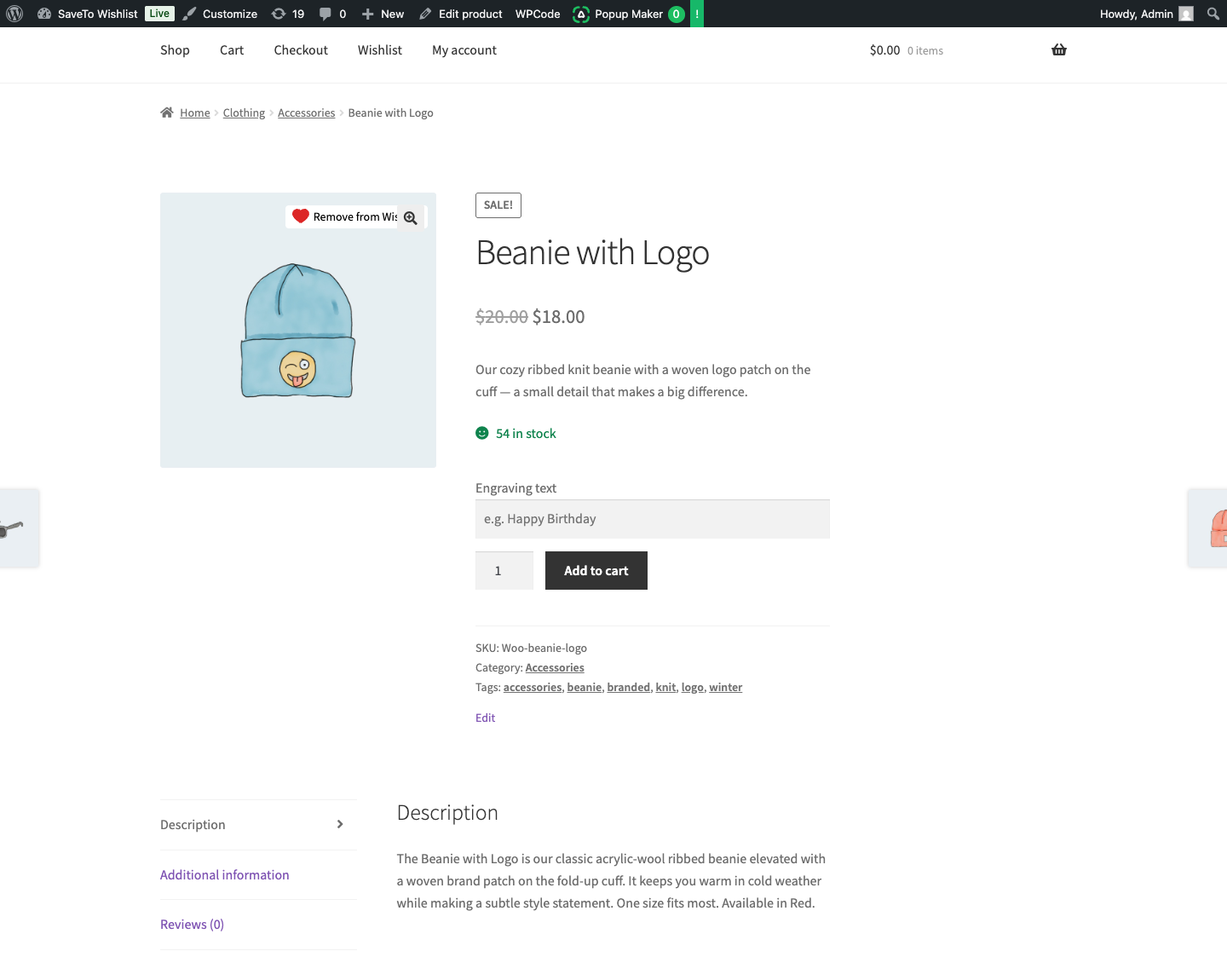
Create your option fields in Advanced Product Fields using its own field-group builder. Then attach the group to a published product. A single required text field is enough for a first test.
Next, open the product page as a shopper and confirm the custom field appears correctly. It’s important not to skip this step, as confirming the field’s visibility ensures the rest of the setup will run smoothly.
Save the product and check the wishlist action
Add that product to a wishlist as a logged-in customer, then open the wishlist. The Actions column should offer Select options instead of the usual add to cart control.
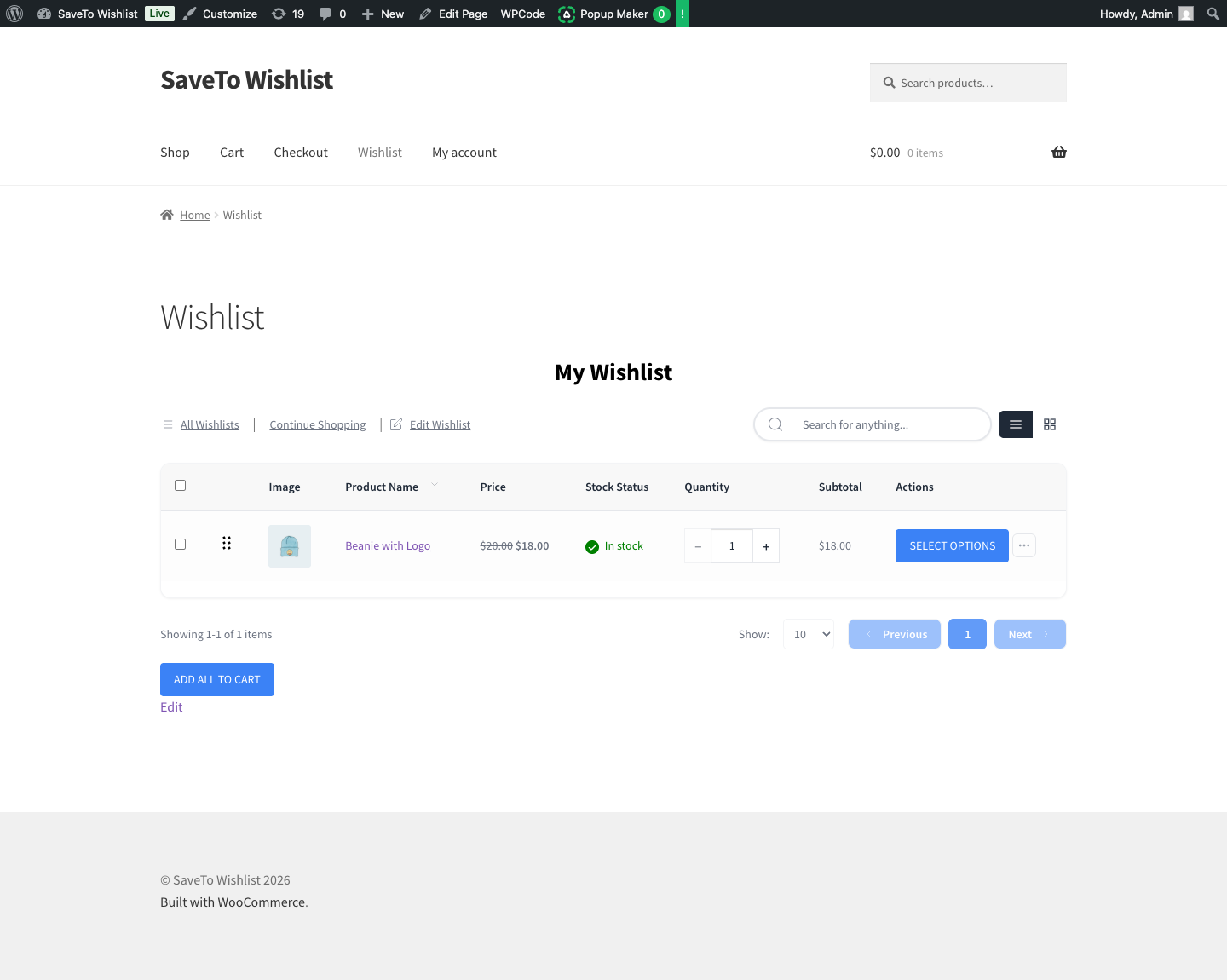
Three checks confirm it’s working:
- The button functions as a web link rather than a direct add-to-cart action.
- It directs the shopper to the product’s main page.
- Following it lands you on the product page with the fields ready.
Now run a comparison test. Add a second product without custom fields and confirm it behaves normally in the wishlist. This comparison clearly demonstrates the difference between a standard product and one that successfully requires custom options.
Test the guest path before you ship
Guest wishlists reach the same result by a different route. When guests use the wishlist, the system processes each saved item behind the scenes to verify its specific requirements. The system double-checks whether the item needs configuration, ensuring guests are also directed to the product page.
Still, log out and repeat the test. If guest wishlists are a real part of your traffic, that’s the version most shoppers will see.
✨️ Best practice tip: Always test the complete flow as a guest shopper as well, rather than just from a logged-in administrator account. Guests and visitors viewing shared lists experience different page layouts. Check one of each before you trust it with a made-to-order product.
Which Custom Product Types Gain The Most
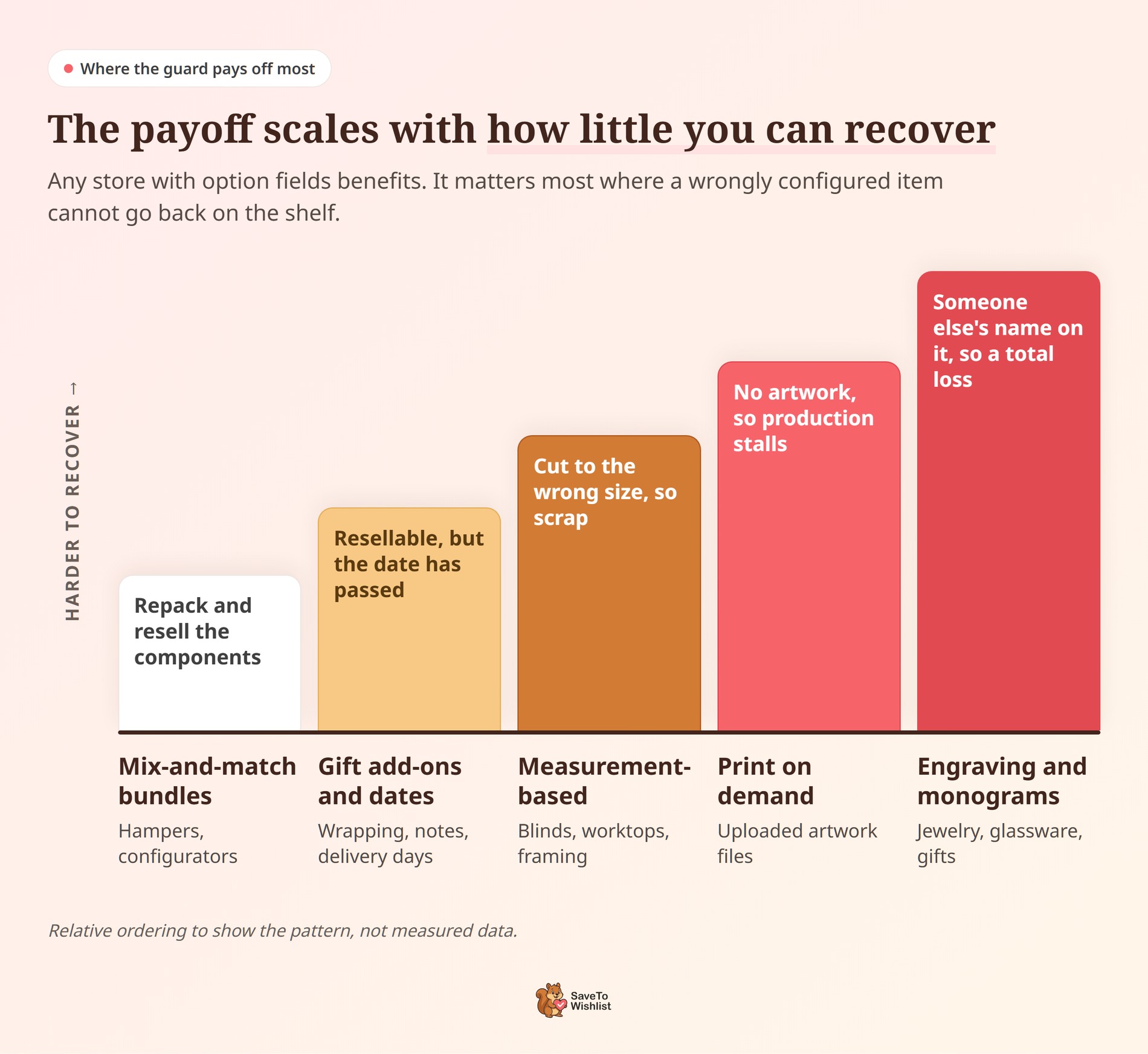
The value of this feature increases depending on how expensive an incorrect order is to fix. These are the catalogs where this guard earns its place.
- Engraving and monogramming: jewelry, glassware, and gifts, where a blank field means an unsellable finished item.
- Print on demand and file uploads: an order with no artwork can’t enter production, so it becomes a support ticket instead.
- Measurement-based products: blinds, worktops, and framing, where price and cut both depend on the shopper’s numbers.
- Gift add-ons and dated items: wrapping, gift notes, and delivery dates only make sense if they’re chosen at purchase.
- Mix-and-match bundles: hampers and configurators, where the components are the product.
There’s a second benefit that’s easy to miss. Sending the shopper back to the product page puts them in front of your merchandising again. That means the description, the gallery, and any upsells.
A saved item is already a strong buying signal. That’s why wishlists can significantly boost sales when you recognize them as a clear sign of customer interest. So a return trip to a well-built product page isn’t lost friction. It’s a second chance to sell the configuration properly.
Is saved-item follow-up new territory for your store? Our guide to cart abandonment recovery for WooCommerce covers the wider playbook.
Limits To Know Before You Rely On It
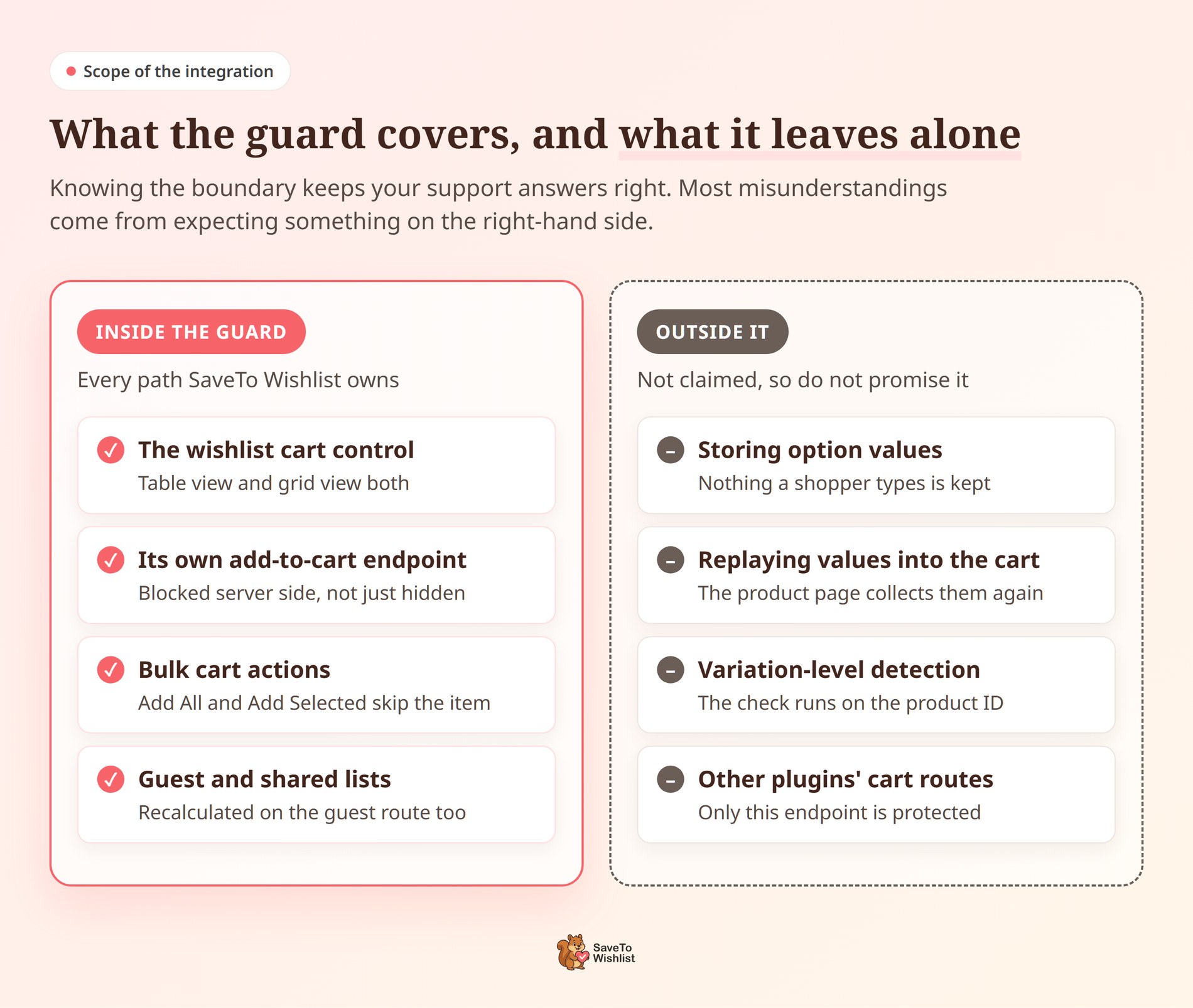
The integration does one job and leaves the rest alone. Knowing the boundaries keeps your support replies accurate.
- No option values are stored: nothing a shopper types is kept with the wishlist item or replayed later.
- Detection works for the overall product: the check looks at the main product, not the individual variations (like size or color).
- No switch of its own: there’s no setting to disable only this integration. Deactivating Advanced Product Fields is what stops it.
- This protection is specific to SaveTo Wishlist: it secures its own add-to-cart process, but it cannot control actions performed by other, unrelated plugins.
- Compatibility relies on specific code functions rather than the plugin version number: if the underlying custom field code is renamed or removed, the wishlist protection will stop working. Retest after major partner updates.
SaveTo Wishlist checks the product details fresh each time the page loads, without saving that data permanently in the background. So a change you make in Advanced Product Fields shows up on the next page load.
The same underlying rule powers SaveTo Wishlist’s other option-plugin integrations, including the one in our integrations release round-up. So if you run more than one options plugin, they share this behavior rather than fighting over it.
Frequently Asked Questions: Advanced Product Fields For WooCommerce
Does this integration cost anything?
No. It ships in the free SaveTo Wishlist Lite plugin, with no SaveTo Wishlist Pro license, add-on, or API key required. Paid SaveTo Wishlist plans add analytics, automations, and gift registries. None of that is needed here.
Do I need to configure anything in SaveTo Wishlist?
No. There’s no settings screen and no on or off switch for this integration. It becomes active automatically once Advanced Product Fields is installed and its underlying code is detected. Your only job is building the field groups.
Does the wishlist save my customers’ option choices?
No, and this is the most common misunderstanding. The plugin doesn’t store selections with a wishlist item, and it doesn’t restore them when the shopper returns. Shoppers fill the fields in on the product page. That’s why the wishlist sends them there instead of straight to the cart.
What happens when a shopper uses Add All to Cart?
The system leaves items needing configuration out of the batch, and the rest go through as normal. The skipped product remains in the wishlist, still offering Select options. Add Selected to Cart behaves the same way.
Does it work for variable products and variations?
The plugin checks against the product ID, so variation-specific field detection isn’t part of this integration. Variable products do have their own separate rule in SaveTo Wishlist. An item with no variation chosen already links to the product page rather than the cart.
Give Custom Orders One Clean Path
Custom products are worth selling because they’re hard to copy and command a better price. The trade-off is that every route into the cart must respect the same required fields. A wishlist is a secondary purchasing route that is easy to overlook but highly rewarding to optimize.
This integration closes that route without asking you to configure anything. Here’s how to put it to work:
- Confirm your stack first, since nothing here needs a paid license.
- Understand what the system covers before assisting customers, keeping in mind that it directs traffic and protects the cart rather than saving typed responses.
- Run the setup checks on a real product, including one without fields as your control.
- Test the guest view, not just your admin account.
- Note the boundaries so nobody on your team promises saved option values.
- Prioritize the product types where a wrong order can’t be resold.
If you sell configurable products, get SaveTo Wishlist Lite. It protects such products on every path to checkout, out of the box. Our knowledge base setup guide has the short version if you want it running today.



