
Want to follow up with customers based on what they wishlist? If you use Email Subscribers & Newsletters for your email marketing, SaveTo Wishlist can subscribe customers to a list automatically when they act on a wishlist, so you can trigger automations off that activity. This article shows you how to connect the two and map your lists.
Before you start
- Email Subscribers & Newsletters (Icegram) installed and active.
- At least one Email Subscribers list created, so you have something to map wishlist events to.
- This works for logged-in customers, since subscribing needs a contact with an email address.
How to connect Email Subscribers
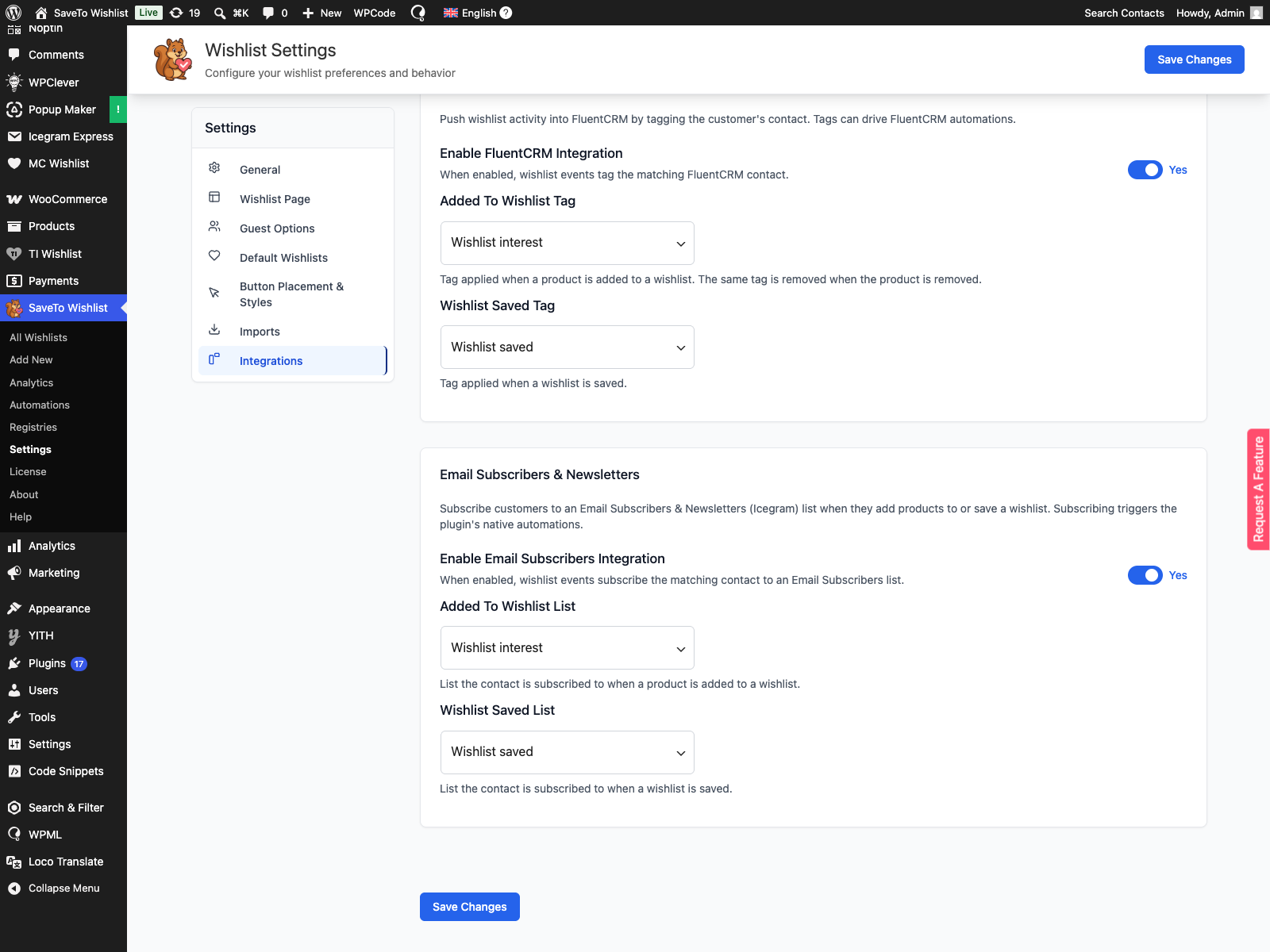
- Go to SaveTo Wishlist, then Settings, and open the Integrations tab.
- In the Email Subscribers & Newsletters section, turn on Enable Email Subscribers integration.
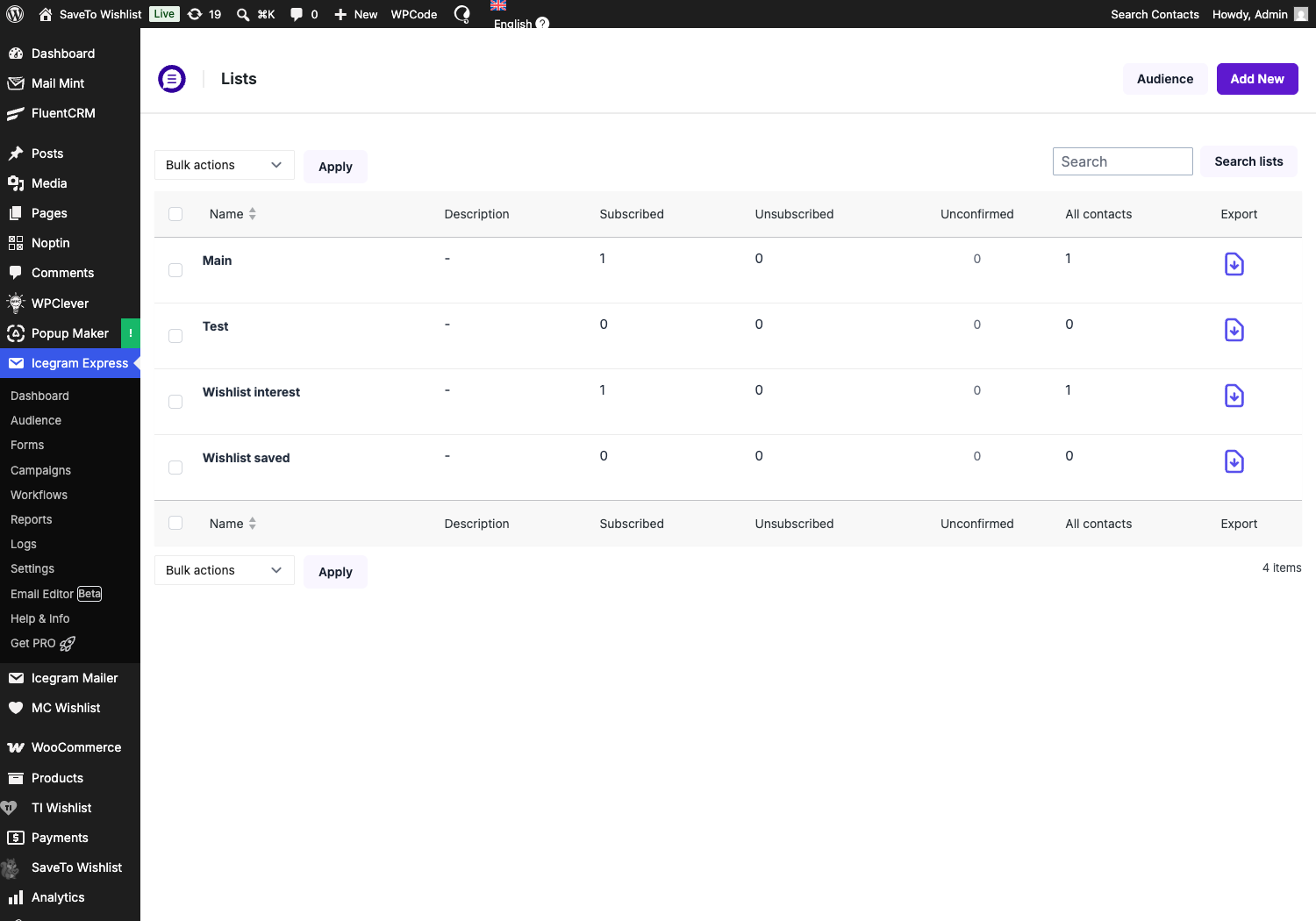
- Choose a list under Added to wishlist list. Customers are subscribed to this list when they add a product to a wishlist.
- Choose a list under Wishlist saved list. Customers are subscribed to this list when they save a wishlist.
- Save your settings.
How it works
When a logged-in customer adds a product to a wishlist, SaveTo finds their Email Subscribers contact by email, creating one if needed, and subscribes them to your Added to wishlist list. When they save a wishlist, they are subscribed to your Wishlist saved list.
Subscribing a contact triggers Email Subscribers’ own automations, so you can send a welcome email, start a sequence, or anything else the plugin supports.
Connect with a no-code automation (Pro)
If you’re on SaveTo Wishlist Pro, there’s a second way to connect: instead of the built-in bridge above, you can build a webhook automation that pushes wishlist events straight to Email Subscribers & Newsletters. This route also covers an event the bridge above doesn’t: removing a product from a wishlist.
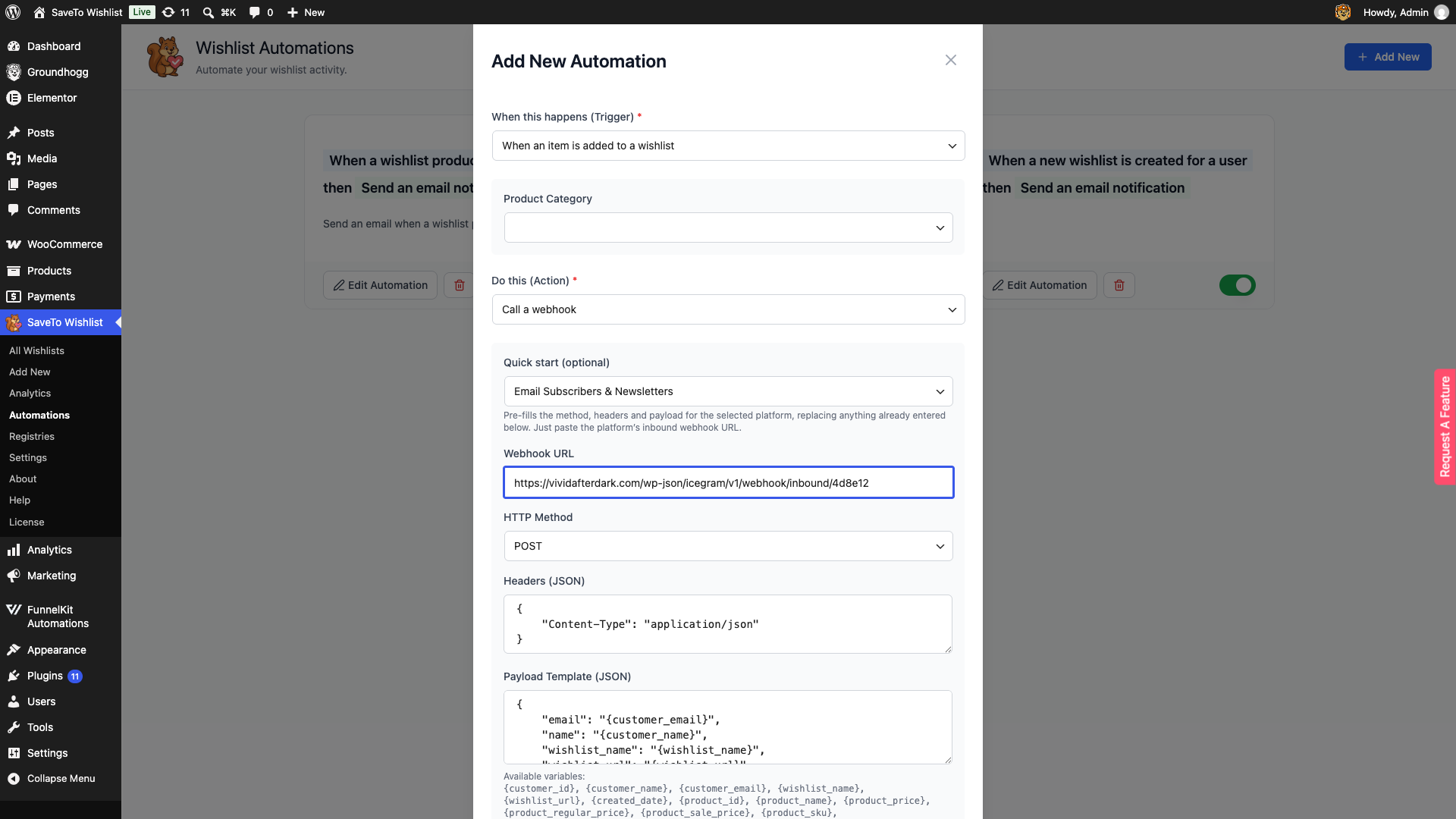
Go to SaveTo Wishlist Pro, then Automations, and start a new automation. How to Connect External Tools Using Wishlist Webhooks
- Under When this happens (Trigger), choose When a new wishlist is created for a user, When an item is added to a wishlist, or When an item is removed from a wishlist.
- Under Do this (Action), choose Call a webhook.
- Under Quick start (optional), choose Email Subscribers & Newsletters. This fills in the HTTP Method (POST), the Headers (JSON) field with a JSON content type, and the Payload Template (JSON) field with your customer’s email, name, wishlist name, and wishlist URL.
- Paste your Email Subscribers inbound webhook URL into Webhook URL. Check your Email Subscribers & Newsletters setup for where this URL is generated.
- Save the automation.
Troubleshooting
Customers aren’t getting subscribed after adding a product or saving a wishlist
Check that the Email Subscribers integration is turned on and that both lists are mapped under Settings, Integrations. Subscribing only works for logged-in customers — the plugin can’t attach a contact to a guest.
The webhook automation isn’t reaching Email Subscribers
Make sure the automation’s status is Active and that the webhook URL is your real Email Subscribers inbound URL rather than a placeholder. A wrong or expired URL fails outside WordPress, so nothing will show up in your SaveTo error logs — test with your own wishlist activity and check your Email Subscribers contact list for the new entry.
Frequently asked questions
Does this work for guests?
No. Subscribing needs a contact with an email address, so it applies to logged-in customers.
Why is the list dropdown empty?
You need at least one list in Email Subscribers first. Create one, then come back and map it.
Is there an event for removing a product?
No. The integration subscribes a customer when they add a product to a wishlist and when they save a wishlist. Removing a product does not change their subscription.
Need help?
If you have a question or run into any issues, we’re here to help.
- Premium users: Open a support ticket
- Free users: Visit our community forum

