

 Reviewed by
 Your customers tell you what they want every single day. They save a jacket, add a lamp to a wishlist, then leave without buying. That save is a deliberate act. Most stores never mail against it.
The gap is rarely about willingness. It’s about plumbing. Your wishlist data sits in WooCommerce, and your WooCommerce email marketing runs somewhere else. Nothing carries a signal between the two.
SaveTo Wishlist Lite closes that gap for Noptin users. Since version 1.1.1, wishlist activity from logged-in customers arrives in Noptin as subscriber tags. There’s no settings screen to configure and no API key to paste.
We’ve set this up on our own test store and read through what the bridge actually sends. Below is the setup, the three automations worth building first, and the limits that catch people out. Those limits matter, because the tags mean less than most people assume.
Jump to:
- Why Wishlist Saves Deserve A Place In Your WooCommerce Email Marketing
- What The SaveTo Wishlist Noptin Integration Actually Does
- What You Need Before You Start
- How To Set Up The Noptin Integration
- Three Noptin Automations Worth Building First
- Limits To Know Before You Rely On The Sync
- How To Rename The Tags With A Filter
- Frequently Asked Questions: Noptin Wishlist Automation
- Start With One Tag And One Automation
Why Wishlist Saves Deserve A Place In Your WooCommerce Email Marketing
A wishlist save is one of the clearest buying signals a store gets. It also costs the shopper real effort. Nobody saves a product by accident.
The signal you’re probably not mailing yet
Most stores already automate two behaviors. One is cart abandonment. The other is browse abandonment, which fires when someone views a product and leaves.
Cart abandonment gets the attention because the numbers are grim. Baymard Institute puts the average documented cart abandonment rate at 70.22% across 50 separate studies. That page was last updated in September 2025.
A wishlist save sits between those two signals in the buying journey. Still, it takes more deliberate effort than either one. Browsing is passive, and adding to a cart can be a way to check shipping. Saving a product is a shopper telling you, in their own words, that they want this later.
As a result, you’re looking at zero-party data. The customer volunteered it, so you don’t need a third-party cookie to act on it.
Automation is where the revenue sits
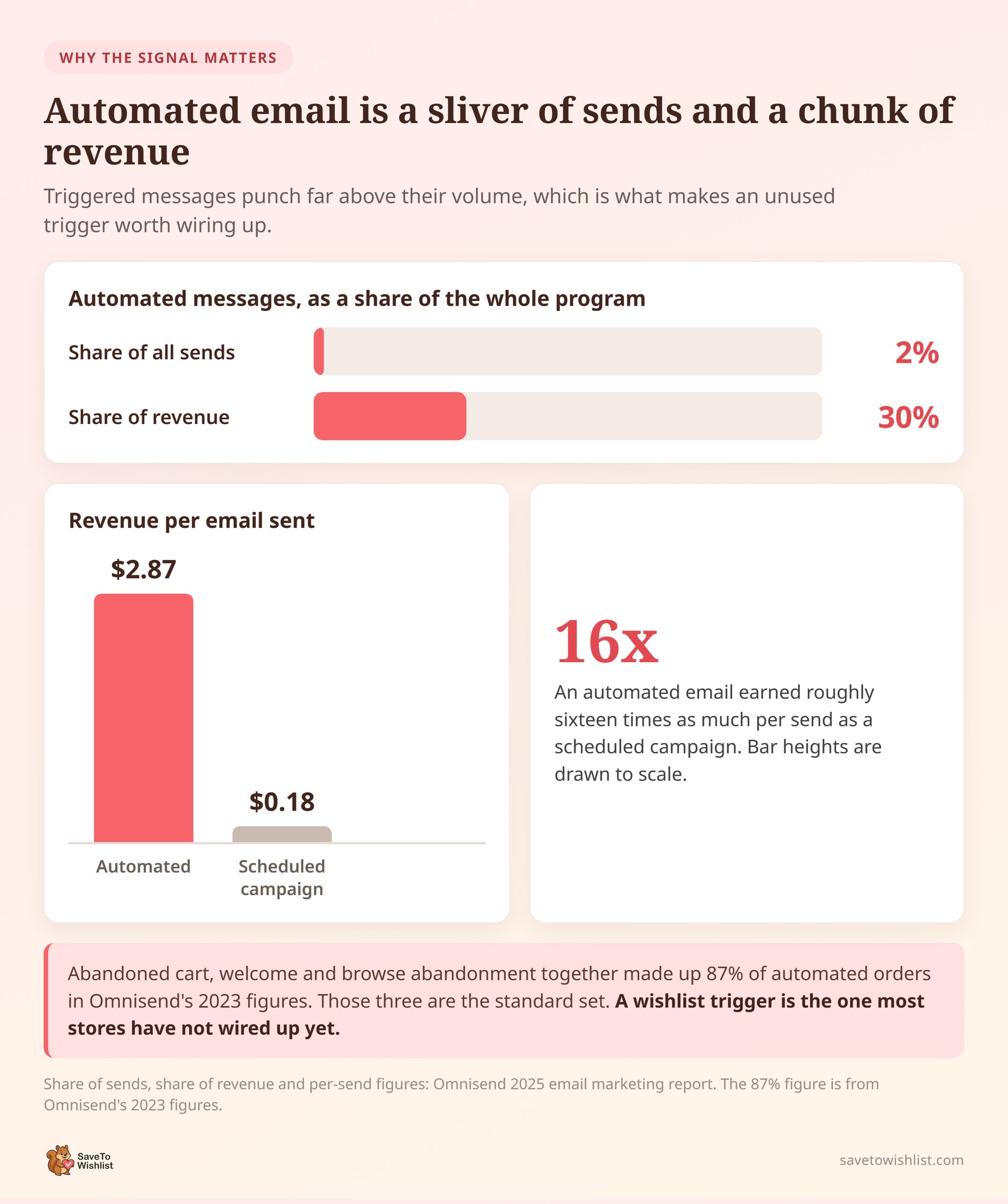
Triggered emails punch far above their volume. In Omnisend’s 2025 email marketing report, automated messages made up just 2% of sends but drove 30% of revenue.
The per-message gap is the part worth sitting with. That same 2025 report puts automated emails at $2.87 per send. Scheduled campaigns managed $0.18.
Omnisend’s 2023 figures add a useful detail. Abandoned cart, welcome, and browse abandonment emails together accounted for 87% of all automated orders. Those three are the standard set. Meanwhile, a wishlist trigger is the one most stores haven’t wired up yet.
What The SaveTo Wishlist Noptin Integration Actually Does
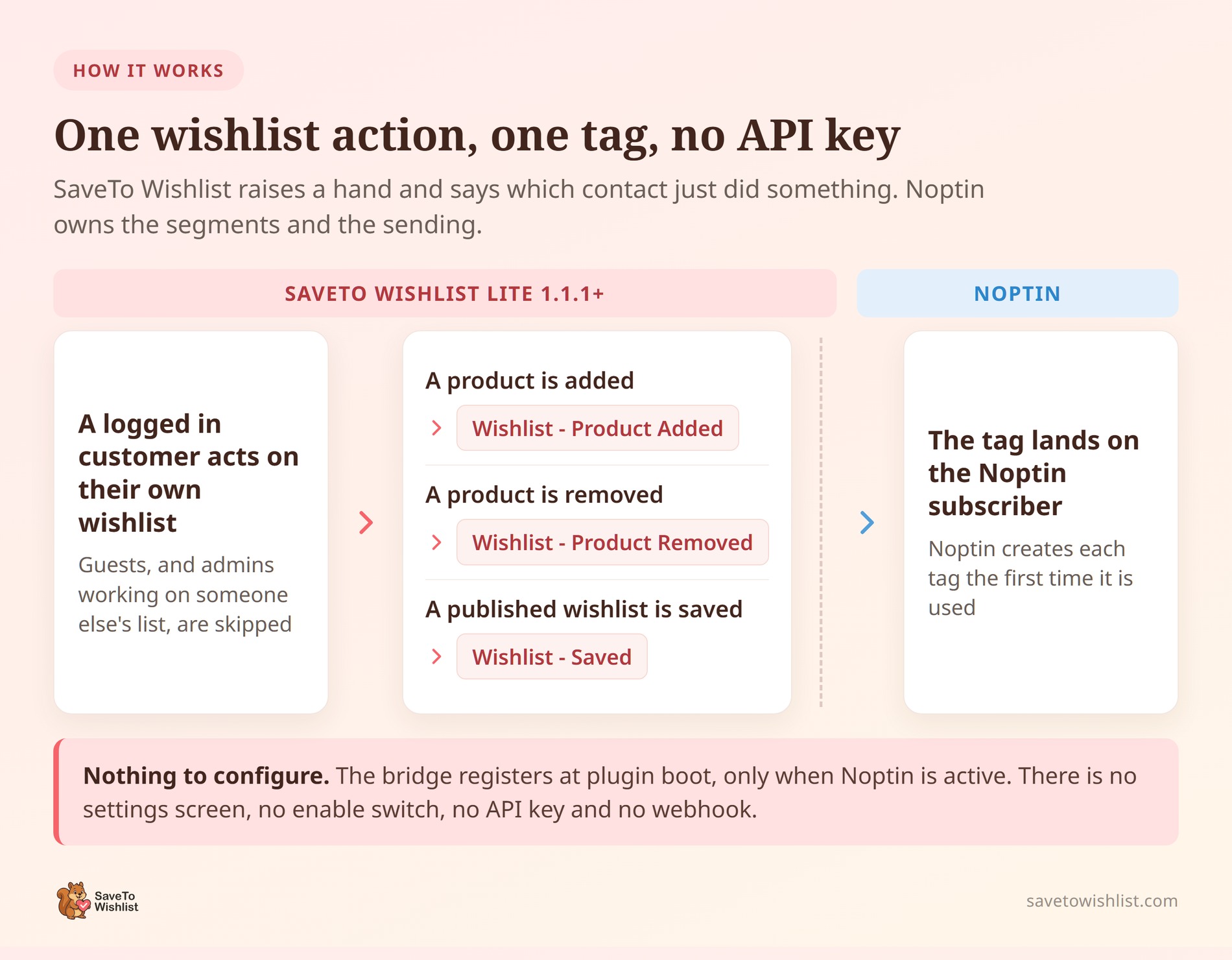
It applies a tag to a Noptin subscriber when a logged-in customer acts on their own wishlist. That is the whole job.
SaveTo Wishlist doesn’t send emails, build segments, or run automations. Noptin owns all of that. In practice, SaveTo Wishlist only raises a hand and says which contact just did something.
The bridge registers at plugin boot, and only when Noptin’s own subscriber function is available. If Noptin isn’t active, wishlist operations carry on exactly as before. SaveTo Wishlist doesn’t show a notice about it.
The three events and their default tags
Three kinds of wishlist activity are watched, and each maps to one tag name:
| Wishlist event | Default Noptin tag |
|---|---|
| A product is added to a wishlist | Wishlist – Product Added |
| A product is removed from a wishlist | Wishlist – Product Removed |
| A published wishlist is saved | Wishlist – Saved |
Noptin creates these tags the first time each event happens, so there’s nothing to set up in advance. The saved event covers both creating a published wishlist and updating one. A save holding twelve items produces one event, not twelve.
What the integration never sends
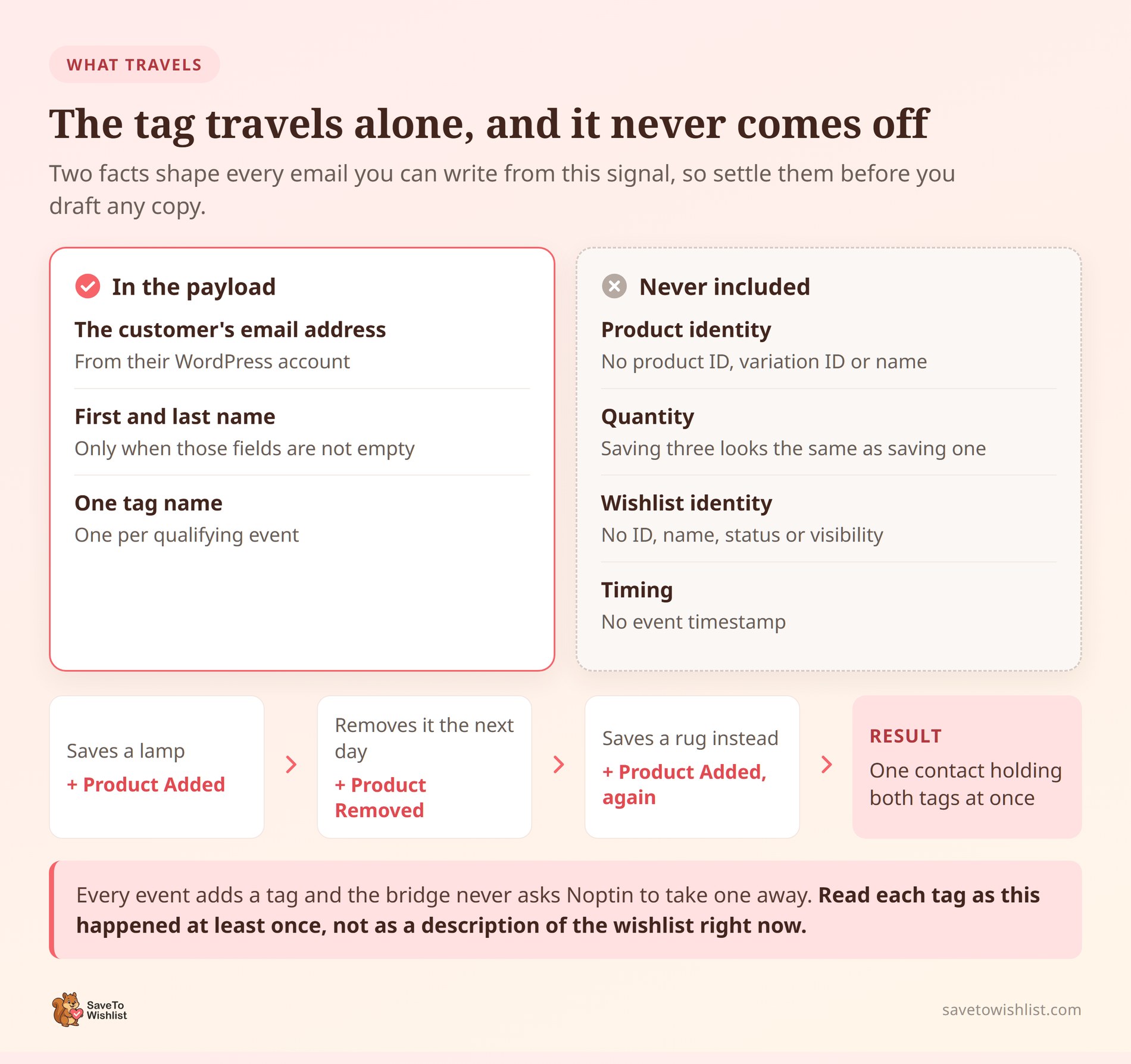
The tag travels alone. This shapes every email you can write, so read it before you draft copy. None of the following reaches Noptin through this bridge:
- Product identity: no product ID, no variation ID, no product name.
- Quantity: saving three of something looks the same as saving one.
- Wishlist identity: no wishlist ID, name, status, or visibility setting.
- Timing: no event timestamp is included in the payload.
Alongside the tag, SaveTo Wishlist sends the customer’s WordPress account email. It adds their first and last name when those fields aren’t empty. That’s it.
So you can write “you’ve been saving things, here’s a reason to come back.” You can’t write “that navy coat you saved is back in stock.” That sentence needs product data this bridge never carries. For product-level follow-ups, look at wishlist price drop alerts instead.
Tags add up, and nothing takes them off
Every qualifying event submits an add-tag instruction. However, the integration never asks Noptin to take a tag away.
As a result, one customer can end up carrying all three wishlist tags at once. Picture someone who saved a lamp, changed their mind, then saved a rug. They’ll hold Wishlist – Product Added and Wishlist – Product Removed together.
Treat each tag as “this happened at least once,” not as a description of the wishlist right now. That single reframe prevents most of the segment-building mistakes people make here.
🔍️ What we’ve seen: It’s easy to build a “lost interest” segment from the Wishlist – Product Removed tag. Then it fills up with active shoppers, which looks like a bug. Removing one item and saving two others is normal wishlist behavior. To reach people who genuinely cooled off, pair the tag with a date filter in Noptin.
What You Need Before You Start
The list is short, and there’s nothing to buy.
- SaveTo Wishlist Lite 1.1.1 or later, active. The Noptin integration shipped in 1.1.1 as part of the free plugin.
- Noptin, installed and active on the same WordPress site. The two plugins talk through Noptin’s on-site functions, so there’s no API key or webhook.
- WooCommerce, active. SaveTo Wishlist won’t boot without it, so the bridge won’t register either.
- Customer accounts on your store. A Noptin subscriber needs an email address, and only logged-in customers have one attached.
The plugin metadata asks for WordPress 5.8 or later and PHP 7.4 or later. No minimum Noptin version is declared or checked.
If wishlists are new to your store, start with our complete guide to WooCommerce wishlists. It covers the groundwork this article assumes.
How To Set Up The Noptin Integration
There is no setup screen. SaveTo Wishlist has no Noptin settings page, no enable switch, no tag-name field, and no connection test. Detection happens at boot, so activating both plugins is the configuration.
What you actually do is confirm the sync works, then build something in Noptin that reacts to it.
- Activate both plugins. Install Noptin and SaveTo Wishlist Lite, then activate them alongside WooCommerce.
- Log in as a real customer. Use a test customer account with a valid email, not your admin account acting on someone else’s list.
- Save a product to a wishlist. Use the Save to Wishlist button on a product or shop page. That’s the standard path that fires the event.
- Open Noptin and check the subscriber. Go to Noptin, then Subscribers, and look at the Tags column for that email address.
- Build an automation on the tag. Create a Noptin automation that starts when a wishlist tag is applied, then add your follow-up steps.
Step four is the one that tells you everything is wired correctly. If the tag is there, the bridge is working.
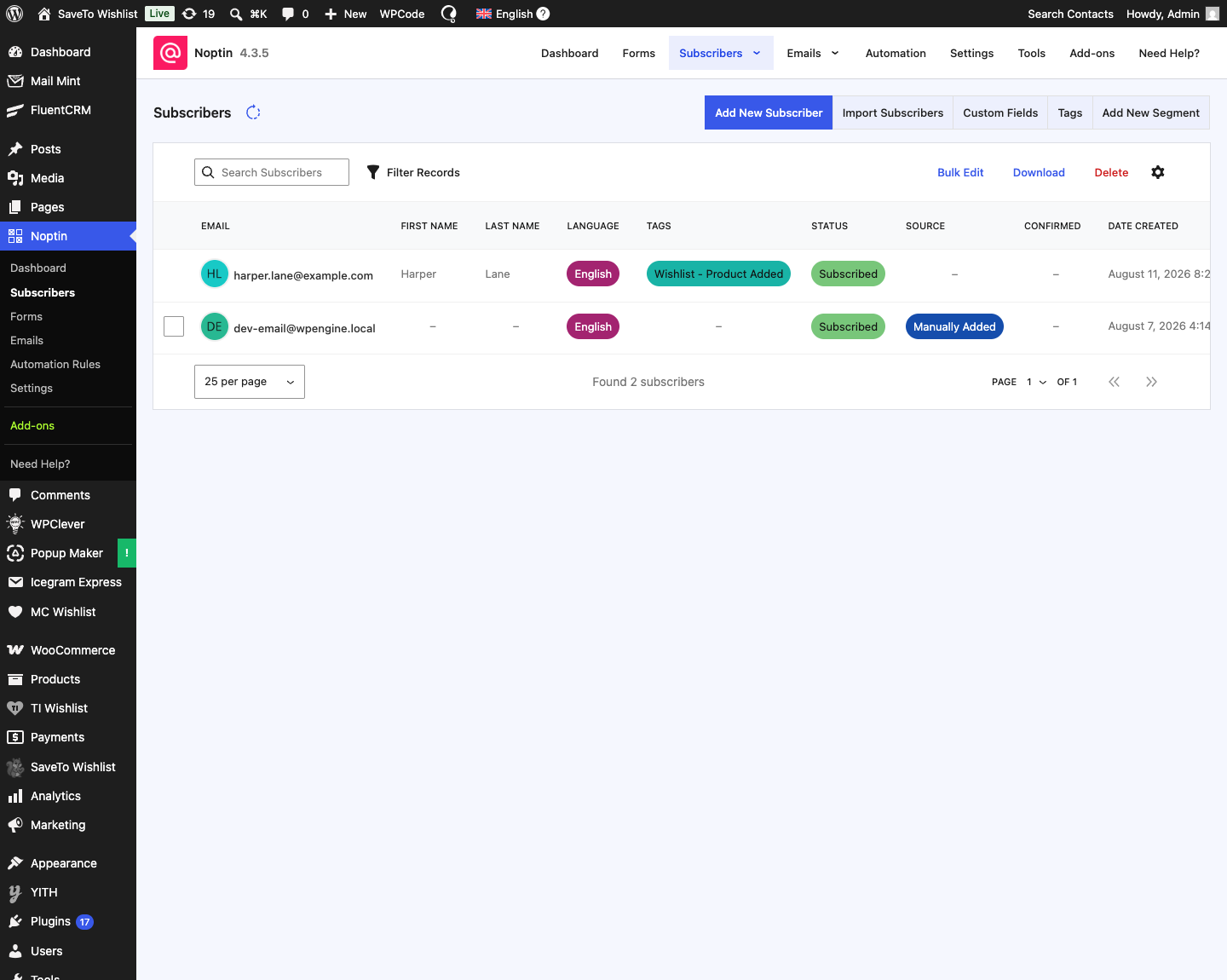
A contact who wasn’t already in Noptin gets created at this point. New contacts are submitted with a source of SaveTo Wishlist.
Their status follows your Noptin double opt-in setting. With it on, the contact arrives as pending. With it off, the contact arrives as subscribed.
🔍️ What we’ve seen: The most common “it’s broken” report isn’t a bug at all. Someone opens a customer’s wishlist from the WordPress admin, adds a product, and sees no tag. The bridge requires the acting user and the wishlist owner to be the same person, with no administrator exception. Log in as the test customer and it works.
Our knowledge base article for this integration covers the same steps in short form. Use it as a checklist if you prefer.
Three Noptin Automations Worth Building First
All three of these work with a tag alone, so no product data is required. Each one earns its place a different way.
Welcome the saver without selling yet
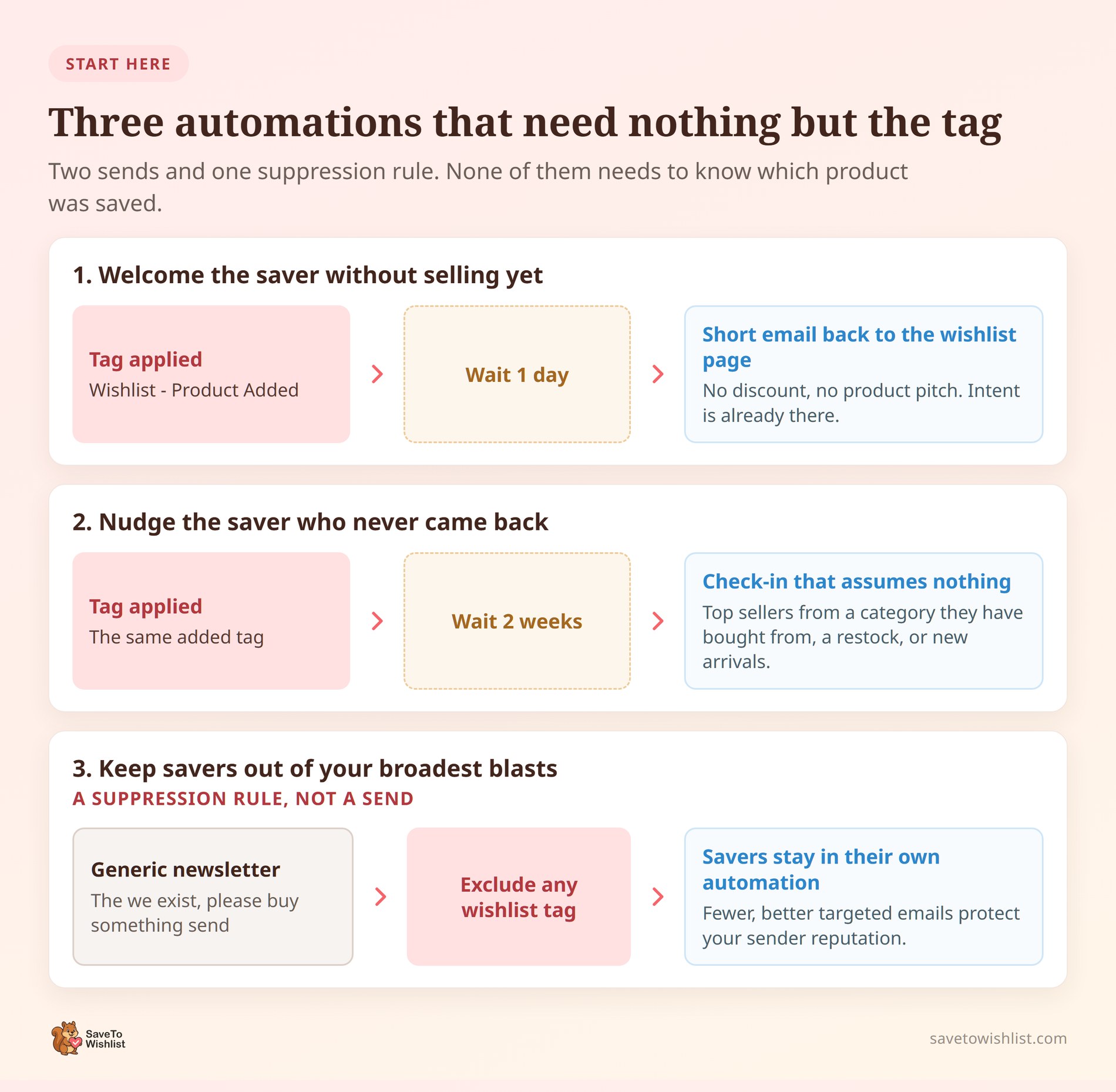
Trigger on Wishlist – Product Added, wait a day, then send a short email pointing back to the wishlist page. No discount. No product pitch.
The job of this email is to remind people the list exists and can be returned to. Discounting a shopper who already showed intent gives away margin you didn’t need to spend. That said, coupons in follow-up emails do have their place later in the sequence.
Nudge the saver who never came back
Trigger on the same tag, then wait a longer stretch such as two weeks. Send a check-in that assumes nothing about what they saved.
Because the tag carries no product, this email has to earn attention some other way. Top sellers from a category they’ve bought from before are a good fit. So is a genuine restock or new-arrivals roundup. The same thinking applies to browse abandonment campaigns, where the signal is similarly thin.
Keep savers out of your broadest blasts
This one is a suppression rule rather than a send, and I think it’s the most underrated of the three. Anyone holding a wishlist tag has already raised their hand.
Exclude them from your generic “we exist, please buy something” newsletter. Let the wishlist automation carry the relationship instead. Fewer, better-targeted emails protect your sender reputation and your unsubscribe rate. That’s the same principle behind proper WooCommerce customer segmentation.
Start with whichever of the three fits your current sending schedule. Our guide to WooCommerce email automation with wishlist triggers goes deeper on sequencing and timing.
Limits To Know Before You Rely On The Sync
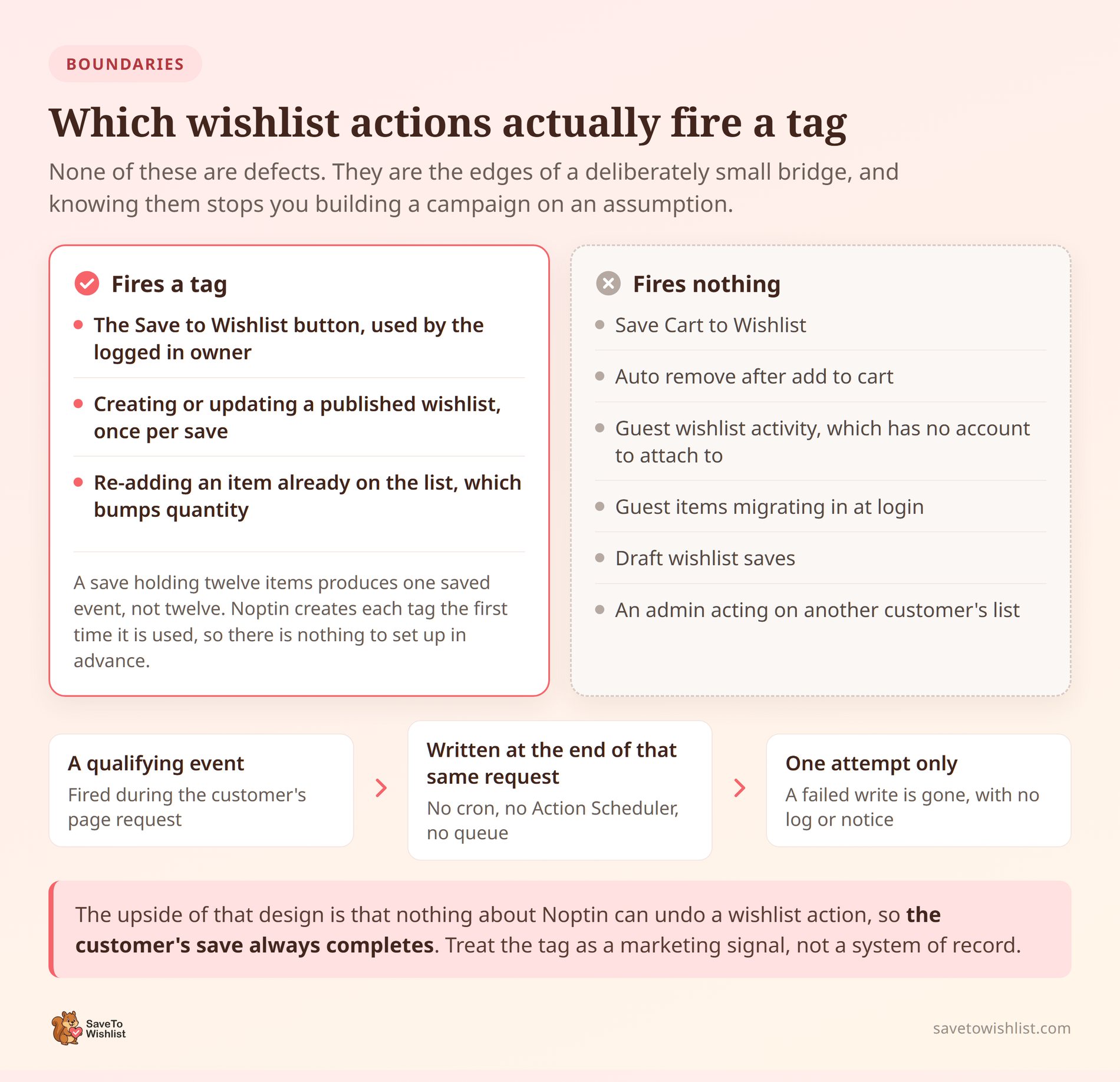
None of these are defects. They’re boundaries, and knowing them stops you from building a campaign on an assumption the plugin never made.
Wishlist actions that never fire a tag
Several routes into and out of a wishlist bypass the bridge entirely:
- Save Cart to Wishlist: moving a whole cart onto a list submits no product-added tag.
- Auto-remove after add to cart: the plugin clears the item quietly, and no product-removed tag is submitted.
- Guest wishlists: logged-out activity lives in browser storage and has no account to attach to.
- Guest items migrating in at login: the items arrive silently. A newly created published wishlist can still fire the saved tag.
- Draft wishlists: only a published wishlist produces the saved event.
Guest saves are the biggest gap for most stores. Before you assume your numbers are complete, read up on how WooCommerce guest wishlists behave.
There’s an edge case running the other way too. Adding a product that’s already on the list, which just bumps its quantity, still counts as an add. The tag re-applies.
There is no retry if the write fails
The Noptin write is deferred to the end of the same page request rather than queued for later. WP-Cron and Action Scheduler aren’t involved. No persistent job exists to pick up a failure.
One upside comes with that design. Nothing about Noptin can undo a wishlist action, so the customer’s save completes regardless. In exchange, a failed tag write is gone, with no Noptin log or admin notice to tell you.
So treat this as a marketing signal, not a system of record. Your order data remains the source of truth.
Consent is still your call
Wishlist activity from a customer who isn’t yet a Noptin contact can create that contact. The integration respects two things automatically. It reads your double opt-in setting when choosing the new contact’s status. It also leaves anyone marked unsubscribed completely alone, tag included.
Beyond that, the call is yours. Local rules decide whether wishlist activity is a fair basis for marketing email. That’s a question for your own legal advice. Meanwhile, check that your store’s privacy notice covers it.
How To Rename The Tags With A Filter
A developer can change the default tag names with one filter. The map is keyed by event name, so you rename each event’s tag independently.
add_filter(
    'stwlite_noptin_event_tags',
    function ( $tags ) {
        $tags['added']   = 'STW Product Added';
        $tags['removed'] = 'STW Product Removed';
        $tags['saved']   = 'STW Wishlist Saved';

        return $tags;
    }
);
Removing a key from that array switches off a single event. Unsetting the removed key stops that tag being submitted. The underlying wishlist behavior stays untouched.
A second filter, stwlite_noptin_subscriber_status, controls the status used for a brand new contact. It only runs for contacts Noptin doesn’t already know. So it can’t change an existing subscriber’s status.
Building something more involved? Our WooCommerce wishlist REST API guide exposes far more than the tag bridge does.
Frequently Asked Questions: Noptin Wishlist Automation
Do I need SaveTo Wishlist Pro for the Noptin integration?
No. The Noptin integration ships in the free SaveTo Wishlist Lite plugin from version 1.1.1 onward. There’s no add-on to buy, no license key, and no API credential. The two plugins talk through Noptin’s own functions on the same site.
Does Noptin find out which product was saved?
No. The integration submits a tag, an email address, and the customer’s first and last name when set. Product IDs, variation IDs, quantities, wishlist names, and timestamps are all left out. Write your automations so they work without knowing the item.
Will this re-subscribe someone who opted out?
No. If Noptin already holds that contact with an unsubscribed status, SaveTo Wishlist stops there. It doesn’t add the tag, and it doesn’t try to change the status back. Their wishlist keeps working normally, but it stays out of your email tool.
Why did nothing sync when I tested it as an admin?
The acting user has to be the wishlist owner. An administrator or invited editor working on another customer’s list is skipped. There’s no permission-based exception to that rule. Acting on your own admin account’s wishlist does sync, so that’s the quickest way to test.
Can I switch the integration off?
Not from a settings screen, because there isn’t one. Deactivating Noptin stops the bridge registering at all. Short of that, a developer can empty the tag map with the stwlite_noptin_event_tags filter. Every event is then left without a tag to submit.
Start With One Tag And One Automation
The temptation with a new data source is to plan the whole program before sending anything. Resist it. One tag and one automation will teach you more about your savers than a month of planning.
Wishlist saves are the rare signal your customers hand over on purpose. The bridge to Noptin is deliberately small. Once you accept that the tag is a signal rather than a record, that smallness stops being a limitation.
Here’s what to do next:
- Confirm both plugins are active and watch a test save land as a tag in Noptin.
- Read what the tag actually carries before you write a single line of email copy.
- Check the actions that never fire a tag so your reporting doesn’t overcount or undercount.
- Build one automation, starting with the day-one welcome rather than a discount.
- Rename the tags with the event filter if your Noptin account follows a naming convention.
Sharper WooCommerce email marketing starts with capturing the intent your store already generates. Get SaveTo Wishlist Lite free, activate it next to Noptin, and watch the first wishlist tag land on a subscriber.



