
 Reviewed by
Use up and down arrow keys to resize the meta box pane.
Picture a store that switched on its CRM integration months ago. Tags land on contact records every day. Yet nobody has built an email around them, so the data sits there unused.
That’s the gap in most advice on wishlist email automation. Setup docs show you how to connect the plugin and map a tag, then stop. What to send, and when, is left to you.
SaveTo Wishlist Lite connects to six WordPress email and CRM tools. This guide focuses on three: Noptin, Email Subscribers & Newsletters (Icegram) and FluentCRM. Connecting one takes minutes. In my experience, deciding what goes out is where most stores stall.
Below, I’ll cover which wishlist events reach your CRM and three campaigns worth building first. Then we’ll look at how to tell whether they’re working.
Jump to:
Why Wishlist Events Beat Generic Sends

A wishlist save names the exact product a shopper wants and stamps it with a date. A newsletter has to guess at both. That’s why the follow-up to a save is so much easier to write.
You’ll notice the difference in list size first. Your wishlist audience will be a small slice of your subscriber list, and that’s the point. Everyone on it has already pointed at something specific.
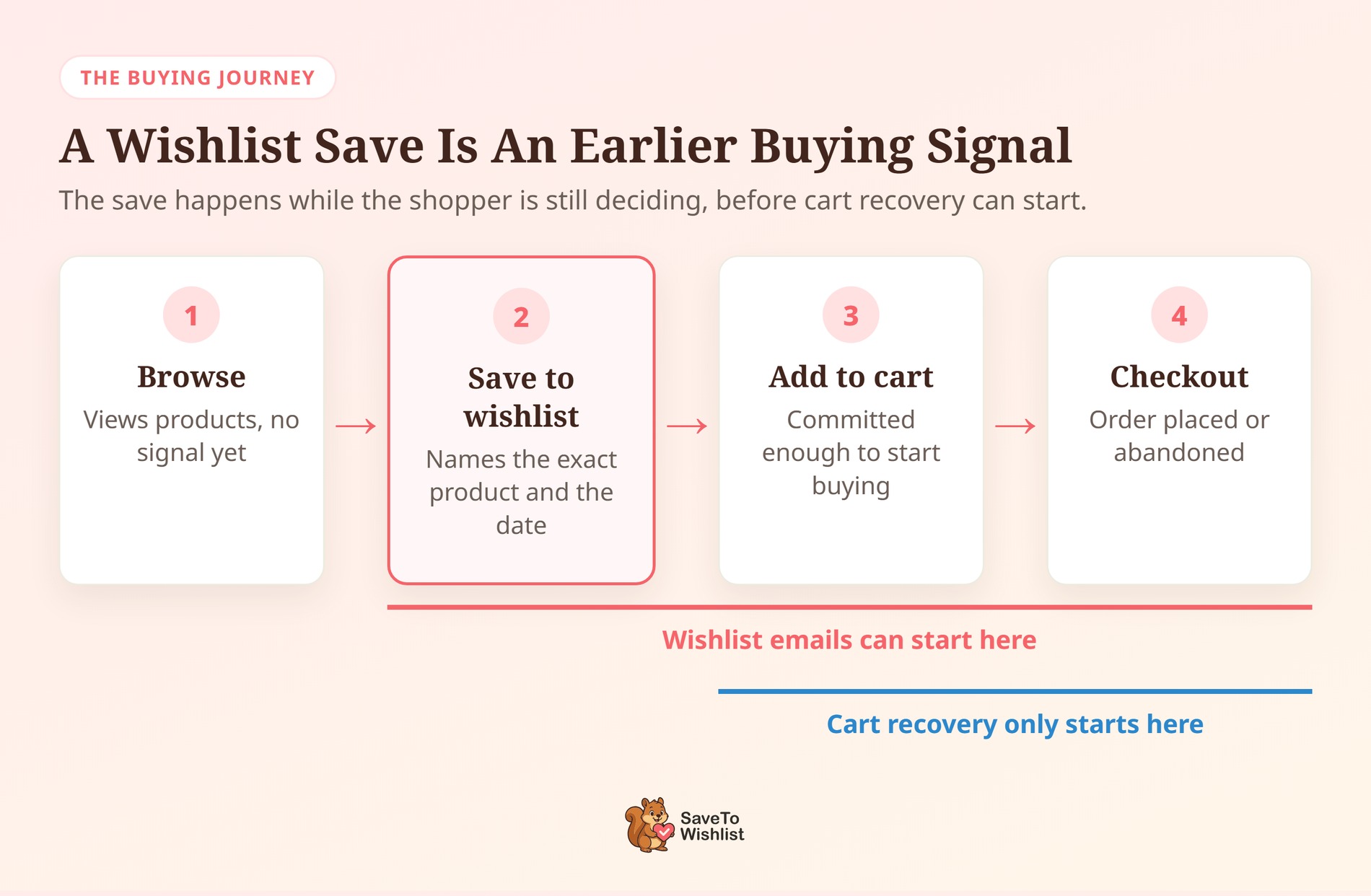
The signal also arrives earlier than the one most stores act on. Cart recovery only starts once a shopper adds an item to the cart. By contrast, a save happens while they’re still deciding. That’s the same window covered in our guide to WooCommerce browse abandonment.
What Actually Syncs To Your CRM
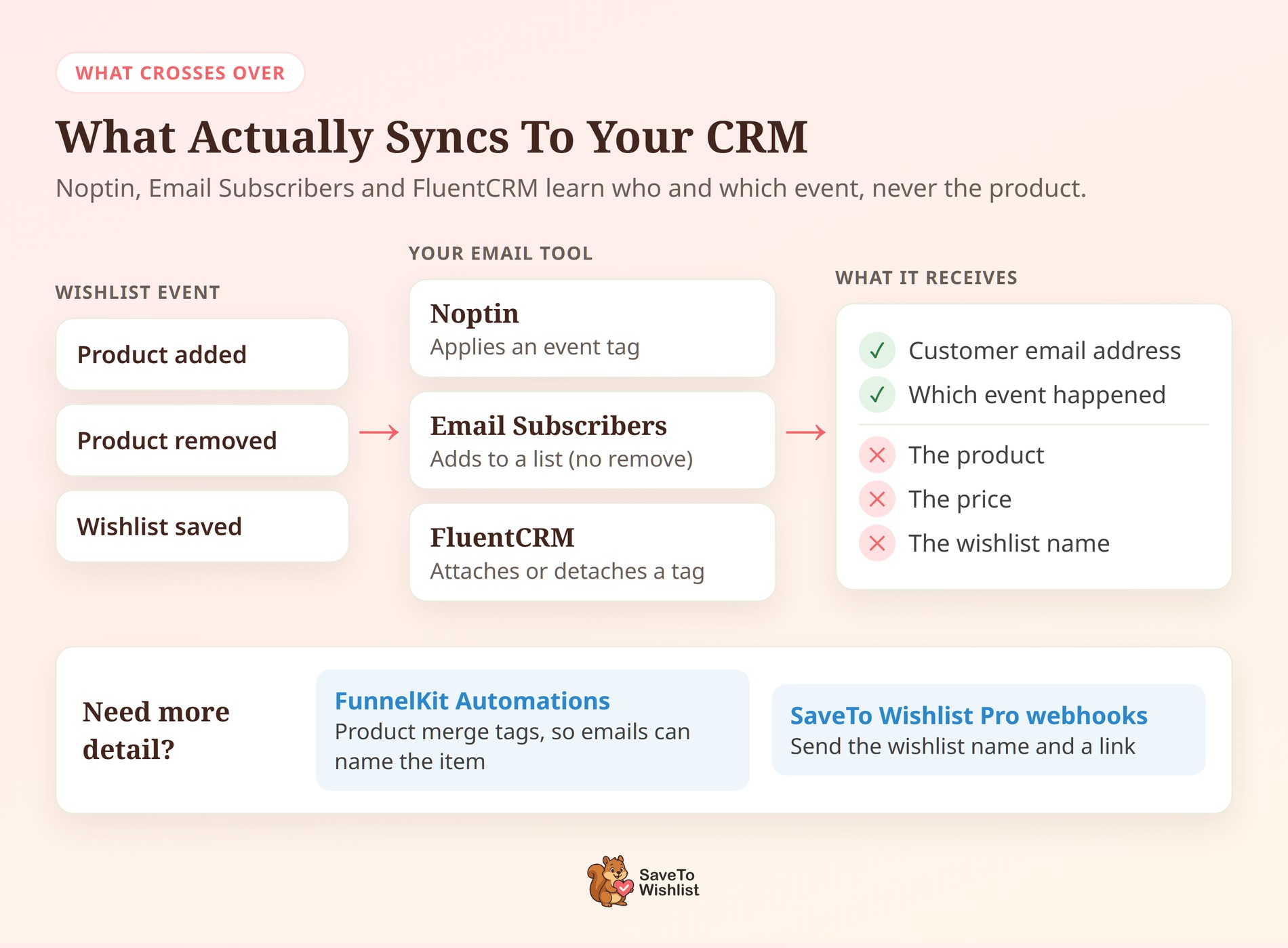
Identity and event, not product detail. Each integration passes the customer’s email address plus a tag or list that records which wishlist event happened. None of the three passes the product itself.
| Tool | What it does on a wishlist event | Events covered |
|---|---|---|
| Noptin | Adds or updates the subscriber, then applies a matching tag it creates automatically the first time each event fires | Product added, product removed, wishlist saved |
| Email Subscribers & Newsletters (Icegram) | Subscribes the customer to the list you mapped, which starts Icegram’s own automations | Product added, wishlist saved (no remove event) |
| FluentCRM | Attaches your mapped tag on add, detaches it on removal, and attaches a second tag when a wishlist is saved | Product added, product removed, wishlist saved |
That table has one consequence worth sitting with. Your CRM learns who is interested and roughly when, but not the item, the price or the wishlist name. As a result, a campaign built on these tags alone can’t name the product.
Two other routes carry more detail. The FunnelKit Automations integration in Lite registers wishlist events as native triggers. Those triggers carry product merge tags, so its emails can name the item.
Meanwhile, SaveTo Wishlist Pro adds webhook recipes for these CRMs. They send the wishlist name and a link to the wishlist.
Why Guest Saves Don’t Sync
All three tools also act only for logged-in customers. Tagging or subscribing a contact needs a real email address. So they skip any save they can’t match to an account.
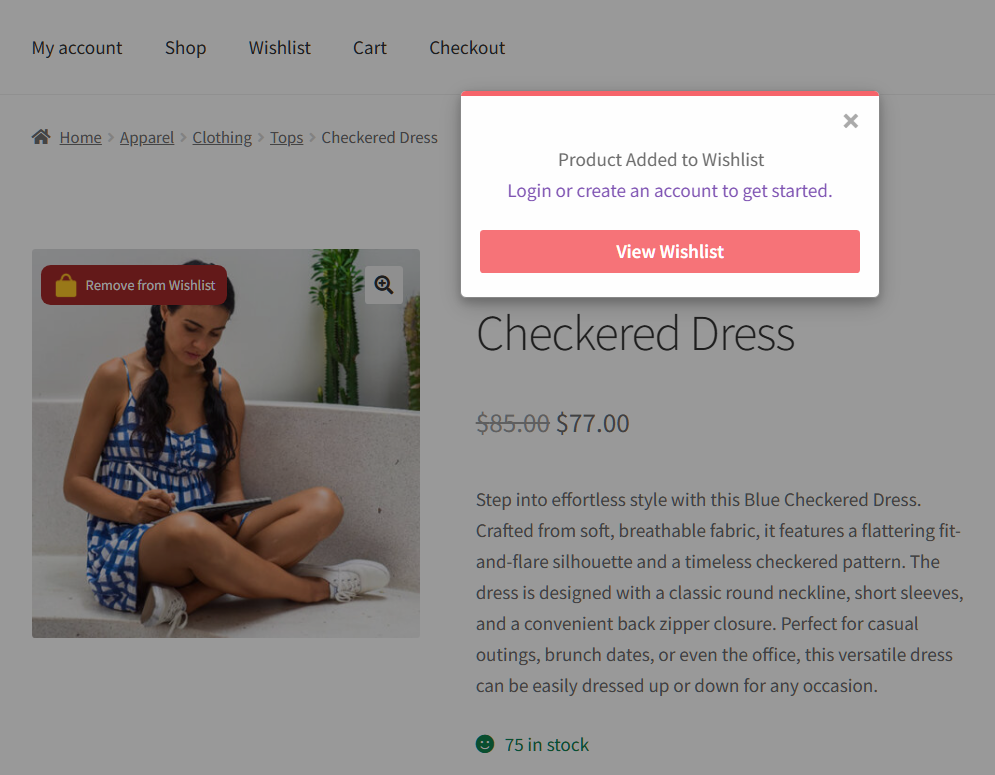
Guests can still save items, though. After a guest save, the popup reads “Login or create an account to get started.” It doesn’t ask for an email address. Their saved items merge into the account once they register or log in. Until then, that shopper isn’t an emailable contact.
Connecting Noptin, Icegram Or FluentCRM
Choose the one you already run. All three integrations work inside WordPress, so there’s no API key to paste and no external webhook. Both plugins only need to be active on the same site.
Starting from scratch? Then the useful question isn’t which tool has the longest feature list. It’s how much setup stands between you and the first send:
- Noptin: a lightweight WordPress newsletter plugin, and the fastest to start because it needs no configuration. It creates “Wishlist – Product Added”, “Wishlist – Product Removed” and “Wishlist – Saved” tags as each event first fires. Developers can rename them with the
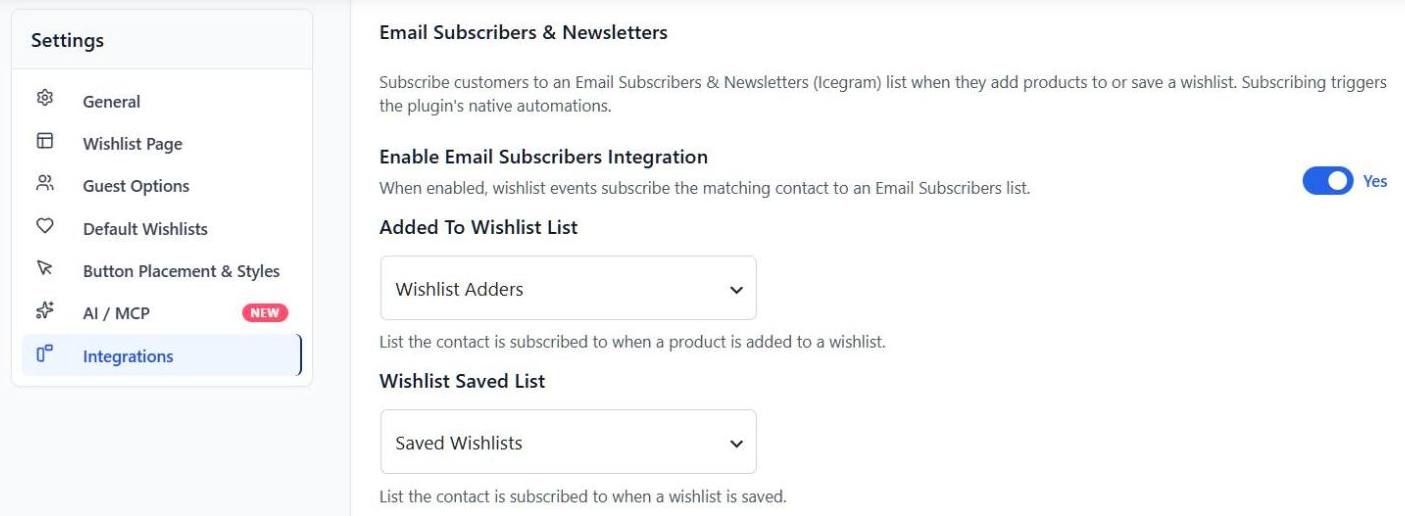
stwlite_noptin_event_tagsfilter. Steps sit in the Noptin setup guide, and our Noptin wishlist email walkthrough covers campaigns. - Email Subscribers & Newsletters (Icegram): list-based rather than tag-based. Build at least one list first, because the mapping dropdowns only offer lists that already exist. Map them under Settings, on the Integrations tab, as shown in the Email Subscribers setup guide. Our Email Subscribers wishlist guide goes further.
- FluentCRM: a full marketing automation plugin, and the deepest option for branching sequences. Create your tags first, then map them. See the FluentCRM integration overview, the FluentCRM setup guide and our walkthrough of FluentCRM wishlist segments.
Run Groundhogg or Mail Mint instead? Both connect the same way, applying tags when a shopper adds, removes or saves. Our guides to Groundhogg wishlist flows and Mail Mint wishlist emails cover the setup.
Those guides carry the click-by-click detail. What no setup doc covers is the next decision.
How To Check The Sync Is Working
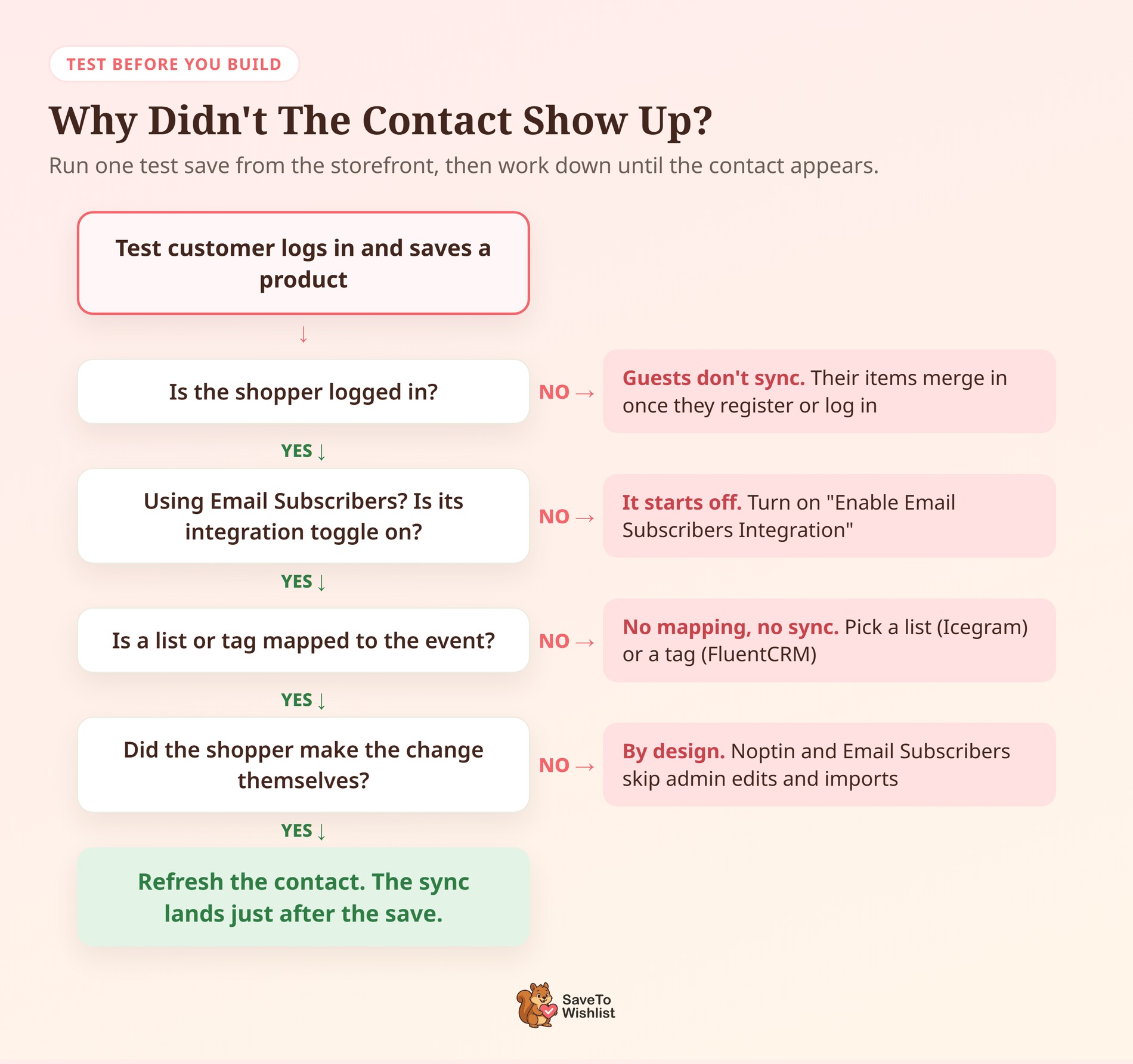
Run one test save before you build any email. Log in as a test customer, save a product, then open your email tool and find that contact.
- Noptin: the contact appears on the Subscribers screen with the “Wishlist – Product Added” tag and SaveTo Wishlist as the source.
- Email Subscribers & Newsletters: the contact joins whichever list you picked under “Added To Wishlist List”.
- FluentCRM: the contact gets the tag you mapped as “Added To Wishlist Tag”. Remove the item from the wishlist and the tag comes off again.
The sync runs after the page finishes responding to the shopper, so the save itself never slows down. As a result, the contact can appear a moment later, so refresh before deciding nothing happened.
Still no contact? These are the usual causes, and each one fails silently:
- Email Subscribers is switched off: the “Enable Email Subscribers Integration” toggle starts off. Nothing syncs until you turn it on.
- No list or tag is mapped: Email Subscribers skips any event without a mapped list. FluentCRM does the same without a mapped tag.
- Someone else made the change: Noptin and Email Subscribers ignore edits made on a customer’s behalf. That includes wishlist imports and the admin wishlists screen.
🔍️ Worth knowing: that last rule is deliberate. Importing existing wishlists won’t opt your whole customer list into emails. It also means you can’t test the sync by editing a customer’s wishlist from wp-admin, so test from the storefront.
Three Campaigns To Build First
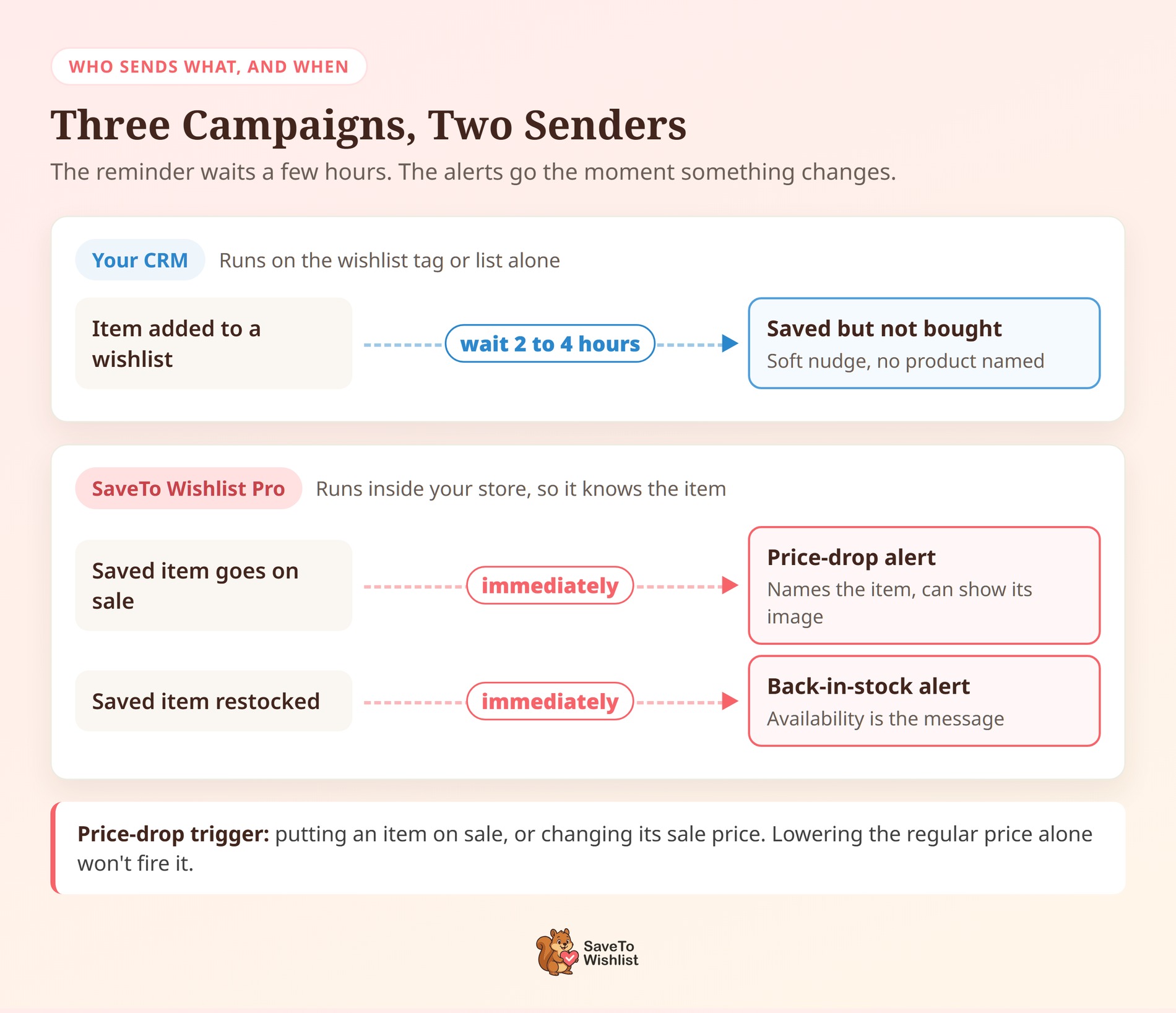
Build these three, in this order. The first runs from your CRM. The other two run from wishlist automations for WooCommerce in SaveTo Wishlist Pro. They need product data the CRM tags never carry.
| Campaign | Trigger | Send after | Sent from | Goal |
|---|---|---|---|---|
| Saved but not bought | Item added to a wishlist | 2 to 4 hours | Your CRM | Bring the shopper back |
| Price drop / on sale | A saved item goes on sale | Immediately | SaveTo Wishlist Pro | Convert on the change |
| Back in stock | A saved item is restocked | Immediately | SaveTo Wishlist Pro | Convert on availability |
1. Saved but not bought
Your CRM can run this one on its own, because the email doesn’t need to name the product. The tag lands, a timer starts, and a short message asks whether the shopper wants help deciding.
I’d wait two to four hours. Much sooner can feel like you’re watching, and after a day the moment has usually passed. Keep the call to action soft, closer to “take another look” than “buy now”. Our guide to email automation with wishlist triggers goes deeper on the copy.
2. Price drop or on sale
Send this immediately, and from SaveTo Wishlist Pro rather than your CRM. The price-drop alerts in Pro fire when a saved item goes on sale. They also fire when you change the sale price on an item that’s already on sale.
Be precise about that, because it shapes what you can promise customers. Lowering the regular price on its own doesn’t trigger the alert, so use the sale price field for price drops. Because the automation runs inside your store, it can name the item. Pro also includes a {product_image} token, which now renders as a product image in wishlist emails.
3. Back in stock
Same pattern, different objection. A saved item returning to stock removes the one thing standing between the shopper and a purchase.
Go immediately here, since availability is the whole message. A restock email arriving a day late competes with whatever the shopper bought instead. Pro also catches restocks from a stock-only quick edit or a cancelled order. You don’t need a full product save to trigger it.
🔍️ What we’ve seen: Store owners build all three campaigns inside the CRM, then wonder why the emails feel generic. Two of the three need product detail the integration never sends. Keep the reminder in your CRM, and let SaveTo Wishlist Pro send the alerts that name the item.

How To Tell If They Are Working
Compare each campaign against your regular newsletter on revenue per send, not open rate. A wishlist campaign reaching 150 people should usually beat a blast reaching 10,000 on that measure. If it doesn’t, look at the timing or the copy before you drop the idea.
Klaviyo’s own benchmarks show why that measure matters. Across its customers, automated flows earn nearly 18 times the revenue per recipient of campaigns. Plus, they bring in about 41% of email revenue from just 5.3% of sends.
Four numbers are worth watching in the first month:
- Tagged contacts: how fast the wishlist tag or list grows. Flat growth often means the save button is hard to find.
- Revenue per send: the fairest way to compare a small triggered send against a large scheduled one.
- Save-to-purchase rate: the share of saved items that eventually get bought, and the number these campaigns exist to move.
- Unsubscribes and complaints: a rising unsubscribe rate means you’re sending too soon, too often, or both.
SaveTo Wishlist Pro reports on the store side too. Its wishlist analytics cover products, category and brand, customer behaviour, engagement and time-based trends. Read them alongside your CRM reports to tell a demand problem apart from a messaging problem.
Email isn’t the only way to act on a save, either. On-site triggers such as popups respond to the same events in the moment, and they follow a separate playbook.
Frequently Asked Questions: Wishlist Email Automation
Which CRM should I use?
Use the one you already run, since all three receive the same core wishlist events. Starting fresh, Noptin is quickest because the sync needs no configuration. Pick FluentCRM for branching automations, or Email Subscribers & Newsletters if you prefer lists to tags.
How soon should the first email send?
Send the reminder two to four hours after the save. Send the price-drop and back-in-stock alerts immediately. The reminder needs a gap so it lands as helpful rather than watchful. Alerts have no reason to wait, because their value is the news itself.
Can my CRM email name the saved product?
Not through the Noptin, Icegram or FluentCRM tags, which carry only the contact and the event. FunnelKit Automations is the exception, since its wishlist triggers include product merge tags. Otherwise, let SaveTo Wishlist Pro send the product-level alerts.
Do I need SaveTo Wishlist Pro for this?
Not for the integrations. SaveTo Wishlist Lite is free and includes all of these connections. SaveTo Wishlist Pro is the paid extension that adds the automations engine, price-drop and back-in-stock alerts, webhooks and wishlist analytics.
Growth costs $49.50 for the first year and renews annually at $99. Plus is $99.50, renewing at $199, and Business is $199.50, renewing at $399. The Gift Registry Addon is included with Plus and Business only.
Will guest wishlists trigger these emails?
Not while the shopper is a guest. The integrations need a logged-in customer with an email address on file. Once a guest registers or logs in, their saved items merge into the account. That makes the account step right after a save worth keeping short.

Put Your Wishlist Email Automation To Work
Wishlist data sits unused in many stores for one reason. Connecting the tools and knowing what to send are different jobs, and setup docs only cover the first.
Here’s the short version of wishlist email automation across your CRM:
- Why Wishlist Events Beat Generic Sends: treat the save as the earliest reliable buying signal you collect
- What Actually Syncs To Your CRM: expect identity and event, not product detail
- Connecting Noptin, Icegram Or FluentCRM: pick the tool you already run, then check the sync with one test save
- Three Campaigns To Build First: reminder from the CRM, alerts from SaveTo Wishlist Pro
- How To Tell If They Are Working: judge them on revenue per send, not open rate
Install SaveTo Wishlist Lite free, connect your email tool, and build the saved-but-not-bought reminder this week. When you want alerts that name the product, SaveTo Wishlist Pro adds them. Compare the plans on the SaveTo Wishlist pricing page.


 SaveTo Wishlist